
Agent Studio
An agent is a Claude Code agent: a name, a short description and a set of instructions that tell it how to work. Each one is a file in ~/.claude/agents. Agent Studio is where you make and change those files without editing text by hand. You can also ask Zumi Bot to do it for you.
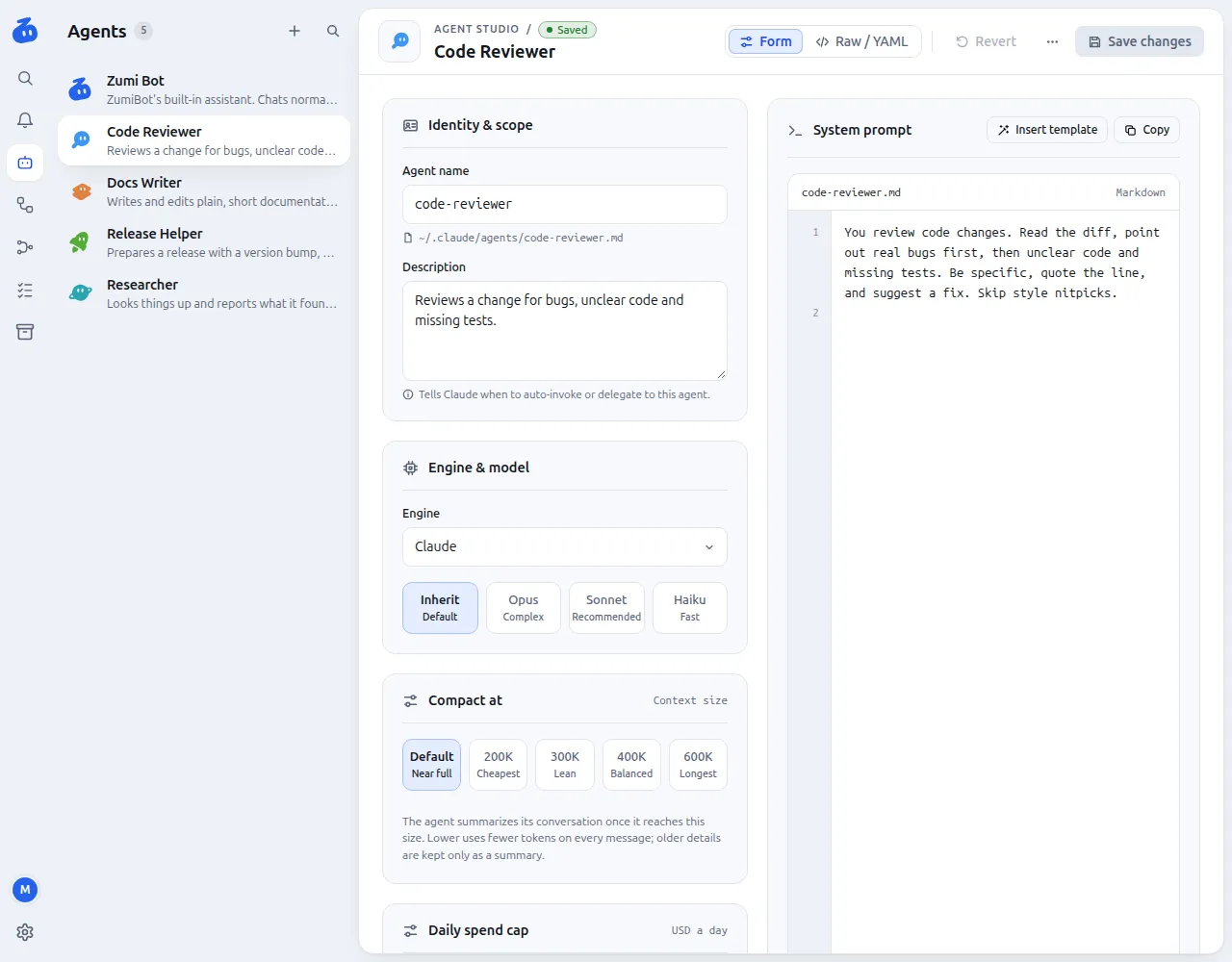
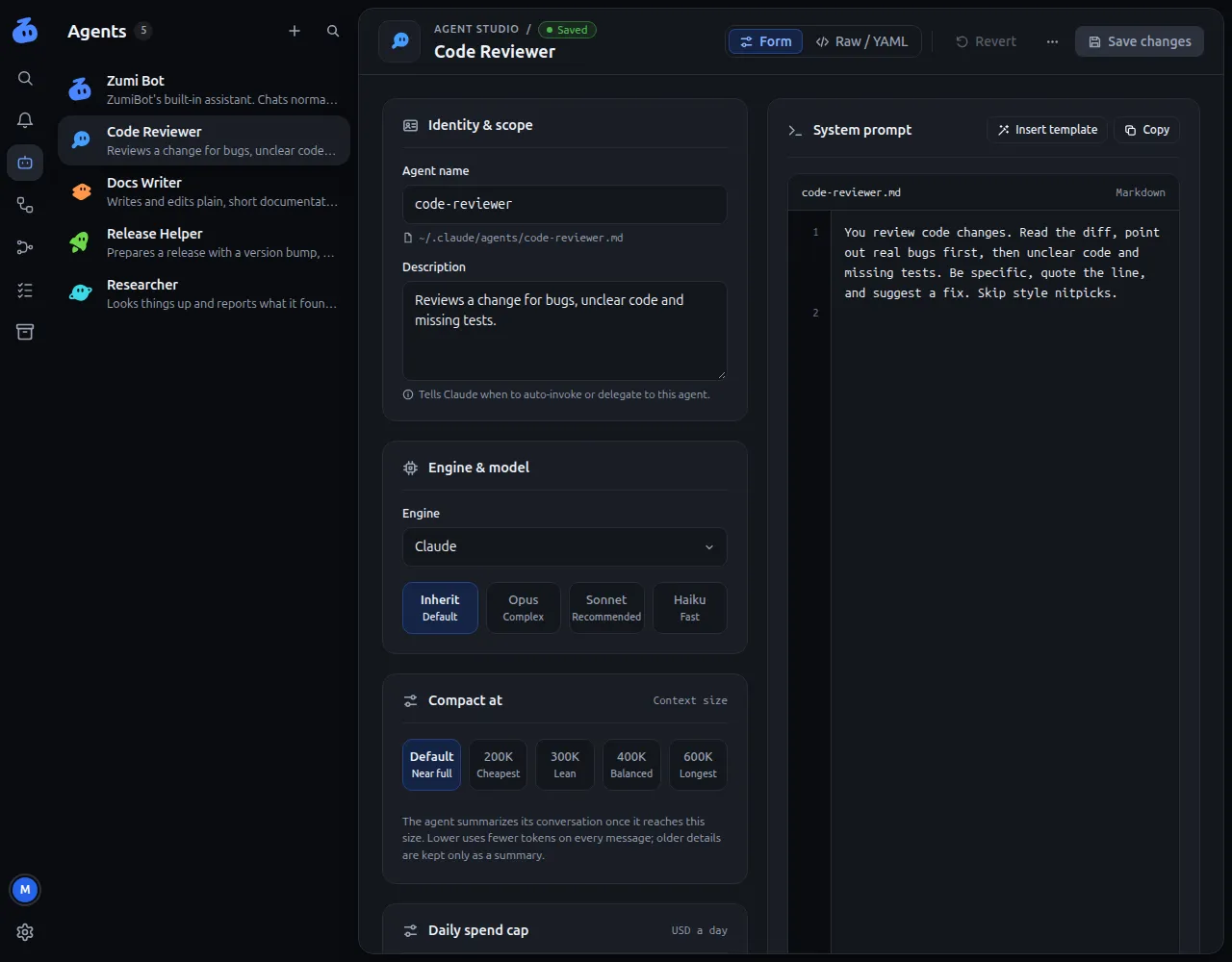
Open Agent Studio
Section titled “Open Agent Studio”- New agent: choose the + at the top of the sidebar, then New agent. You can also press Ctrl+K (Cmd+K on a Mac) and choose “New agent”.
- An agent you have: point at its row in the sidebar, choose the options button (the three dots), then Edit agent.
Zumi Bot has no Edit agent entry. It is built in and you cannot change or delete it.
Make a new agent
Section titled “Make a new agent”-
Name it. Type the Agent name. Use lowercase letters, digits and single hyphens, such as
code-reviewer. Under the box you see the file the agent is saved to, for example~/.claude/agents/code-reviewer.md. -
Describe it. The Description says what the agent is for. It is required, and Claude uses it to decide when to hand a job to this agent. It also shows under the agent’s name in the sidebar.
-
Write its instructions. The System prompt card on the right is the agent’s file text. Say who the agent is, how it should work and what its answers should look like. Insert template adds a Role, Context, Instructions and Output outline where your cursor is. Copy copies the text.
-
Save. Choose Save changes. Until you do, the pill at the top reads “Unsaved changes” or “New”. After you save it reads “Saved”, and the agent shows in the sidebar.
If a name or description is missing or wrong, Save stays refused and the page says what to fix, for example “Name must be lowercase letters, digits and single hyphens” or “Description is required”.
The cards
Section titled “The cards”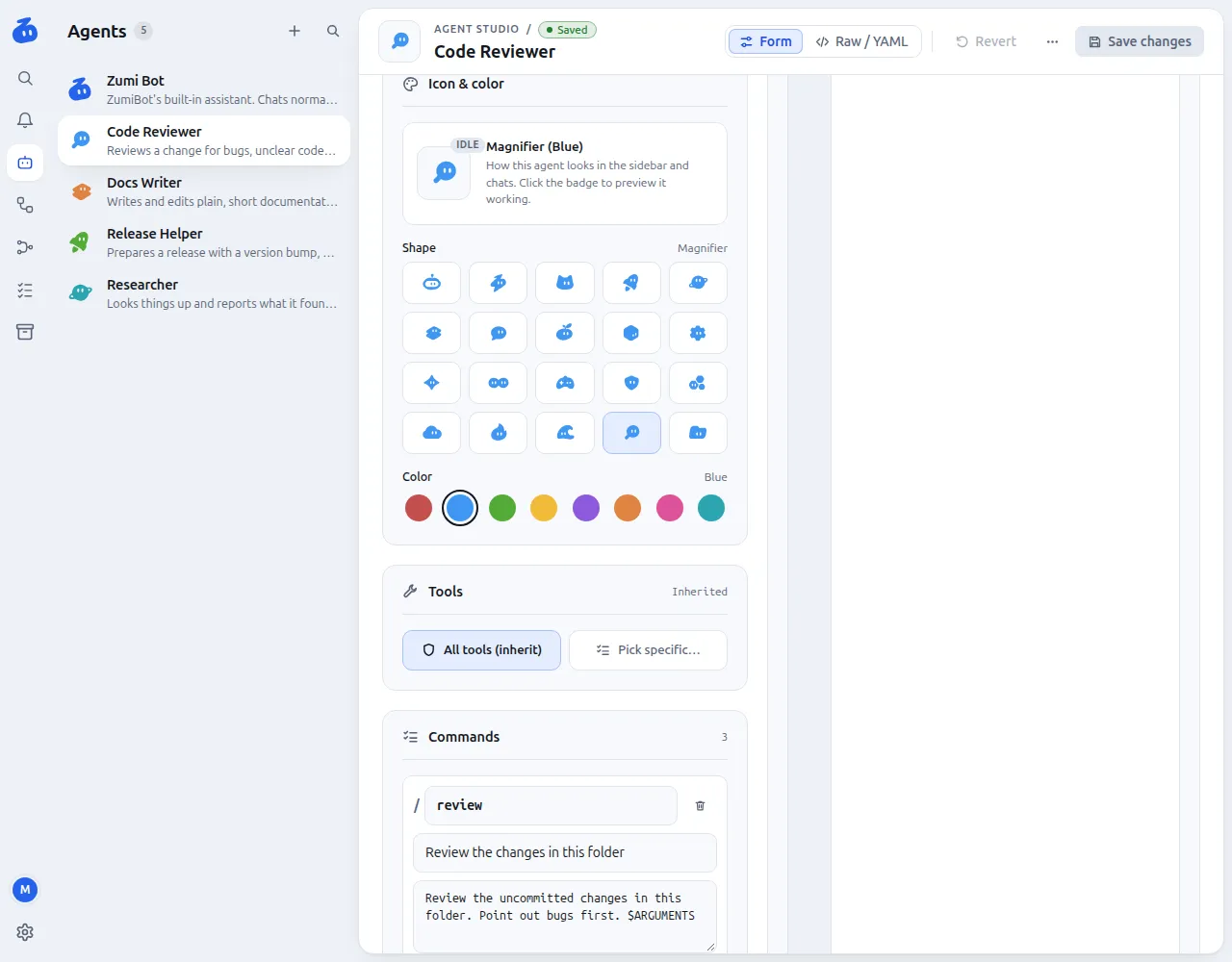
- Identity & scope. The name and the description.
- Engine & model. The Engine select chooses which tool runs the agent. Leave it on Claude unless you have set up an agent to run on a different tool. The buttons under it pick the model: Inherit (the default), Opus, Sonnet or Haiku. The chat’s own model picker can still override it. See Mode, effort and model.
- Compact at. How large the agent’s conversation may grow before it is summarized. Default waits until the context is nearly full. 200K is the cheapest, 300K, 400K and 600K keep more. A lower size uses fewer tokens on every message, and older details are kept only as a summary. See Context and Compact.
- Recall. Lets the agent look up earlier chats when you ask about something said before, such as “what did we decide last week?”. Off (the default) gives it nothing. Own chats covers its own chats and the group rooms it was in. This folder covers every chat in the same project folder, whatever agent it was with. The agent can only search and read those chats, never change them, and it never searches the chat it is in. It searches by words and dates, and says which chat and date its answer comes from. Save changes to apply it from the next message.
- Daily spend cap. An optional limit in dollars a day. When the agent has spent that much today, its running replies pause until you allow more. Leave it empty for no cap. Spend caps explains what happens at the limit.
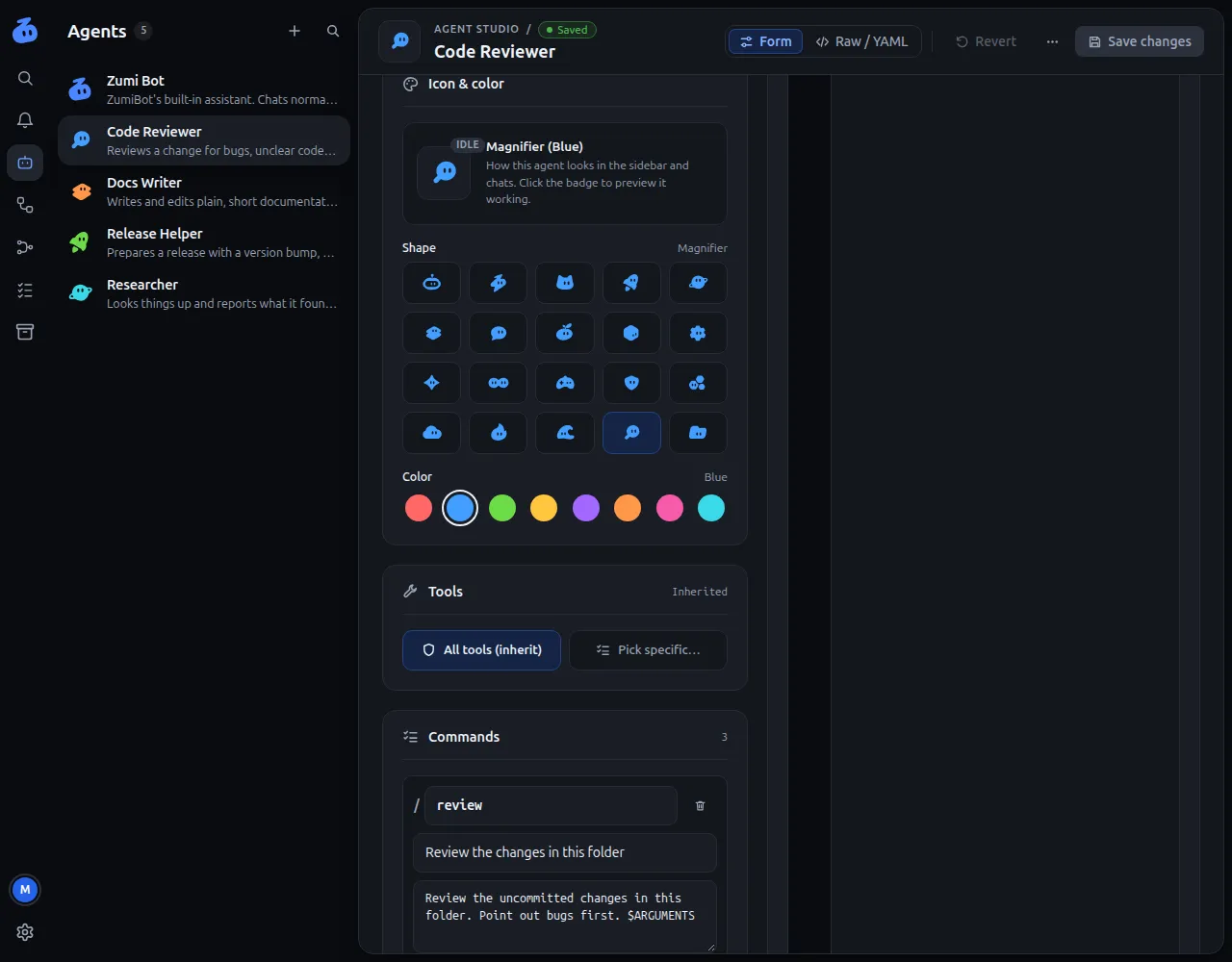
- Icon & color. Pick a shape and a color. They set how the agent looks in the sidebar and in chats. Choose the small Idle badge on the preview to see the working animation.
- Tools. All tools (inherit) gives the agent every tool. Pick specific… shows a list of tools to tick, and a box to add a tool by name. Pick only what the job needs: an agent that reviews text may not need to run commands.
- Commands. Shortcuts you pick from the
/menu in a chat. + Add command adds a row with a name, a description and the prompt the agent receives. See Slash commands.
Further down the page are more cards. Memory and Remembered approvals are covered in Memory and remembered approvals, the Agent Coach switch is covered in Agent Coach, and What this agent loads is covered in Servers, plugins, skills and hooks. There are also cards for the agent’s browser and computer use that this page does not cover. The Isolation card, which limits an agent’s folders and network, is in Audit log and isolation.
Edit the file as text
Section titled “Edit the file as text”Choose Raw / YAML at the top to see the whole agent file as text, and Form to go back. Both views edit the same file. Use Raw to change something the form does not show. If the text cannot be read, the form is disabled until you fix it in Raw. A fixed model or icon you typed by hand shows as “Custom” in the form and stays as it is.
Change, rename and delete
Section titled “Change, rename and delete”- Revert puts the file back to what was last saved.
- Rename by changing the Agent name and choosing Save changes. Its chats, remembered approvals and memory follow the new name.
- Delete with the More button (three dots) at the top, then Delete agent. You can also delete from the agent’s options menu in the sidebar. The agent’s file moves to the Trash, where you can restore it. Its chats stay in ZumiBot but are hidden while the agent is gone.
- If the file changes on disk while you have it open, the page says “This file changed on disk.” Choose Reload from disk to take the new text, or Keep mine.
Tips and limits
Section titled “Tips and limits”- A saved change applies from the agent’s next message. A chat that is already running keeps what it started with.
- Agents you wrote for the Claude Code terminal work here too. They show in the sidebar as soon as their file is in
~/.claude/agents. - A Codex agent has no Tools, Memory or Computer use card, and its model buttons list the models Codex offers. An ACP or remote agent also has no model buttons, Compact at or daily spend cap.
- A file that does not parse shows in the sidebar with a warning mark and its error. Open it with Edit agent and fix it in the Raw view.
Related
Section titled “Related”- Zumi Bot assistant
- Memory and remembered approvals
- Agent Coach
- Servers, plugins, skills and hooks
- The agent’s browser
- Computer use
- Slash commands
- Group rooms and the moderator
- Vault: logins, cards and keys an agent may use.
- Spend caps
- Audit log and isolation
- Agent asks
- Connectors
- Codex agents: run an agent on Codex, and what works on each kind of agent.
- ACP & AG-UI: connect other kinds of agents.