
Telegram and Slack
A channel is another place to talk to the same agents. You make your own Telegram bot or Slack app, connect it to ZumiBot once, and then you can start chats, read replies and answer approvals from the messaging app on your phone. The chats are the same chats you see in ZumiBot.
Only you can use your bot. It answers nobody else, and nothing from other people ever reaches an agent.
How it works
Section titled “How it works”- One machine runs the bot. You choose which one with the Run the bot here switch. A ZumiBot server is the best place, because it is always on. If ZumiBot runs only on your computer, the bot answers only while that computer is on and ZumiBot is open.
- Nothing new is opened to the internet. Your ZumiBot calls out to Telegram or Slack. They never call in.
- Every agent starts off. A bot can use only the agents you switch on. Zumi Bot, the assistant that edits your agents, routines and workflows, can never be used from a channel.
- You answer cards with buttons. An approval card offers Allow once and Deny only. Nothing is remembered from a channel, so a remembered rule can only be made in ZumiBot itself.
Set up Telegram
Section titled “Set up Telegram”-
Make a bot in Telegram. Follow Telegram’s own instructions for creating a bot. Telegram gives you a bot token, a long string such as
123456:ABC-your-token(that one is a placeholder). Keep it private. -
Open Settings, then Channels. The first section is Telegram bot. Paste the token into the box that reads “Bot token from @BotFather” and choose Save. The note reads “Token saved.” and the box empties. ZumiBot asks Telegram to check the token first. It says so if the token looks wrong or Telegram refuses it. The token is sealed with your vault key on that machine and never shown again.
-
Turn on “Run the bot here”. The line under the token then reads “Connected as @” followed by your bot’s name.
-
Pair your account. Under “Your Telegram account”, choose Pair my account. ZumiBot shows a code such as
ABCD-EFGHwith the minutes left. In Telegram, open your bot and send it that code. The bot answers “Paired with ZumiBot.” and Settings reads “Paired with” and your name. A code works once and lasts 10 minutes. -
Choose your agents. Under “Agents you can use from Telegram”, switch on each agent you want. All of them start off.
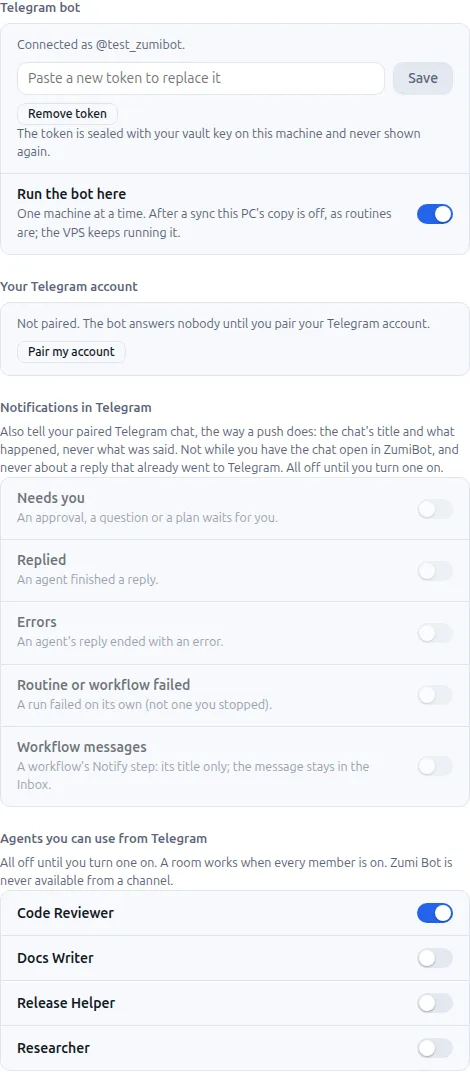
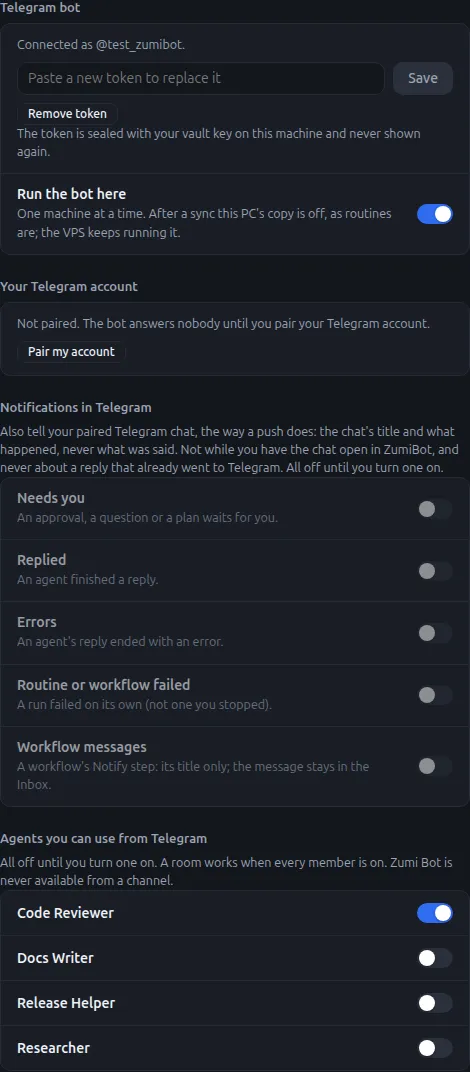
If you are already paired, the account section shows Unpair. If you remove the token, the bot stops.
Set up Slack
Section titled “Set up Slack”-
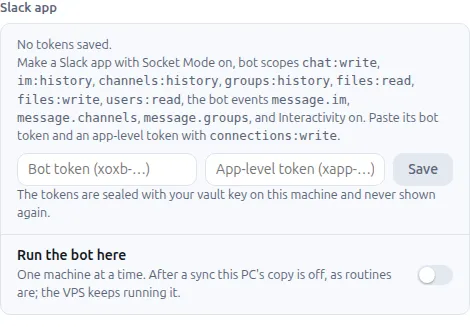
Make a Slack app. Follow Slack’s own instructions for creating an app in your workspace. Settings lists what the app needs: Socket Mode on, these bot scopes:
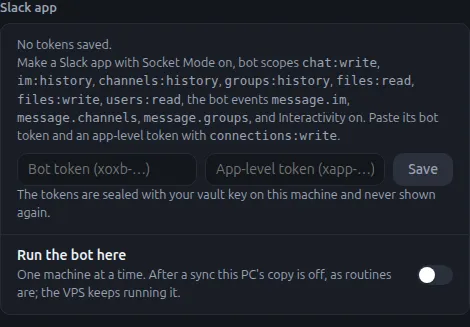
chat:write,im:history,channels:history,groups:history,files:read,files:writeandusers:read, these bot events:message.im,message.channelsandmessage.groups, and Interactivity on (the picture below shows the same list). Slack gives you two tokens: a bot token that starts withxoxb-, and an app-level token that starts withxapp-and has theconnections:writepermission. -
Open Settings, then Channels, and scroll to Slack app. Paste both tokens, the bot token first, and choose Save. The note reads “Tokens saved.” ZumiBot checks both with Slack before it keeps them.
-
Turn on “Run the bot here”.
-
Pair your account. Choose Pair my account and send the code to your app in a direct message in Slack. Slack pairing works only in a direct message.
-
Choose your agents under “Agents you can use from Slack”.
Chat from your phone
Section titled “Chat from your phone”Send your bot a message and it goes to your current chat. The first reply of each run starts with a bold header, the agent and the chat’s title, so you know which chat answers.
Start with a command. On Telegram a command starts with /. On Slack it starts with !, because Slack keeps / for its own commands. A / that does reach ZumiBot works too.
| Command | What it does |
|---|---|
/agents |
Lists the agents you can use here, as buttons. Choosing one starts a new chat. |
/new <agent> |
Starts a new chat with that agent. |
/new |
Starts a new chat with the current chat’s agent. |
/chats |
Lists your 10 most recent chats and rooms as buttons. Choosing one makes it current. |
/where |
Shows the current chat and whether it is idle, replying, paused or queued. |
/stop |
Stops the running reply. |
/pause |
Pauses the running reply. |
/resume |
Resumes a paused chat. |
/help |
Lists the commands. |
A new chat opens in the folder the agent used last, or your home folder, in the default mode and effort. A channel never picks a folder. Anything else that starts with / gets “Unknown command” and is never passed to the agent, so agent commands, /todo, /btw and /compact cannot be used from a channel.
You can also continue a chat you started in ZumiBot. Right-click it in the sidebar and choose Continue in Telegram or Continue in Slack. The chat then shows a small paper-plane mark, and the same menu says Stop continuing in Telegram to undo it. If the chat’s agent is not switched on, or you are not paired yet, a message explains why.
On Telegram, reply to one of the bot’s messages to send your message to that chat, so you can keep two chats going in one conversation. In a Slack direct message, reply in the thread of a bot message.
What goes to your phone, and what does not
Section titled “What goes to your phone, and what does not”For a message you sent from the channel, the bot sends:
- Replies, in full. Long replies are split.
- A progress line while the agent works, such as “Working… (3 steps)”. It counts steps and names no tools.
- Approval cards, with the agent, the tool and what it wants to do. For a shell command, the whole command is shown. Buttons: Allow once and Deny.
- Question cards. Each question has a button for each option. A multi-select question ticks options and has Done. Other… lets you type an answer as a reply.
- Plan cards. The plan, then Approve or Keep planning. Keep planning asks what should change, and your reply is the feedback. Reply
/skip(!skipon Slack) to send none. - File names an agent changed, with a Send button for each of the first five. A file is uploaded only when you press its button, up to 10 MB.
- Notices and errors, such as a pause or a usage limit.
Some things have no phone form: a browser or desktop handoff, a vault card, and a card the web shows as a plain approval. For those the bot says the agent is waiting for you in ZumiBot, and on a server it adds the link. Tool rows, thinking and anything from your vault never go out.
A message you type in ZumiBot, even in a linked chat, stays in ZumiBot. Only turns you start from the channel come back to it.
You can also send files, photos and audio files. They become attachments of the chat, like an upload in ZumiBot. If voice input is on in Dictation, a voice note is turned into text. The bot first replies with what it heard, then the text goes to the agent.
Notifications in Telegram or Slack
Section titled “Notifications in Telegram or Slack”Under Notifications in Telegram (or Slack) are switches for the same events as Notifications: “Needs you”, “Replied”, “Errors” and “Routine or workflow failed”, plus “Workflow messages”. All start off, and they work once you are paired.
A notification here is one message in your direct chat with the bot: the chat’s title and what happened. It is not sent while you have the chat open in ZumiBot, and not for a reply that already came to the same channel. A workflow’s Notify step sends only its title, and the text stays in your Inbox. On a server, each message links to the chat. When an approval, question or plan is waiting, the notice is followed by its card, so you can answer from there. That works when the chat’s agents are switched on for the channel.
Slack channels
Section titled “Slack channels”Slack also works in channels, not only direct messages.
- Mention your app to start a chat in a channel. Each thread is its own chat, and the app answers in that thread. After the first mention, your later messages in the thread need none.
- Messages from other people in the thread are never read or passed to the agent.
- Everyone in the channel sees the thread: your messages, the agent’s replies and the file names.
- Approval, question and plan cards in a channel are off by default. Instead, the thread says the agent is waiting in ZumiBot. Under Shared channels, the switch Show approval, question and plan cards in channels turns the cards on. Everyone then sees what the agent wants to run, but only you can press the buttons. If someone else presses one, Slack tells only them “Only” and your name “can answer this.”
- Direct messages always show cards.
Tips and limits
Section titled “Tips and limits”- One machine at a time. Two machines cannot share one bot. If another machine or a webhook uses it, Settings reads “Another machine (or a webhook) is using this bot.” Turn it off there, or turn Run the bot here off on this one.
- After a sync, the PC’s copy is off. Syncing turns Run the bot here off on the PC so only the server runs the bot. Settings then says the bot runs on the other machine.
- Telegram works in direct messages only. The bot ignores groups, supergroups and channels, even from you.
- Rooms. You can continue a room you made in ZumiBot if every member is switched on. You cannot create a room from a channel.
- A refused token. If Settings says “Telegram refused the bot token. Paste a new one.” or “Slack refused a token. Paste both again.”, paste fresh tokens from the platform.
- After a vault reset. If the vault key is gone or changed, Settings says the saved token can’t be opened. Paste it again.
- After a restart. A reply that was still running ends with a line saying ZumiBot restarted. Cards that were open lose their buttons, and the bot says they are no longer pending.
- What leaves your machine. Replies, card text and file names go to Telegram or Slack for the agents you turned on. Telegram and Slack hold them under their own terms. Switch an agent off to stop that.