
Files panel and Restore
The Files panel lists the files an agent changed during a chat, and the files you attached to it. For each changed file you can read what changed, step by step, and with one click put the file back the way it was.
Use it to check an agent’s work before you accept it, or to undo one change without touching anything else.
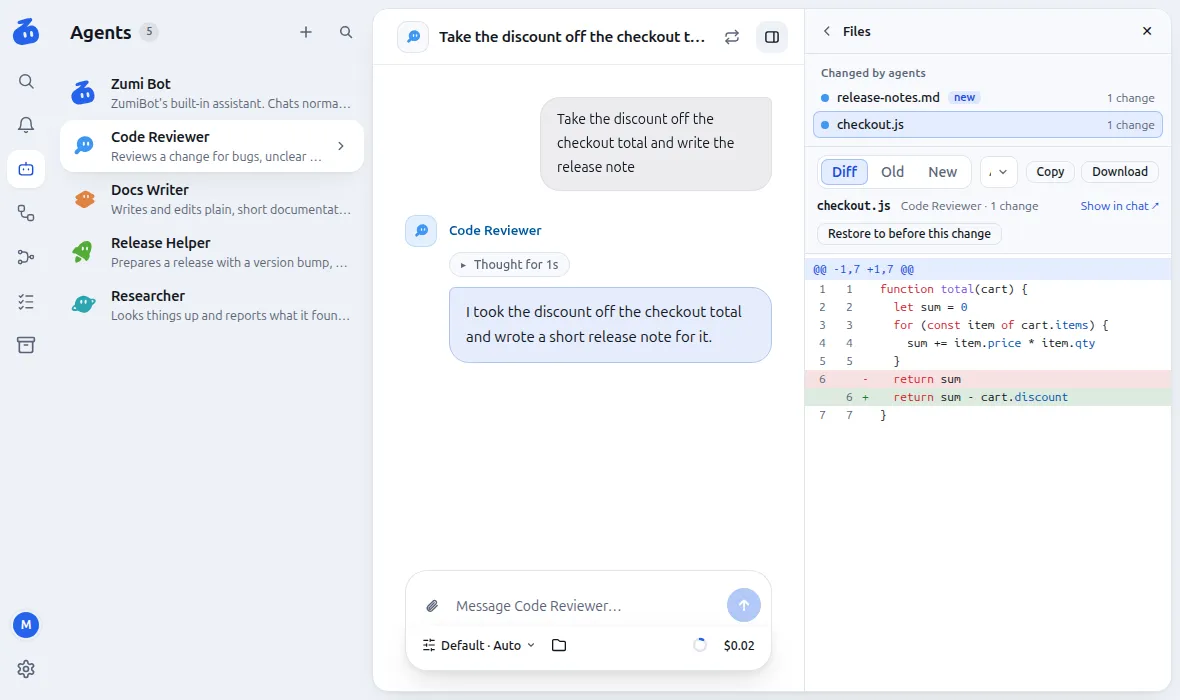
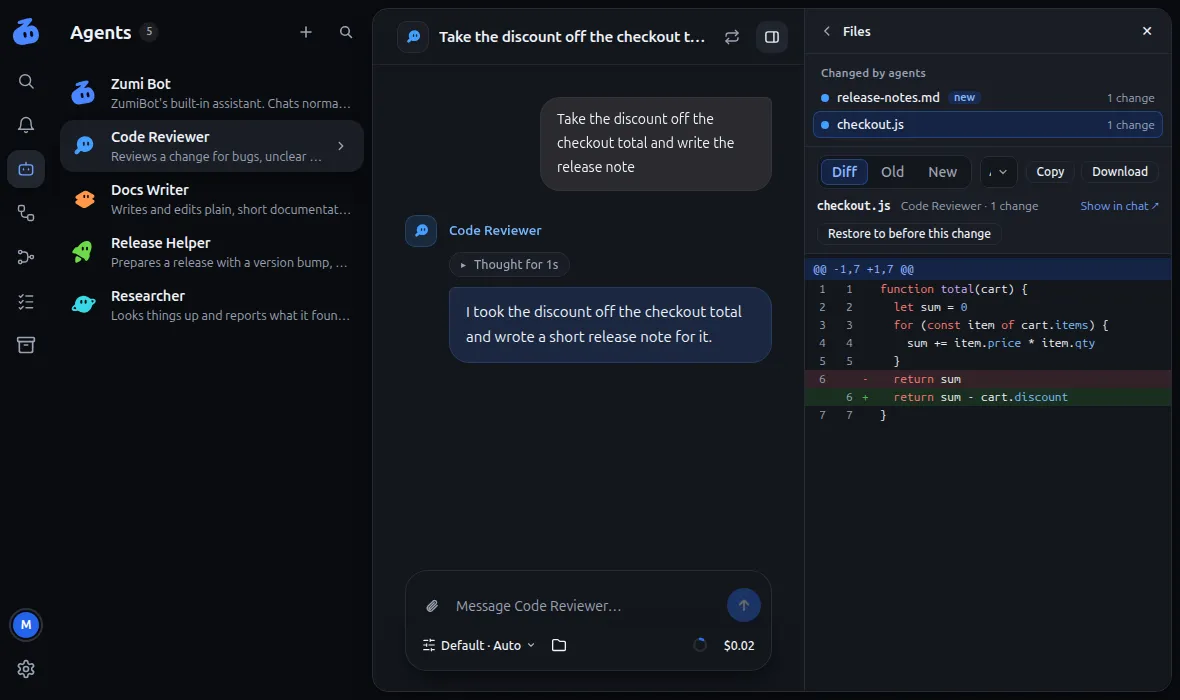
Open the panel
Section titled “Open the panel”-
Choose the panel icon at the top right of the chat, then Open Files. A number beside it counts the changed files and attachments in this chat.
-
Read the list. Files the agents changed are under “Changed by agents”. Each row shows a colored dot for each agent that touched the file, its name and folder, a “new” mark if the agent created it, and “1 change” or “2 changes” and so on. Files you attached are under “Attached by you”, with their size.
-
Choose a file to see it. The panel says “Pick a file to see it.” until you do. A new chat with no changes yet reads “No files in this chat yet.”
On a wide window the panel sits beside the chat. On a phone it fills the screen. Use the arrow at the top to go back to the panel’s list, and the cross, or Esc, to close it.
Read a change
Section titled “Read a change”Above the file there is a Diff / Old / New switch:
- Diff is the default. It shows the removed lines in red and the added lines in green, with a few unchanged lines around them.
- Old is the whole file as it was before.
- New is the whole file after.
When an agent changed a file more than once, the menu next to the switch lists the steps, such as “1. Edited · Code Reviewer · 10:42”. The first choice, “All changes (start → now)”, shows everything the chat did to the file in one diff. If several agents changed it, as in a group room, each step names who did it.
Also in the toolbar:
- Copy puts the text you are viewing on the clipboard. Old copies the old file, the others copy the new one.
- Download saves it as a file.
- Show in chat ↗ scrolls the chat to the step that made the change.
Select a few lines in the preview and a small menu appears:
- Quote puts the lines into your message box with the file name and line numbers, so you can say exactly what you mean.
- Explain sends the lines to the agent at once and asks it to explain them.
A file you attached shows too: an image as a picture and a text file as text. Any other type shows “No preview for this type of file.” with an Open button.
Put a file back
Section titled “Put a file back”-
Pick the file, and then pick the step in the menu. Leave it on “All changes (start → now)” to undo everything the chat did to that file.
-
Choose the Restore button under the file’s name. It reads Restore to before this change for one step, or Restore to before all changes when you picked all of them.
-
Confirm. A box asks “Restore to before this change?” and says what will happen. Choose Restore to go on, or Cancel to leave everything as it is.
-
Read the answer. A short note shows next to the button: “Restored.” when the old text is back on disk, or “Moved to the Trash.” when the agent created the file, so there is nothing older to put back.
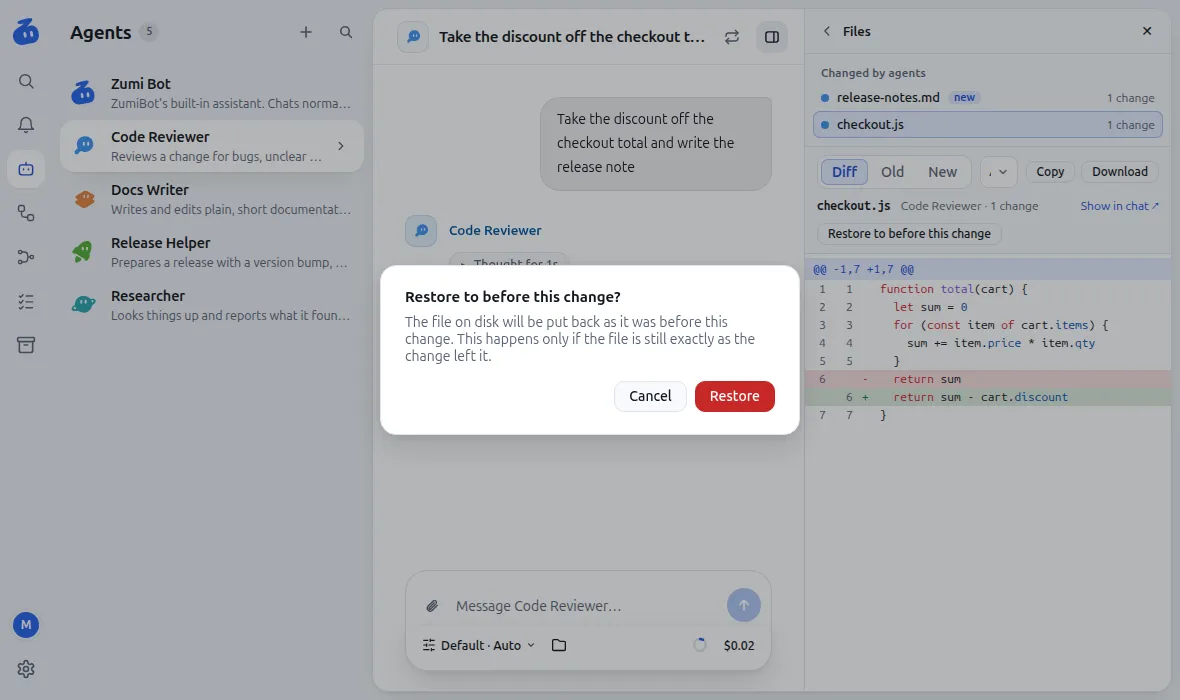
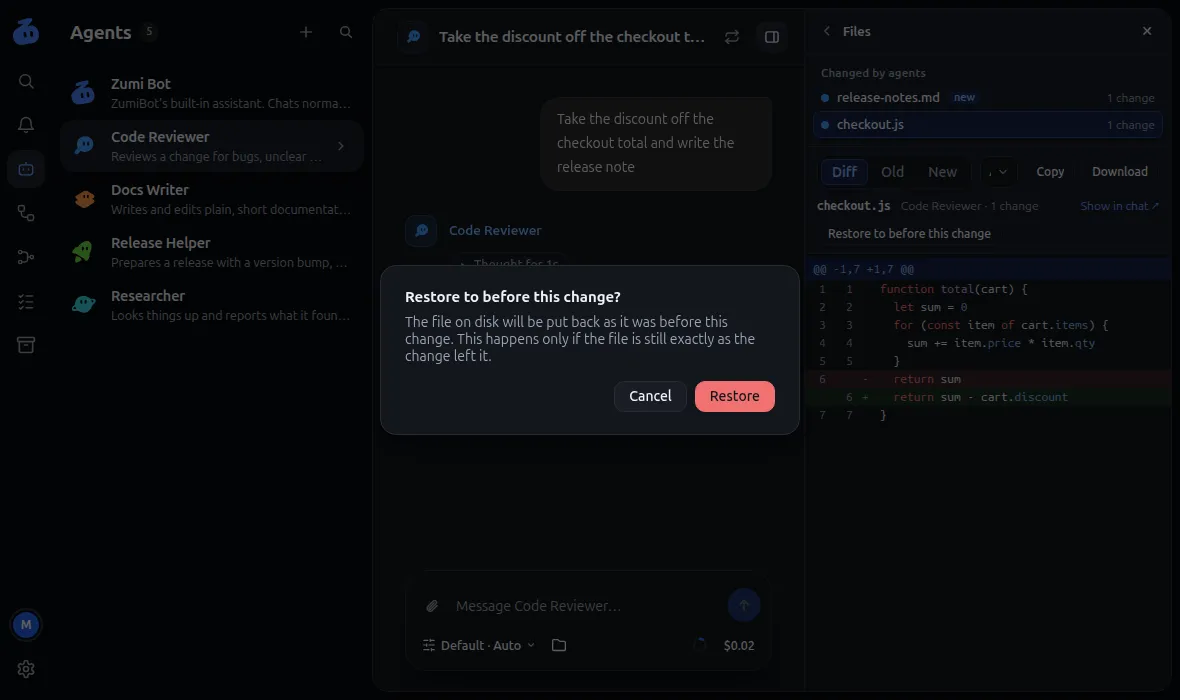
Restore is careful on purpose. It works only while the file on your disk is still exactly what the agent left. If you, or another chat, changed the file since, the note reads “The file was changed since. Nothing was restored.” and nothing is written. So Restore can never wipe out an edit you made yourself.
Tips and limits
Section titled “Tips and limits”- Restore is grayed out while the agent is replying. Point at it to see why: “Wait for the reply to finish, then restore.”
- Restore tells nobody. Nothing is added to the chat and the agent is not told. The next time it edits that file it finds the file changed and reads it again.
- It lists edits, not everything. The panel lists what an agent changed with its edit and write tools, and what its subagents changed. A file changed by a command the agent ran, such as a formatter, is not in this list. In a folder under git, the Changes panel shows those too.
- Some copies are not kept. A very large file (over 1 MB) or a binary file is not stored, and the panel says so, for example “Not kept: file over 1 MB”. If the old copy was not kept, Restore says so and stays grayed out.
- Saved with the chat. The copies live in the chat. Deleting the chat deletes them. A fork starts with the copies its messages need.
- Restore checks the file and then writes it, in two steps. Do not edit the file in the instant you press it.