
Your first chat
A chat is a conversation with one agent, working in one folder. This page takes you from the home screen to your first answered approval.
Start a chat
Section titled “Start a chat”Choose the ZumiBot logo at the top of the left column to open the home screen. It asks “What are we building today?”
-
Pick an agent. Choose “Select agent” under the message box and pick one from the list. The list is your agents from
~/.claude/agents, plus Zumi Bot, the built-in assistant. -
Pick a folder. Choose the folder button, which reads “No folder” until you pick one. The agent works inside this folder. The menu lists your recent folders. Choose Choose folder… to browse: the “Choose a folder” window lets you move up, open folders and make a New folder, and Use this folder confirms. “No folder” runs the chat in a fresh folder of its own, which suits a plain question.
-
Write your message. Type in the box that says “Describe a task or ask a question”. Press Enter to send, or Shift+Enter for a new line. On a phone, Enter starts a new line and the round send button sends.
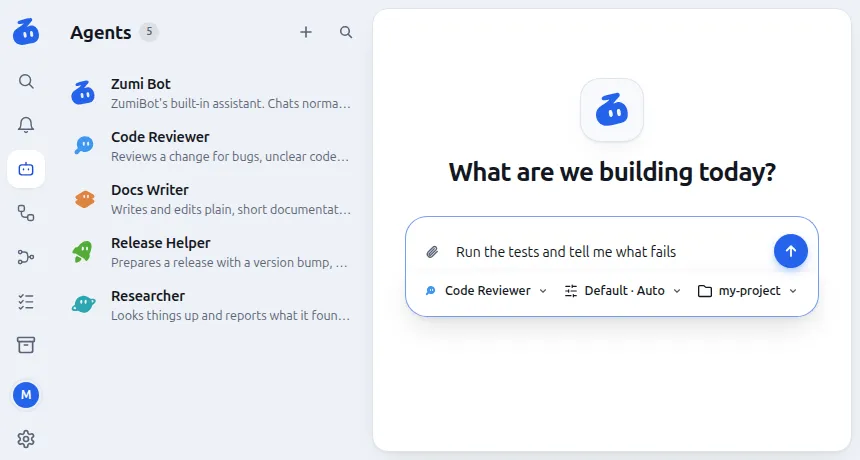
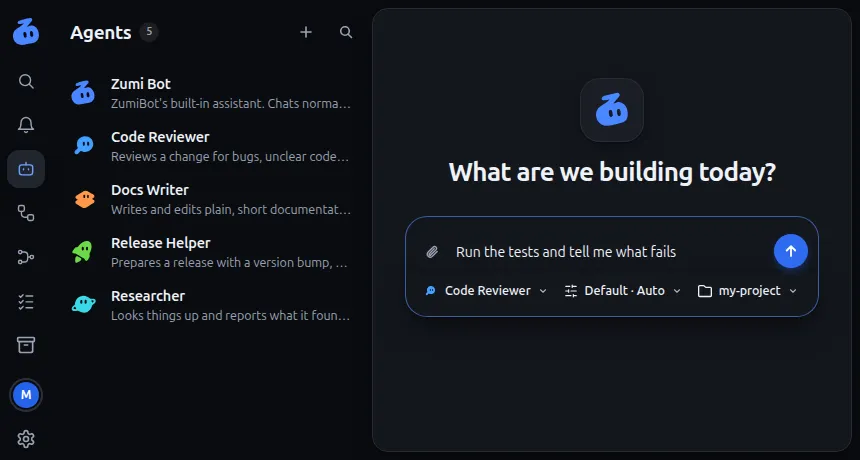
The agent answers right in the chat. Its reply streams in as it works.
Answer an approval card
Section titled “Answer an approval card”Claude Code asks before it uses some tools, such as running a shell command. ZumiBot shows each of these as a card in the chat, and the agent waits until you answer. A badge also shows next to the chat in the sidebar while a card waits, so you can find it from another chat.
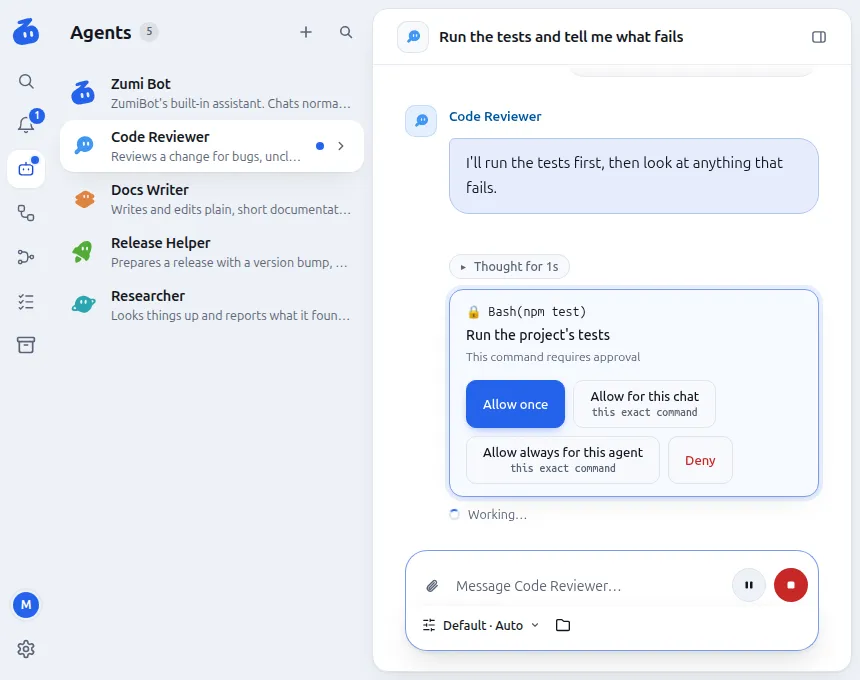
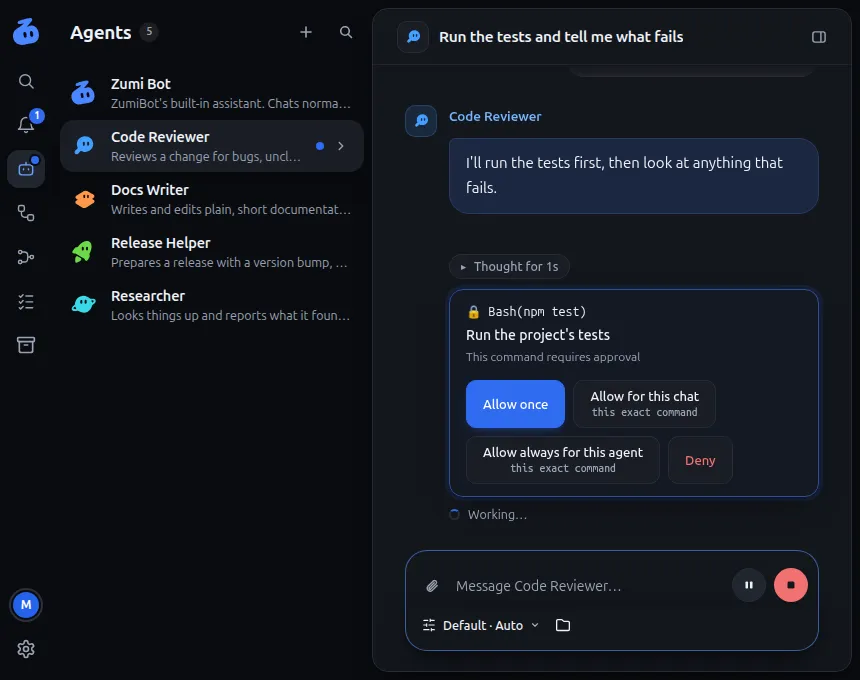
Read the card first. Choose its title line to open the input and see exactly what the agent wants to do. Then pick one answer:
- Allow once lets this one call run. The card then reads “Allowed once”.
- Allow for this chat lets the same call run again in this chat without asking. For a command, “the same” means this exact command.
- Allow always for this agent remembers the choice for every chat with this agent.
- Deny refuses. The agent is told no, and it carries on without it.
When in doubt, use Allow once. You can review and remove remembered answers later.
Other cards
Section titled “Other cards”Two other cards can appear. A question card has a form for the agent’s questions. Choose Send answers, or Skip to leave them. A plan card shows what the agent intends to do. Approve lets it start, and Keep planning sends it back to revise, with optional notes from you.
Tips and limits
Section titled “Tips and limits”- To stop a reply, choose the red Stop button in the message box.
- If sending is grayed out with a reason, such as “Pick an agent first”, hover over the send button to read it.
- If the app shows “Claude CLI not found.”, Claude Code is missing or not on the path. See What you need.
- Your chats stay on the machine that runs ZumiBot: your computer in Local mode, or the server.