
Saved history
Every time you save a routine or a workflow, ZumiBot keeps that version. If an edit turns out to be a mistake, you can open the history and put an older version back.
This also covers edits Zumi Bot makes for you, so you can always undo them.
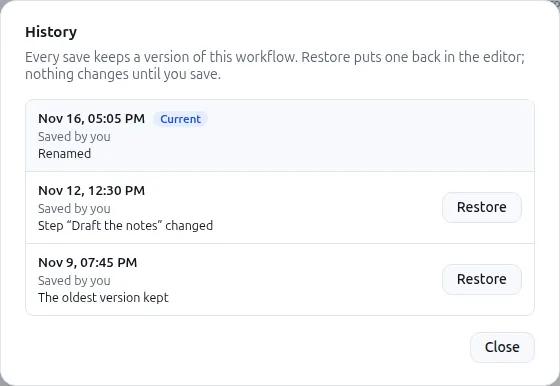
Go back to an older version
Section titled “Go back to an older version”-
Open the routine or workflow and choose ⋯ (More) at the top right, then History…. The choice is off for one you have not saved yet.
-
Read the list. Each row gives the time of the save, who saved it, and what changed.
-
Choose Restore on the version you want. The window closes and the version goes into the editor. A line reads “Restored the version from …. Save to keep it, or Discard changes to go back.”
-
Save. Nothing is written until you do. If you change your mind, choose ⋯, then Discard changes.
The restored version keeps the routine’s or workflow’s On or Off setting. A restore does not touch the run list.
In a workflow, a restore counts as one edit, so Ctrl+Z undoes it. A routine’s form has no undo. If you have unsaved edits there, ZumiBot first asks “Replace your unsaved changes?” and you choose Restore or Cancel.
What each row says
Section titled “What each row says”- The time. “Today”, “Yesterday” or the date, then the time. The newest version that matches the saved item is marked Current.
- Who saved it. “Saved by you”, “Saved by Zumi Bot”, “Restored from …” with the time of the version you put back, or “Earlier version”, for what the item held before ZumiBot started keeping history.
- What changed, compared with the version below it. A workflow row can say “Renamed”, “Trigger changed”, “Time zone changed”, “Step “Name” added”, “Step “Name” changed”, “Step “Name” removed”, “Connections changed”, “Notes changed”, “Groups changed”, “Spend cap changed”, “Run settings changed”, or “Layout changed” when you only moved boxes. A routine row can say “Renamed”, “Trigger changed”, “Time zone changed”, “Target changed”, “Prompt changed” or “Settings changed”. “Same steps, saved again” means the save changed nothing that counts. The oldest row says “The oldest version kept”.
What is kept
Section titled “What is kept”A version holds what you would copy to make the same thing again. For a workflow that is its name, time zone, trigger, steps, lines, sticky notes, groups and run settings. For a routine it is the name, time zone, trigger, target, prompt and run settings.
It does not hold whether the item is On or Off, its past runs, or a webhook’s test call. A save that changes nothing, such as flipping the On switch, keeps no new version.
Tips and limits
Section titled “Tips and limits”- Fifty versions. ZumiBot keeps the newest 50 of each routine or workflow, and a very large workflow may keep fewer. The newest is always kept.
- Delete removes the history. Deleting a routine or workflow removes its history too, so a deleted one cannot be restored. Duplicate it first if you want a safe copy.