
The agent's browser
When a job needs a website, an agent uses its own browser. It opens pages, reads them, clicks, types and scrolls, the way you would. The browser belongs to that agent, keeps its sign-ins between chats, and runs on the computer that runs your ZumiBot server. It is separate from your own browser, and agents are told to use it instead of opening yours.
You see it only when you ask. Nothing streams to your screen until you open it, so it costs you nothing while you are not looking.
What the agent can do
Section titled “What the agent can do”- Open an address, go back, go forward and reload.
- Read the page, click, type, choose from lists, scroll, hover and upload a file you attached to the chat.
- Work in up to four tabs.
- Answer a website’s own pop-ups, such as “Are you sure you want to leave?”.
- Save a picture of the page, or of one element, as a file it can attach to the chat. It can also resize the page and read an element’s colors, fonts and spacing, which is useful when it checks how a site looks. A chat keeps up to 200 saved pictures, and they go when you delete the chat.
- Sign in with a login from your Vault, without ever seeing the password (below).
- Ask you for help when something needs a person, such as a code sent to your phone.
Browser tools are added to every agent’s chats by ZumiBot itself. ACP and remote agents do not get them.
Watch the browser
Section titled “Watch the browser”-
Choose Open Browser. You can find it in four places: the panel icon at the top right of a chat, then Open Browser; the Open Browser button on an agent’s start screen; the Agent browser card in Agent Studio; and the Open Browser button on a help card (below). In a group room, the panel menu has a picker so you can choose which member’s browser.
-
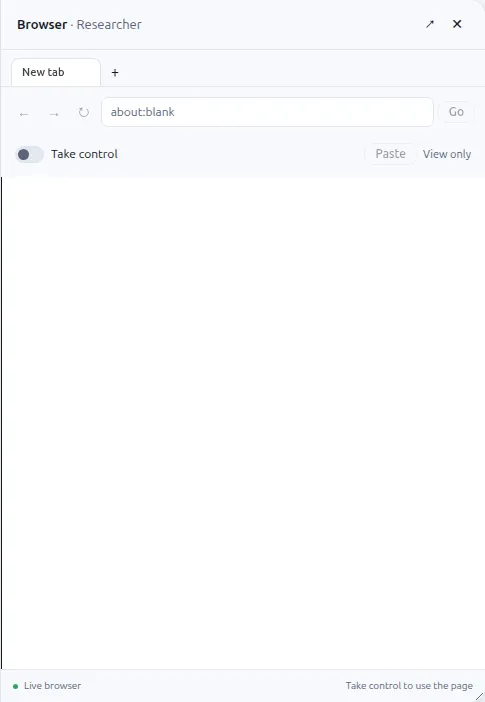
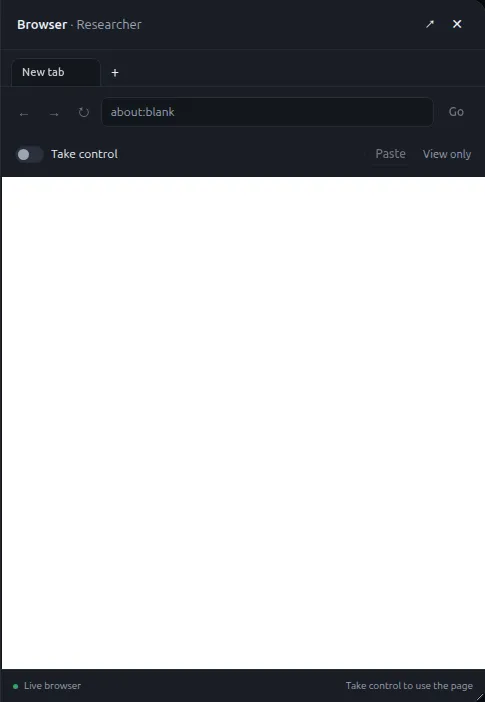
Wait for it to connect. If the agent’s browser is already running, you attach to the very same one. If not, ZumiBot starts it, and the panel reads “Connecting to browser…”. A new browser starts on a blank page.
-
Watch. The panel is live: it shows the tab the agent is working in, with the address and tab names above it. The status on the right reads “View only”. Nothing you click or type reaches the page.
-
Close it with the cross at the top right. Use the arrow beside it to make the panel larger. On a phone, the panel fills the screen.
Only a window that is open and visible receives the picture. Closing the panel, switching to another chat, hiding the app or losing the connection stops it.
Take control
Section titled “Take control”Use Take control when you need to do something in the page yourself.
-
Switch on Take control. The status reads “Pausing agent…” while a call it already started finishes, and then “You have control”. From then on, the agent’s browser calls wait.
-
Use the page. Click, type, scroll and press keys in the picture. Back, Forward, Reload, the address bar with Go, the tabs and the plus button work now too. On a phone, tap a field to type in it: the page keeps that field in view above the keyboard, and Enter submits as usual. Keyboard opens the keyboard and Paste sends text from your clipboard. If the phone will not paste, a small box opens for you to paste or type into and Send.
-
Switch it off when you are done. The agent carries on, and looks at the page again first, since you may have changed it.
Only one window can hold control. In another window, the status reads “Controlled in another window”, and its switch is off. Control ends by itself if you close the panel, hide the app or lose the connection, and anything not yet sent is dropped. Opening the browser again always starts with Take control off.
A website’s own dialog appears under the address bar. Its heading is “Website alert”, “Website confirm”, “Website prompt” or, when a site asks if you want to leave, “Website confirmation”. It shows the site’s message, and a prompt has a box to type in. Every dialog has OK, and all but an alert also have Cancel. You need control to answer it. When a site asks for a file, the panel shows “Choose a file for this website” (or “Choose files for this website” when it accepts several), up to 25 MB each, and Cancel file selection. Files the site lets the agent download are listed under “Downloads”, with a download link for one hour.
When the agent asks for help
Section titled “When the agent asks for help”An agent that hits a sign-in, a code or a CAPTCHA asks you, instead of guessing. A card appears in the chat, headed “Action required”, with the site name and the agent’s reason. It has three buttons:
- Open Browser opens the agent’s browser right in the card, with Take control still off. Switch it on, finish the step, then switch it off.
- I’m done tells the agent to carry on. It looks at the page and checks whether it can continue. The button does not say the sign-in worked.
- Cancel gives the job up. The agent is told, and does not carry on.
While the card is waiting, the agent waits too, without trying again. The card changes to “Done — agent can continue”, “Cancelled”, “Request expired” or “Request interrupted” when it is settled. After 10 minutes with no one watching, a request expires. The card then says “Ask the agent to request help again.” If the server restarted, an old card reads “The request ended when the session stopped. Ask the agent to continue.” A routine waits the same way. Help requests also show in your Inbox, so you can answer from there.
Type passwords and codes into the browser panel, never into the chat. What you type in the panel is not recorded in the chat.
Sign-ins and the Vault
Section titled “Sign-ins and the Vault”Before it asks you, the agent checks your Vault for a login that fits the site. If there is one, it fills the fields itself, one by one, and the value never appears in the chat or reaches the agent. The Vault is where you keep logins, cards and keys that agents may use, in Settings, Vault. Only when nothing fits does the agent ask you to sign in. See Vault for how to save a login and which agents may use it.
Cookies and website data stay with the agent that collected them. Two agents never share a browser, and your server and your PC keep separate browsers. They are not copied between them.
Clear the browser’s data
Section titled “Clear the browser’s data”In Agent Studio, the Agent browser card reads “Cookies and website data stay with this agent on this server.” Choose Clear browser data. The dialog reads “Clear browser data?” and says it closes the browser and removes its cookies, sign-ins and website storage on this server. After you confirm, the card says “Browser data cleared.” The agent starts again from an empty browser.
What it needs
Section titled “What it needs”The browser runs on the machine that runs the ZumiBot server: your computer in Local mode, your server otherwise. Linux is the supported system. It needs a Chrome or Chromium: ZumiBot uses one that is already installed, such as Google Chrome or Chromium, or one it downloads for it.
On a server, run these two commands as the user that installed ZumiBot. The first downloads the browser, the second checks it:
~/zumibot/bin/zumibot-server browser-install~/zumibot/bin/zumibot-server browser-checkbrowser-install downloads a copy of Chromium into the data folder. Plan for a few hundred megabytes of download and at least 1 GB of free disk. It needs no sudo and installs no system packages, and ZumiBot never downloads it by itself. browser-check starts the browser with a throwaway profile and says what is missing. Chromium needs system libraries and a sandbox that only an admin can install. If the check names a missing one, have it installed and run the check again.
Until the browser is set up, text chats work as before, and the panel reads “Browser runtime unavailable. Check the server’s browser setup.”
Tips and limits
Section titled “Tips and limits”- It starts when needed. ZumiBot starts an agent’s browser when the agent first uses it, or when you open it, and closes it after about 2 minutes of nobody using it. Cookies and site storage stay. Open tabs and half-filled forms do not.
- Two at once. A server runs two agent browsers at the same time by default. If both are busy, the next waits and the panel reads “Waiting for browser capacity…”. An idle one is closed first to make room.
- One turn at a time. One agent’s browser works for one chat’s turn at a time, so two chats of the same agent take turns.
- Closed for good? If the panel reads “Browser closed. Open it again to start a fresh view.”, choose Open Browser again.
- Not included. Extensions, cameras and microphones, passkeys and operating-system dialogs do not work in the agent’s browser.
- Memory. A browser uses real memory, and a heavy website uses more. Watch your server before you raise the limits.
Related
Section titled “Related”- Agent Studio
- Computer use: agents that work in apps, not only websites.
- Inbox
- Approvals, questions and plans
- Servers, plugins, skills and hooks: the browser tools show in the list of what an agent loads.
- Vault: logins and cards the agent can use without seeing them.
- Admin commands: all the terminal commands for a server.