
Workflow steps
A workflow is made of steps. Each step takes some text in, does one job and hands some text on. This page lists the twelve kinds, then covers the parts they share.
For how to draw and run a workflow, read Workflows first.
Add a step
Section titled “Add a step”-
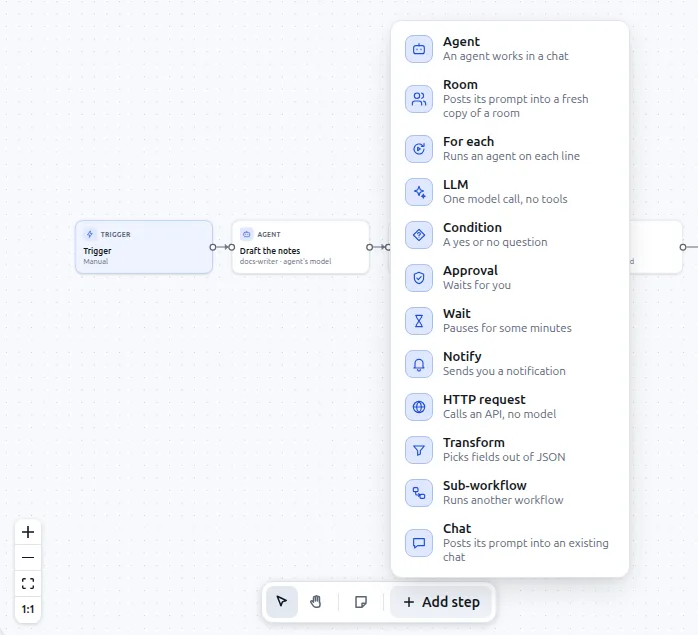
Open the menu. Choose Add step in the toolbar at the bottom of the canvas, or press N. Right-click empty canvas and choose Add step, or choose the + on a line or on a step with nothing after it, to put the step exactly there.
-
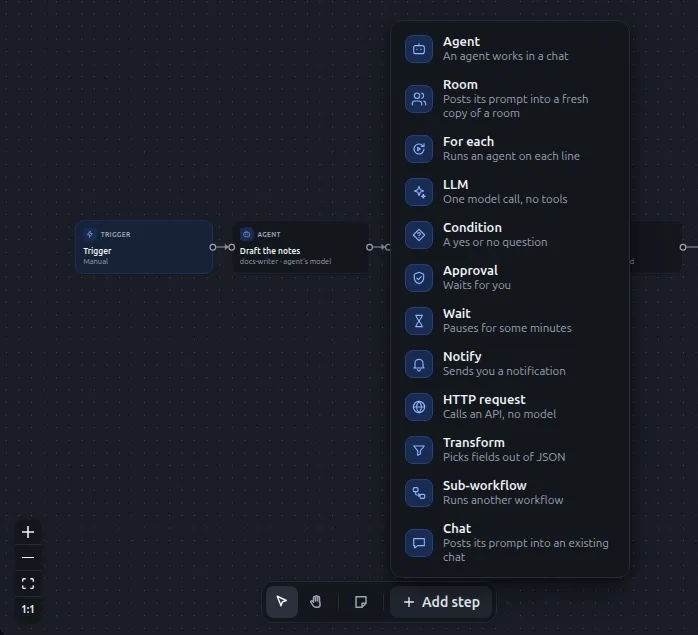
Pick a kind. Each kind has a one-line hint, as in the picture.
-
Fill in its settings. Choose the step and its panel opens on the right.
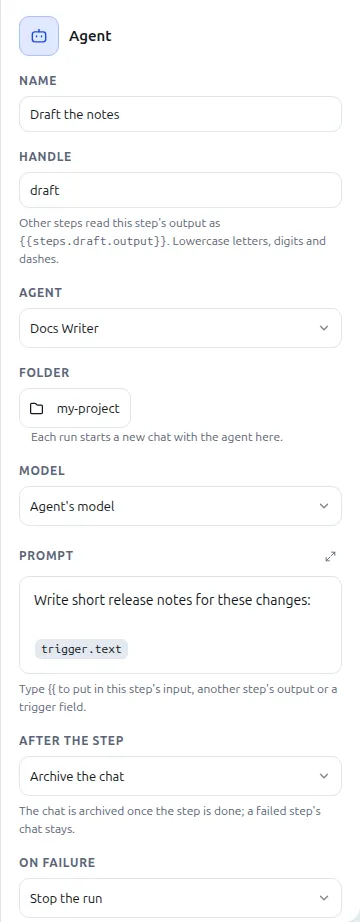
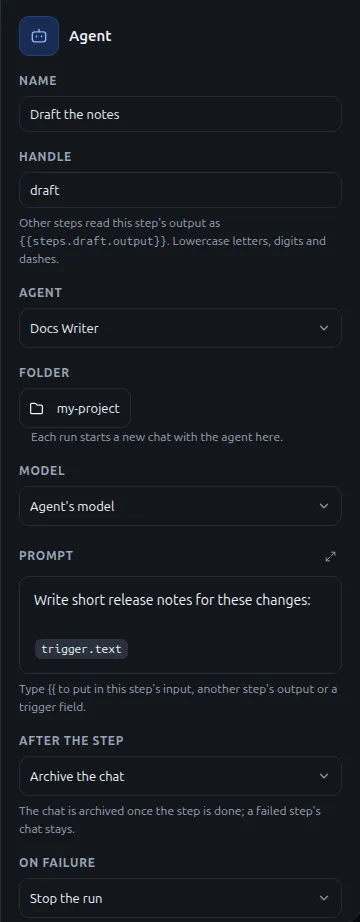
Every step panel starts with the same two fields. Name is what shows on the canvas. Handle is the short name other steps use to read this step’s output, in lowercase letters, digits and dashes. A step with the handle draft is read as {{steps.draft.output}}.
The twelve steps
Section titled “The twelve steps”| Step | What it does |
|---|---|
| Agent | One of your agents works in a new chat and replies. |
| Room | Posts a prompt into a fresh group room and waits until the room goes quiet. |
| For each | Runs an agent once for every line of its input. |
| Chat | Posts a prompt into a chat you already have. |
| LLM | One quick model call with no tools. |
| Condition | Asks a yes or no question and picks a path. |
| Approval | Stops and waits for you to approve or reject. |
| Wait | Pauses for a number of minutes. |
| Notify | Sends you a notification and a message in the Inbox. |
| HTTP request | Calls a web address, with no model. |
| Transform | Picks fields out of JSON. |
| Sub-workflow | Runs another workflow and waits for it. |
Agents and chats
Section titled “Agents and chats”Pick the Agent, the Folder it works in, and the Prompt. Model defaults to “Agent’s model”, or you can choose Haiku, Sonnet or Opus. Start the prompt with / to run one of the agent’s commands.
Each run makes a new chat with the agent, titled with the workflow, the step and the date. The step’s output is the agent’s last reply. After the step decides what happens to the chat: Archive the chat (a failed step’s chat always stays), or Keep it in the sidebar, with an optional Title, so you can read it and write back.
An approval card in that chat, such as a tool request, is yours to answer. The run shows “Waiting on you” until you do. Use Open chat on the visit, or answer from the Inbox.
Choose Copy a room to start a fresh copy of a room you made, with the same members, role and folder and no history. Or choose New room from agents and pick the members, a role and a folder. The prompt is posted as your own message, so @docs-writer @code-reviewer {{input}} goes to those two members. The step ends when the room goes quiet, and its output is the room’s last reply.
If the room stops at its turn limit, the step waits for you. Post in the room’s chat to carry on. A tool request in the room can offer Allow for this step, which saves a rule on the step so the next run does not ask.
For each
Section titled “For each”For each runs one agent over a list. Its input is split at line breaks, with blank lines and repeats dropped. The agent runs once per line, each in a fresh chat, and the prompt uses {{item}} for the line. {{item.number}} and {{item.total}} give the position. The prompt must use {{item}}.
Run at once runs one, two or three items side by side. The output joins every reply under a ## <item> heading. A list may hold 100 lines of up to 1,000 characters each. If some items fail, the others still run, and the step ends as failed with a line such as “2 of 36 items failed”. Retry runs only the failed items again. To make a list from JSON, put a Transform step before it and choose One value per line.
Chat posts the prompt into an existing chat or room as your own message, then waits for the reply. Pick it under Group chats or Chats. Agent sessions has Continue each agent’s session and Start fresh each run, as for a routine. The chat stays yours: it is not archived and does not become a workflow chat. Your message in it shows a line naming the workflow and the step. The step fails if the chat is gone, or is a chat between two agents.
Models
Section titled “Models”One call to a model with no tools, for jobs such as summarizing or classifying. Choose the Model and an Effort (Default, Low, Medium or High), write the Prompt, and add a System prompt (optional) if you want one. The output is the model’s answer.
Condition
Section titled “Condition”Write a Question, such as “Does the input report a failure?”. The step reads its input and leaves by Yes or No, and hands its own input on unchanged. The run shows the model’s Reason.
Text that comes from outside, such as a webhook body, an email or a file name, is given to a model as material to read, not as instructions to follow.
Approval
Section titled “Approval”Write a Question. The run stops there with no time limit, and you answer with Approve or Reject. The text goes on along Approved or Rejected.
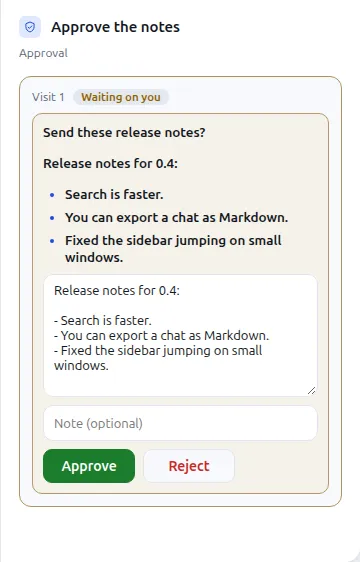
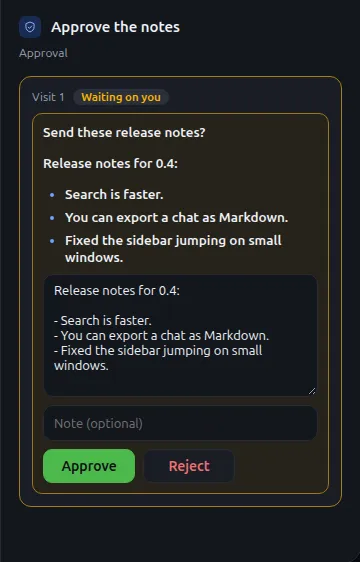
Tick Let me edit the text to put the question’s text in a box you can change before you answer. Your edit is what goes on. A Note (optional) is added after the text as “Note from the user: …”. The same card shows in your Inbox. A waiting approval also sends a notification, such as “Release notes needs your approval”.
Enter Minutes, from 1 to 1440. The step pauses that long, then hands its input on unchanged. A wait survives a restart of ZumiBot.
Notify
Section titled “Notify”Write a Title and an optional Body. The step sends a notification to your devices and files a message in your Inbox. The notification shows the title and the first 200 characters of the body, on your lock screen too, so keep private text out of the first lines. The Inbox keeps the whole body, up to 20,000 characters, and shows it as Markdown.
HTTP request
Section titled “HTTP request”Pick the Method, write the Address, add Headers, and for any method but GET choose a Body type (JSON or Text) and write the Body. No model is involved and the step costs nothing.
GET https://zumibot.example.com/items/{{input}}- The host is fixed. The scheme and host must be written out.
{{…}}is allowed only after the first/, and each value put there is URL-encoded. A webhook cannot pick the host. - In a JSON body, a value inside quotes is escaped, and one outside quotes goes in as it is, so the body must still be valid JSON.
- API key (optional). Pick a key from your Vault and write
{{key}}where it goes, such asBearer {{key}}. Only keys with “Workflow HTTP steps can use this” switched on are listed. The key never shows in the run. - Only public addresses. The step refuses addresses on your own machine or network. Tick Allow local network to let it reach them, and nothing more.
- Output. The output is the response body. A status of 400 or more fails the step. The step follows a few redirects on the same host, gives up after 60 seconds and reads at most 1 MB.
Transform
Section titled “Transform”Turn JSON into the shape the next step wants. List Fields, each with a Name and a Path into the input, such as title, pull_request.title, items.0.id, or items[].title for every item. The Output is a JSON object of the fields, or One value per line. A path that finds nothing gives null in the object and is left out of the lines. If the input is not JSON, the step fails with “The input is not JSON”.
Sub-workflow
Section titled “Sub-workflow”Pick another Workflow and an Input, which defaults to {{input}} and becomes that workflow’s trigger text. The step waits for the other run to end, its approvals too, and hands on what its last steps made. The other workflow runs whether or not it is On, and its run shows in its own list, with Open run on the visit. A workflow cannot call itself, and sub-workflows may nest three deep.
Pass text between steps
Section titled “Pass text between steps”Wherever a field takes a prompt, type {{ and pick from the list:
{{input}}is what the step before it handed on.{{steps.<handle>.output}}is the output of any other step.{{trigger.text}}is the trigger’s text. A webhook or an event also offers its fields, such as{{trigger.body.subject}}.
A field with a long text has an Expand button that opens a larger editor.
A step with several lines coming in starts once nothing that could still send it text is running or waiting. That covers a path not taken and a loop.
When a step fails
Section titled “When a step fails”Agent, Room, Chat, For each, LLM, Condition, HTTP request, Transform and Sub-workflow steps have On failure:
- Stop the run ends the run as failed. Choose the failed step and press Retry to run it again.
- Go on along the failure path adds a red Failed port. Join it to a step that handles the problem. That step gets the error, and for an HTTP error the response body too, and the run goes on.
Pressing Stop, a restart of ZumiBot or any other action of yours still stops the run.
Try a step before you run
Section titled “Try a step before you run”Agent, For each, LLM, Condition, HTTP request and Transform panels end with Run step. Type a Test input, or leave the one it filled in from the step’s latest run, and press the button. The result shows under it, and nothing is stored as a run. Run step on an Agent or For each step makes a real chat in the agent’s folder, on For each with its first item only. On an HTTP request, it sends the request for real.
Tips and limits
Section titled “Tips and limits”- Name steps for people. A name like “Approve the notes” reads better on the canvas, in the Inbox and in the Audit log than “Approval”.
- Costs add up. Agent, Room, Chat, For each, LLM and Condition steps use your plan or API budget. Each run and each visit shows what it cost. Wait, Notify, Approval, HTTP request and Transform add nothing. A Sub-workflow adds the cost of the run it starts.
- Remove a step with Remove step at the bottom of its panel, or press Delete. Its lines go with it.
- Remote agents. A Room step that builds a new room cannot use a remote agent, and no step can use Zumi Bot.