
Spend caps
A spend cap is a dollar limit. When an agent, a routine run or a workflow run reaches it, ZumiBot pauses the work and tells you, so a long job or a loop cannot quietly run up your usage. You decide whether to go on.
There are three kinds. All are optional, and none is set until you set it.
| Cap | Where you set it | What it limits |
|---|---|---|
| Daily spend cap | Agent Studio | Everything one agent spends in a day. |
| Spend cap per run | A routine’s settings | One run of that routine. |
| Spend cap per run | A workflow’s trigger settings | One run of that workflow. |
Amounts are in US dollars, priced at API list prices, from $0.01 to $10,000. They are estimates of what the work would cost, not an invoice. A day runs from midnight to midnight in your time zone.
Set a daily cap for an agent
Section titled “Set a daily cap for an agent”-
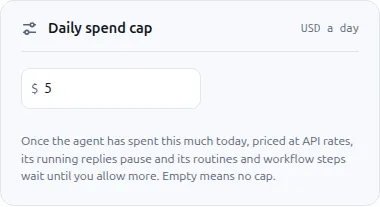
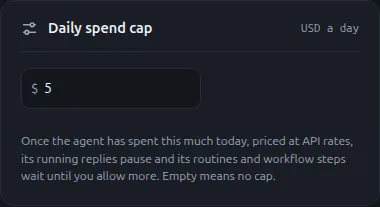
Open the agent in Agent Studio. Find the Daily spend cap card, marked “USD a day”.
-
Type an amount, such as
5. A box with nothing in it reads “No cap”. Anything that is not an amount from $0.01 to $10,000 shows “Enter an amount from $0.01 to $10,000”. -
Choose Save changes.
When the agent has spent that much today:
- Its running replies pause, in single chats and in group rooms where it is working. A chat where another agent asked it a question is not paused.
- Its routines do not start. A skipped run reads “@Name reached its daily spend cap”.
- Workflow steps that use it wait. The run shows a banner that reads “@Docs Writer reached its daily spend cap ($0.02 of $0.02). Its steps wait.”
- You get one notification. It starts “Daily spend cap reached” and gives the amounts. See Notifications.
- You can still write to it. A message you type yourself is never refused. It takes over the paused chat, as with Pause and Resume.
A paused chat ends with a line such as “Spend cap reached: @Docs Writer spent $0.02 of its $0.02 daily cap. Press Resume to continue; it allows $0.02 more.” It is an ordinary pause, so the agent finishes the call it is in the middle of first.
Set a cap for each run of a routine or workflow
Section titled “Set a cap for each run of a routine or workflow”For a routine, open its editor and find Spend cap per run in the card How each run goes. For a workflow, select the trigger and find Spend cap per run at the bottom of its panel. Type an amount in the same way, or leave it empty. Empty reads “No cap: a run spends what it needs.”
- A routine run that reaches its cap pauses its chat, and you are notified. The run reads “Paused at its spend cap · press Resume in its chat to continue”.
- A workflow run that reaches its cap starts nothing new, and its agents pause. A banner reads “This run reached its $2.00 spend cap ($2.05 spent). Nothing new starts and its agents are paused.” The steps that were stopped are marked “Paused at a spend cap”.
A run’s cap counts only what that run spends. Your own messages in the chat of a routine or workflow step are not part of it.
Go on after a cap
Section titled “Go on after a cap”Going on is always your choice, and it allows one more cap’s worth on top of what has been spent so far.
- Resume on a paused chat. For a routine, this is how you go on.
- Continue · allows $2.00 more on a workflow run’s banner.
- Allow $5.00 more today on a workflow run’s banner, when the cap that stopped it was an agent’s daily cap.
- Allow $5.00 more today in Settings, Usage, under Spend caps.
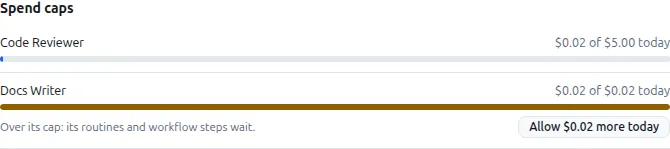
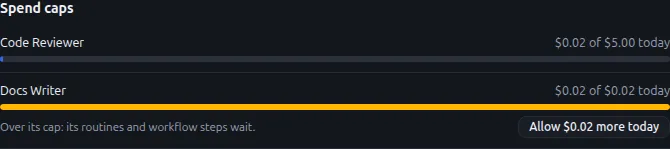
Spend caps on the Usage page lists every agent that has a daily cap. Each row has a bar and “$0.02 of $5.00 today”. An agent past its cap also shows “Over its cap: its routines and workflow steps wait.” and the Allow button. After you use it, the row adds “Raised from $5.00”. The next day starts again at the cap you set. With no daily caps at all, the section reads “No agent has a daily spend cap. Set one in Agent Studio; routines and workflows take a cap per run in their editors.”
Tips and limits
Section titled “Tips and limits”- A cap is checked as the agent works, not before. A run can go a little past its cap, since a request already under way is not cut off. The pause lands at the agent’s next step.
- It follows the agent’s work everywhere. Single chats, rooms, routines, workflow steps, side questions and the agent’s other runs all count toward its day. Work on a to-do card or in a review loop counts too.
- Caps are per computer. They are not shared between your PC and your server. A restart does not forget that an agent has reached its cap today.
- Some agents cannot have a cap. A cap works only when every reply reports a cost in dollars. ACP and remote agents do not. Agent Studio then hides the daily cap, and a routine or workflow refuses a per-run cap that includes one. If a cap is already saved on such an agent, the app says so and offers Remove the cap.
- Saved versions record caps. A change to a workflow’s cap shows in its saved history as “Spend cap changed”.
- A cap does not replace the usage limit. When your plan’s own limit stops a reply, see Usage limit waits.
Related
Section titled “Related”- Usage and cost: see what chats, agents and models cost.
- Agent Studio
- Routines and Workflow triggers
- Pause and Resume
- Notifications