
Usage and cost
ZumiBot adds up what your agents use. A small chip in each chat shows what that chat has cost so far, and Settings, Usage shows the same for every chat, agent and model over time. Use them to find the chats that cost the most, and to decide on a spend cap.
Every dollar figure is an estimate at API list prices, marked “API estimate · USD”. It is not an invoice. If you use a Claude subscription, it does not match what you pay.
See what one chat costs
Section titled “See what one chat costs”-
Look for the cost chip in the row of pickers under the message box, next to the model and mode pickers. It shows the chat’s total, such as “$0.02”. It is hidden until the chat has recorded usage.
-
Choose it. A small window opens, headed “This chat”. It shows the total, the number of messages (and how much of the total is estimated, if any), the four token counts and a row per model.
-
Choose Open in Usage → to open the Usage page showing only this chat.
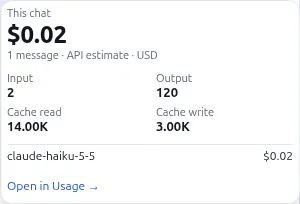
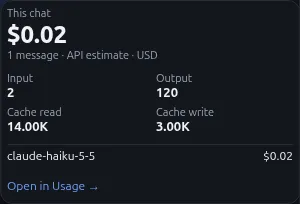
The four counts are Input, Output, Cache read and Cache write. Cached input is text the model has already read in this chat, which usually costs far less than new text. In a group room the window also has a By agent part, so you can see each member’s share.
Open the Usage page
Section titled “Open the Usage page”Choose Settings, then Usage. At the top are the filters:
- All agents is a list of your agents. It also has Room moderator and Room handoff, the two helper calls ZumiBot makes for group rooms, and Agent Coach, the small call that reads your corrections (see Agent Coach).
- Cost and Tokens switch the whole page between dollars and token counts.
- 7 days, 30 days, 90 days or All time. It starts on 30 days.
- ⟳ reloads the page.
If you came from a chat’s cost window, a button with that chat’s name and a cross shows too. Choose it to see every chat again.
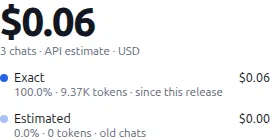
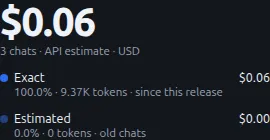
The big number is the total for what the filters show. Under it:
- Exact is the cost each reply reported when it finished. Its line ends “since this release”, because exact figures are only recorded from the version that added them.
- Estimated covers older chats, where ZumiBot worked the cost out afterwards from Claude Code’s own record of each chat. Those rows are tagged “est.”. While that is being worked out, the page says “Estimating old chats…”.
- A model ZumiBot has no price for is tagged “unpriced”, shows a dash, and is left out of the dollar totals. The page says how many tokens that is.
To the right, Daily cost (or Daily tokens) is a bar for each day. View daily data switches the breakdown below to its Day tab.
Read the breakdown
Section titled “Read the breakdown”Under the chart is a row of boxes with the token counts for the range, and then the Breakdown.
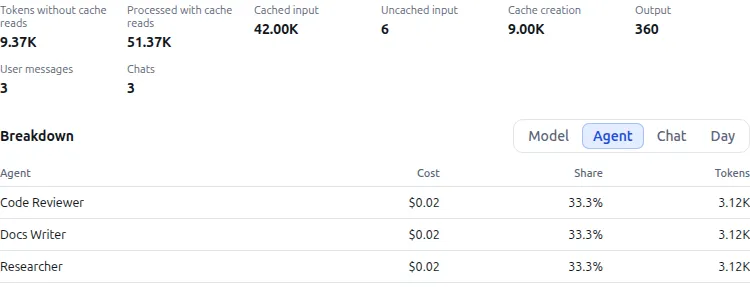
Choose Model, Agent, Chat or Day to group the same figures another way. Each row shows its cost, its share of the total and its tokens. Rows are sorted by the choice you made at the top, and days stay newest first. A row on the Chat tab opens that chat. A chat you deleted reads “Deleted chat”.
“Tokens without cache reads” leaves out text read from the cache, so it shows how much new work was done. “Processed with cache reads” adds it back.
What is counted
Section titled “What is counted”Replies in single chats and group rooms, side questions, the moderator and handoff calls of a room, keep-warm checks, which show in the Agent table as “Keep warm”, and Agent Coach’s checks, which show as “Agent Coach”. Figures are kept on the computer that runs your ZumiBot server.
Not counted: dictation and voice requests, which are billed by OpenRouter, and Jev’s calls, which OpenRouter bills too. Check those in your OpenRouter account.
Tips and limits
Section titled “Tips and limits”- Use Agent, then Chat. Find the agent that costs the most, then open its most expensive chats.
- Long chats cost more on every message. The cost of a chat grows with its size. Compact and starting a new chat both help.
- Old chats are estimates. They are close, not exact. The tag “est.” and the Estimated line always say so.
- A recent reply may take a moment to appear. The page refreshes by itself when a reply is recorded.
- It does not stop anything. To stop an agent from spending past a limit, use a spend cap.
Related
Section titled “Related”- Spend caps: the Spend caps section sits at the bottom of this page.
- Context meter and Compact
- Mode, effort and model
- Usage limit waits
- Jev: its calls are billed by OpenRouter and are not counted here.
- Codex agents: the Usage popover also shows Codex’s own limits.