
Memory and remembered approvals
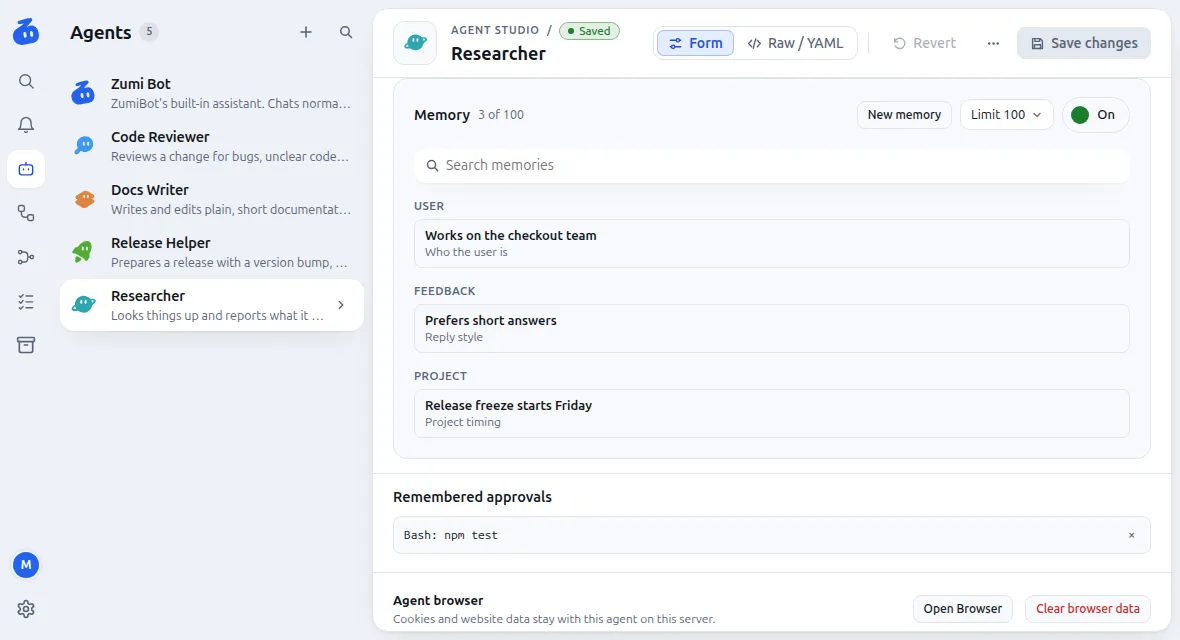
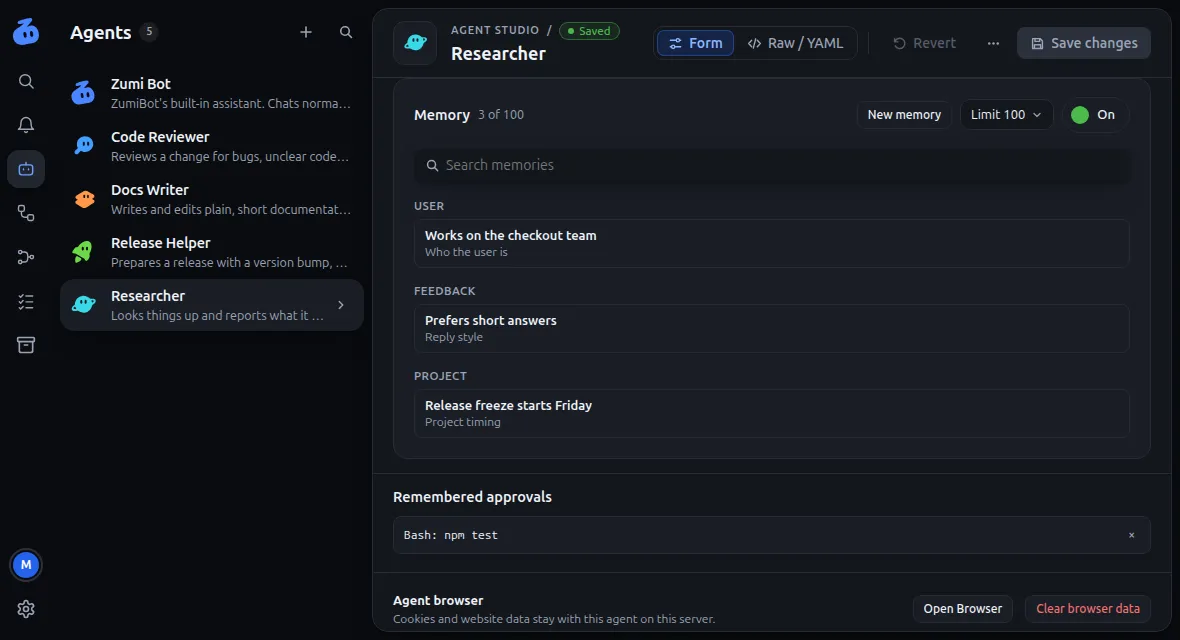
Two cards in Agent Studio hold what an agent keeps between chats. Memory is what the agent has learned and written down. Remembered approvals are the answers you told ZumiBot to keep when the agent asked permission.
Memory
Section titled “Memory”With memory on, an agent can save short notes, such as who you are, how you like answers, or facts about a project. It reads them when a chat starts. This is Claude Code’s own agent memory, so the same notes are used if you run the agent in a terminal.
The agent saves memories on its own, and it does not ask you first. You decide whether it may, and you can read, edit and delete every note.
Turn it on
Section titled “Turn it on”-
Open the agent in Agent Studio and scroll to the Memory card.
-
Switch it on. The switch at the top right of the card reads “Off” until you turn it on. While it is off, the card says “Off. Turn it on and save your changes to let this agent remember things between chats.”
-
Pick a limit. The Limit menu offers 25, 50, 100 or 150 memories. The default is 100.
-
Choose Save changes at the top. The switch and the limit are part of the agent’s file, so they apply only once saved.
See what it remembers
Section titled “See what it remembers”The card lists the agent’s memories under User, Feedback, Project, Reference and Other. The title shows next to a short description. The count next to the heading, such as “3 of 100”, is how many it holds out of its limit. Type in Search memories to narrow the list. A memory matches when every word you type appears in it.
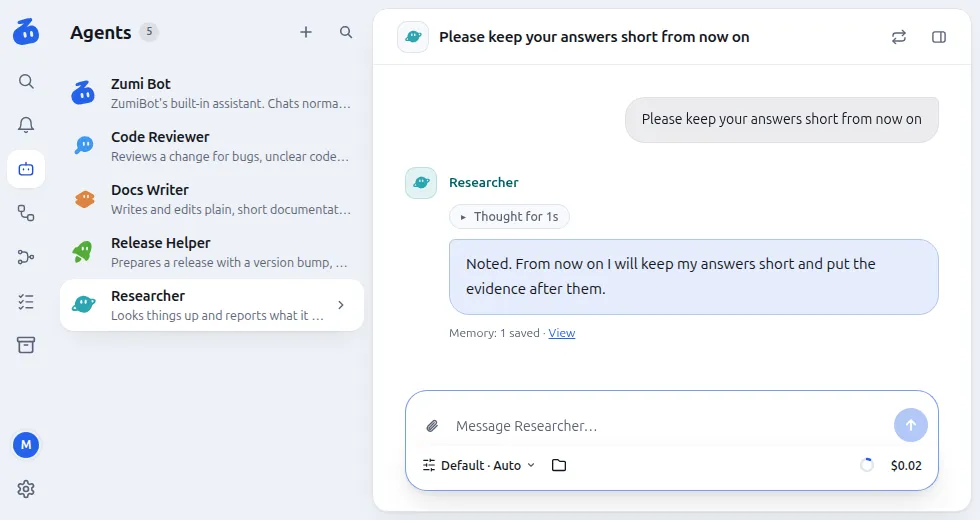
When an agent saves or changes a memory during a reply, the chat shows a line under that reply, such as “Memory: 1 saved” or “Memory: 1 saved, 2 updated”. In a group room it names the agent first, as “Researcher’s memory: 1 saved”. Choose View on that line to open Agent Studio at the Memory card.
Add, edit and delete a memory
Section titled “Add, edit and delete a memory”- Add. Choose New memory. Fill in Title, Description, Type (User, Feedback, Project or Reference) and Text, then choose Save.
- Edit. Choose a row, change it, and choose Save. Cancel closes it without saving.
- Delete. Open a row and choose Delete. After you confirm “Move this memory to Trash?”, the memory moves to the Trash, so you can restore it from there.
If the agent changed the same memory while you had it open, the card says “This memory changed since you opened it.” Your text stays in the box, with the newer version loaded, so nothing you typed is lost.
What to write
Section titled “What to write”Memories work best when they are short and true for a long time: a preference, a role, a decision, where something lives. Use User for facts about you, Feedback for how you want the agent to work, Project for what is going on in a project, and Reference for pointers to things elsewhere. Do not store secrets in a memory. Use the Vault for keys.
Limits
Section titled “Limits”- When the agent reaches its limit, the card says “This agent has reached its limit of 100 memories. Edit, merge or delete one before adding another.” and New memory is hidden. The agent is told the limit too and asked to merge notes instead of adding more. ZumiBot never deletes a memory to make room. The limit is a request, not a lock: Claude Code can still write past it, and the card then marks the count.
- Only the first 200 lines of the agent’s memory index reach the agent. Memories past that show “not seen by the agent”. Delete or merge old ones.
- If Claude Code’s own automatic memory is off, the card warns that the agent cannot read or save memories. The warning says to turn it on with
/memoryin Claude Code. - If an agent’s file asks for a separate memory in each project folder, the card only says so. ZumiBot shows and edits only the memory an agent keeps for all projects.
- Zumi Bot has no memory. Agents set up to run on a different tool than Claude Code may not show the Memory card.
Remembered approvals
Section titled “Remembered approvals”When an agent asks for permission, the approval card offers Allow always for this agent. That answer is remembered, and the agent stops asking for that kind of call in every chat. See Approvals, questions and plans.
The Remembered approvals card in Agent Studio lists every answer you saved for the agent, so you can check what you allowed.
-
Open the agent in Agent Studio and find the Remembered approvals card, under Memory.
-
Read the rows. A row such as “Bash: npm test” allows only that exact command. A row with just a tool name, such as “Edit”, allows any call to that tool. A row such as “Bash: commands starting with git branch -D” comes from Allow and continue on the card for a command Auto mode refused, with Always for this agent chosen, and allows any command that starts that way. A row such as “Read: files in /home/you/other-repo” comes from the same card when you allowed a folder, and lets the agent read that folder and change into it. See When Auto mode refuses a command.
-
Take one back. Choose the × at the end of the row. It goes at once, and the agent asks again the next time.
-
Add one yourself. Under the rows, pick Bash commands starting with and type the start of a command, such as
gh pr merge, or pick Folder it may read and cd into and type a full folder path, such as/home/you/other-repo. The card shows the rule it will make, then choose Add. These are the same rules Allow and continue makes, so they apply in Auto, Ask permissions and Accept edits, never in Plan mode. A start that names a shell or wrapper, orgitwith no subcommand, is refused, and so are your home folder and a folder near the top of the disk.
With no rules, the card says “No remembered approvals. Use “Allow always for this agent” on an approval card, or add a rule below.”
Tips and limits
Section titled “Tips and limits”- A remembered rule is a standing yes. Remove one you no longer want, especially a broad one such as a whole tool.
- If you rename an agent, its remembered approvals move with it. If you delete it, they are dropped.
- Allow for this chat is not listed here. It lasts only for that chat.
- A change made through a claude.ai connector, such as sending an email, is remembered only while that connector’s Remember approvals switch is on in Settings › Connectors. With it off, the card offers only Allow once and Deny.
- Deleting a routine or a workflow always asks, and its card never offers to remember the answer.