
Attachments
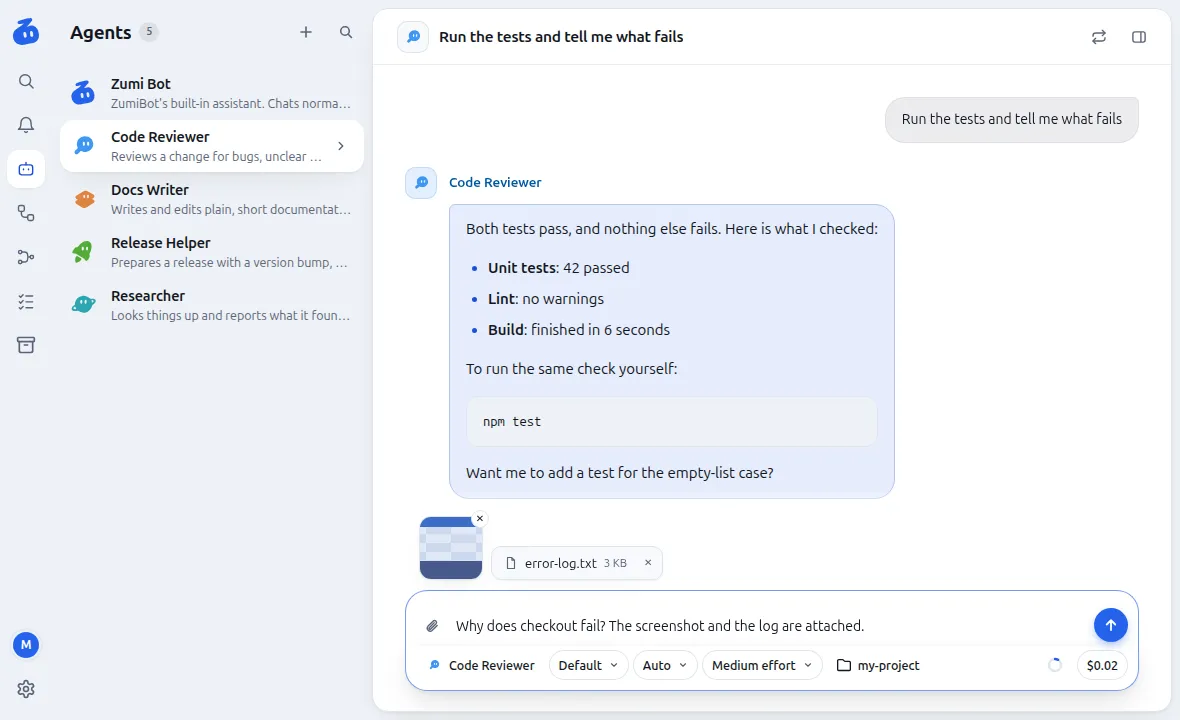
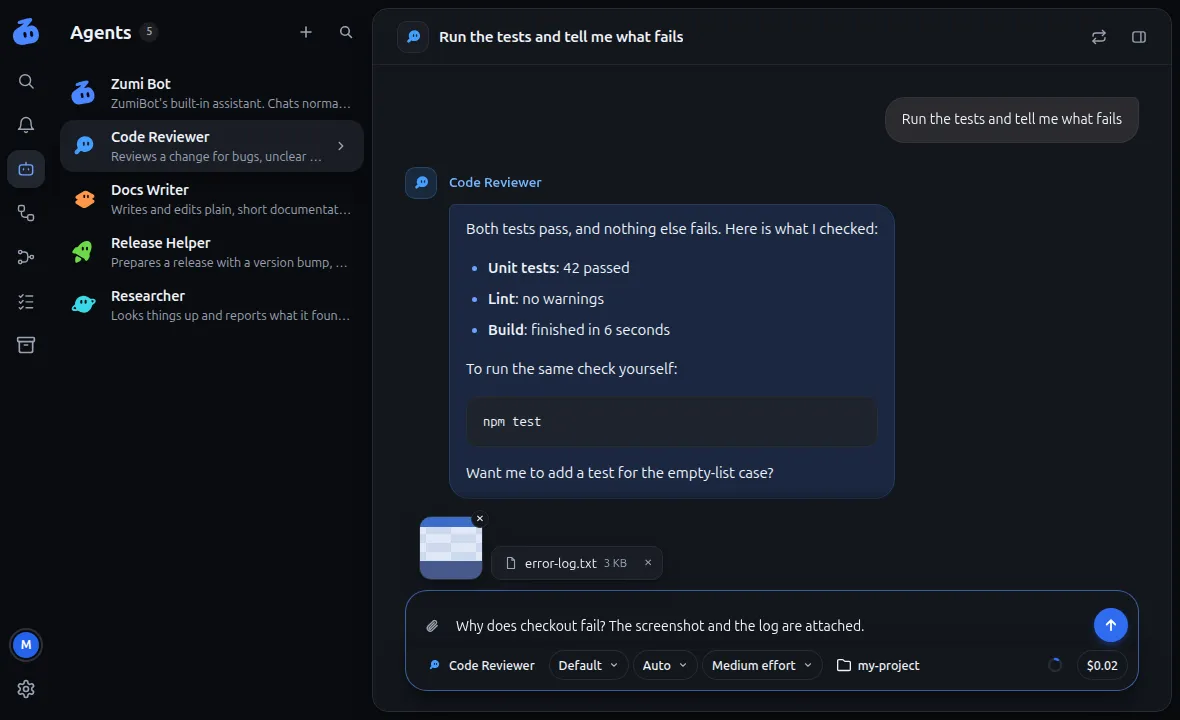
You can send files along with a message: a screenshot of a bug, a log, a document. The agent sees pictures directly and can read the other files.
Attach files
Section titled “Attach files”Use whichever way is closest to hand.
-
Choose the paperclip. The button reads “Attach files” and sits at the left of the message box. Pick one or more files in the window that opens.
-
Or drop files on the chat. Drag them from your file manager and drop them anywhere on the chat. A “Drop files to attach” panel shows while they are over it.
-
Or paste. Press Ctrl+V (Cmd+V on a Mac) with a copied picture or file. A pasted picture is named after the date and time, for example
pasted-20261120-143005.png. -
Write your message and send. You can send files with no text at all.
Each file shows above the box while it uploads and waits for you. Pictures show as thumbnails. Other files show as a chip with the name and the size. Sending is held until every file has finished uploading.
To take a file off before you send, choose the ✕ on it.
Attach a chat or card
Section titled “Attach a chat or card”You can also attach a copy of one of your chats or board cards, so the agent reads work done somewhere else. Say a Code Reviewer chat went through a pull request: open a new chat with Zumi Bot, attach that chat, and write “make a workflow out of this”.
-
Type
#in the message box. A list opens with your chats first and your board cards under them. The newest few show at first, and typing narrows the list: each word you type has to match the start of a word in the title. A chat also matches on its agent’s name. -
Choose one. Use the arrow keys and Enter or Tab, or click a row. Esc closes the list.
-
Write your message and send. The
#text leaves the box, and the chat or card shows above it as a file chip namedChat -orCard -followed by its title, ending in.md. Pick as many as you like, within the limit of 10 files. Choose ✕ to take one off.
What the agent gets is a copy taken at the moment you choose it. A chat keeps going after that, but the copy does not change. A chat copy holds the conversation: what you asked, what each agent answered, the tools it used, and any approvals, questions, errors and notices. A card copy holds its title, status, assignee, who made it, when it was made and last changed, its notes, questions and answers, its comments, and its pull request if it has one. A card’s pictures and other files are not included. The copy only lists their names.
Some things to know:
- The
#list is not offered in the island, in the Edit box, in side questions, in a card’s comment box, or in a chat with a remote agent, since a remote agent takes no attachments. - A
#followed by a number or a space, such as#123or# Heading, stays plain text, and so does a#inside a word, such asC#. - Archived chats and the chat you are writing in are not listed.
- If the chat or card was deleted before the copy was made, the chip shows “That chat no longer exists.” or “That card no longer exists.”
- The agent is told the copy is material to read, not instructions. Still, check what an agent does with text it has read from another chat.
Look at a file
Section titled “Look at a file”Choose a thumbnail or a chip, before or after you send, to open it in the viewer. Pictures show fitted to the window, and a click shows a large one at full size. Text files show as plain text. Use the left and right arrows to step through the message’s files, and press Esc or choose ✕ to close.
In the viewer, Download saves a copy. A file you already sent also offers Open in default app in the desktop app, or Open in new tab in a browser.
What the agent gets
Section titled “What the agent gets”- Pictures in PNG, JPEG, GIF or WebP, up to about 3.75 MB and 8000 pixels on a side, go to the agent as pictures it can look at.
- Everything else is a file. The agent is told its name and where it is, and reads it the way it reads any file in its work.
Sent files show above your message in the chat. ZumiBot keeps its own copy with the chat, on the computer or server that runs ZumiBot, so the file still opens if you move or delete the original.
Tips and limits
Section titled “Tips and limits”- You can attach up to 10 files to one message. Each can be up to 25 MB. Past that, ZumiBot shows “You can attach up to 10 files per message.” or “(file name) is over 25 MB”, and leaves the rest as they were.
- Folders cannot be attached. Zip a folder first.
- A message sent while the agent is still working waits in the Tasks list with its files. A paperclip and a number on the row tell you how many.
- If a file cannot be read, ZumiBot says “(file name) couldn’t be read”. Attach it again.
- If a picture cannot be loaded, its thumbnail reads “File missing”. If a file you staged is gone before you send, ZumiBot says “An attached file is gone. Attach it again.”