
Git and worktrees
When a chat runs in a folder that is a git repository, ZumiBot shows its branch and lists what changed in it. You can also give a chat its own copy of the repository, on its own branch, so several chats can work on one project without editing the same files. That copy is a git worktree.
ZumiBot uses the git on the computer where it runs. If git is not installed there, or the folder is not a repository, none of this shows and chats work as usual.
See the branch and the changes
Section titled “See the branch and the changes”In a repository, the row under the message box shows a branch chip after the folder: the branch name, or a short commit id if no branch is checked out, and a small dot while there are uncommitted changes. Point at it to see how many.
-
Choose the branch chip. The Changes panel opens at the right of the chat. You can also choose the panel icon, then Open Changes, which shows the number of uncommitted files beside it. Choose the chip again to close the panel.
-
Read the list. The top line shows the branch, “N files changed” and the total lines added and removed. Each row has a letter for what happened (M modified, A added, D deleted, R renamed, C copied, T type changed, U untracked, ! conflict), the file name, its folder, and its own counts.
-
Choose a file to see its diff. The Diff / Old / New switch and Copy work as in the Files panel, and so do Quote and Explain on selected lines.
-
Choose the refresh button at the top if you changed something in the folder yourself. The panel also reads again when a reply ends and when you come back to the window.
If the agent makes a worktree of its own with git and works there, the chip and the panel follow it: they show that worktree’s branch and changes, not the folder the chat was opened in. The chip’s tooltip and a line under the panel’s branch say “In the agent’s worktree:” with its folder. The Uncommitted / Since start switch shows there too: Since start lists everything since the agent made its branch, so you still see its work after it has committed it. They go back to the chat’s folder once the agent works there again or its worktree is removed.
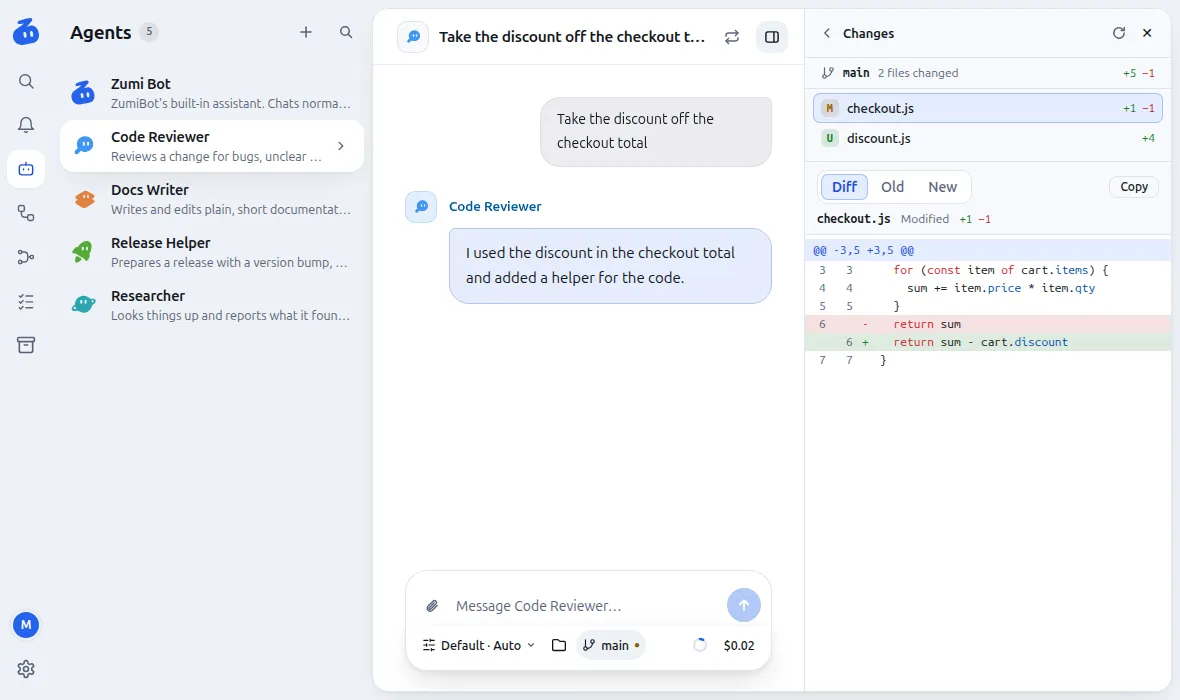
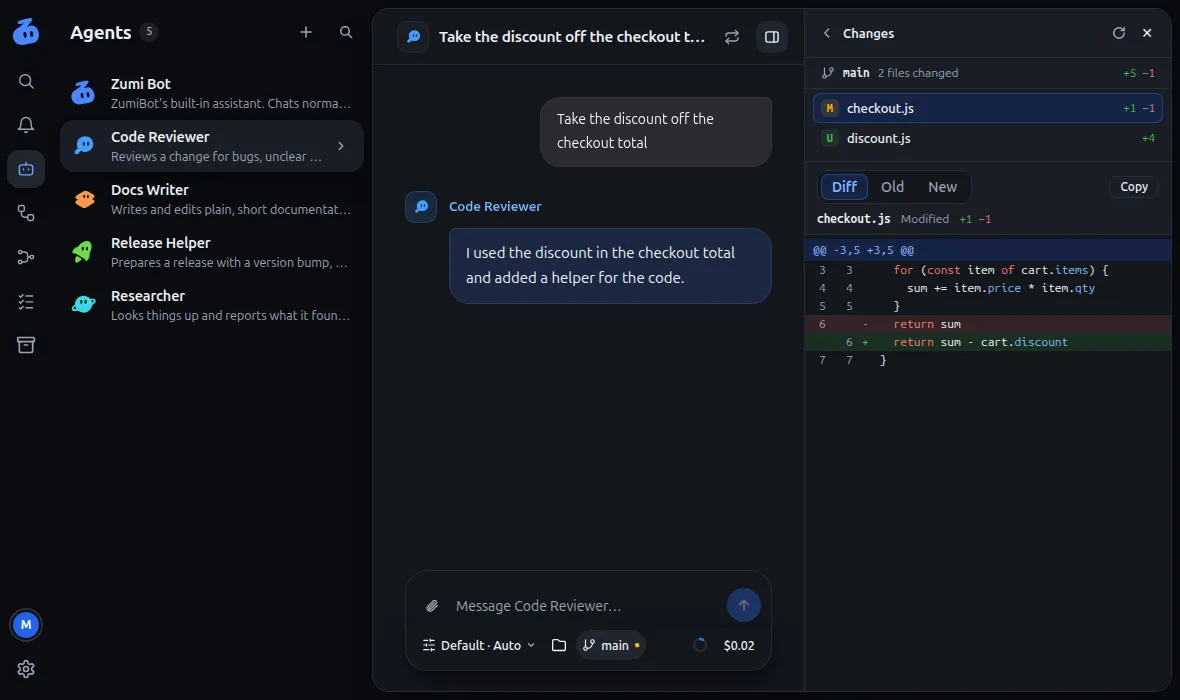
This panel reads git as it is now. It lists everything that is not committed, whether an agent changed it, a command did, or you did. An empty folder reads “No uncommitted changes. Everything is committed.”
The panel only reads. Nothing is staged, committed or changed by looking at it.
Give a chat its own branch
Section titled “Give a chat its own branch”Two chats in one folder edit the same files, and each can undo what the other did. A worktree fixes that. ZumiBot makes a second checkout of your repository next to it, on a new branch, and runs the chat there. The two chats cannot get in each other’s way, and you merge the branches when you like.
-
Start a new chat or group chat and pick the folder, which must be inside a git repository.
-
Open the folder menu and tick Isolate in worktree — runs on its own branch next to the repo. It saves at once. A small branch mark shows on the folder button while it is on.
-
Send your message as usual.
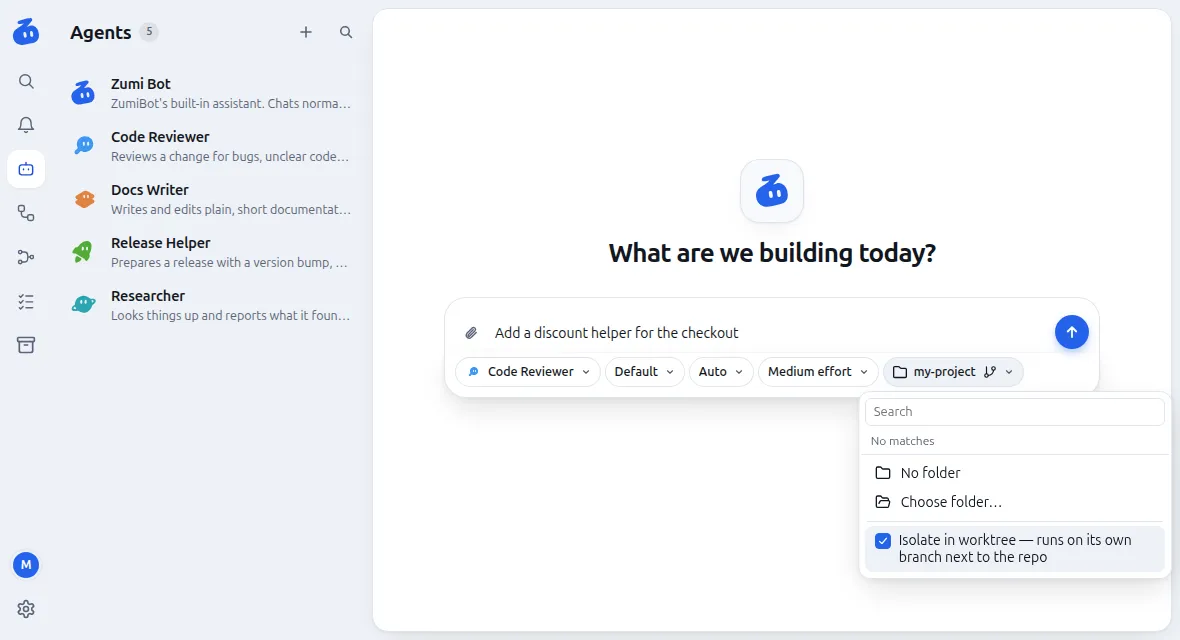
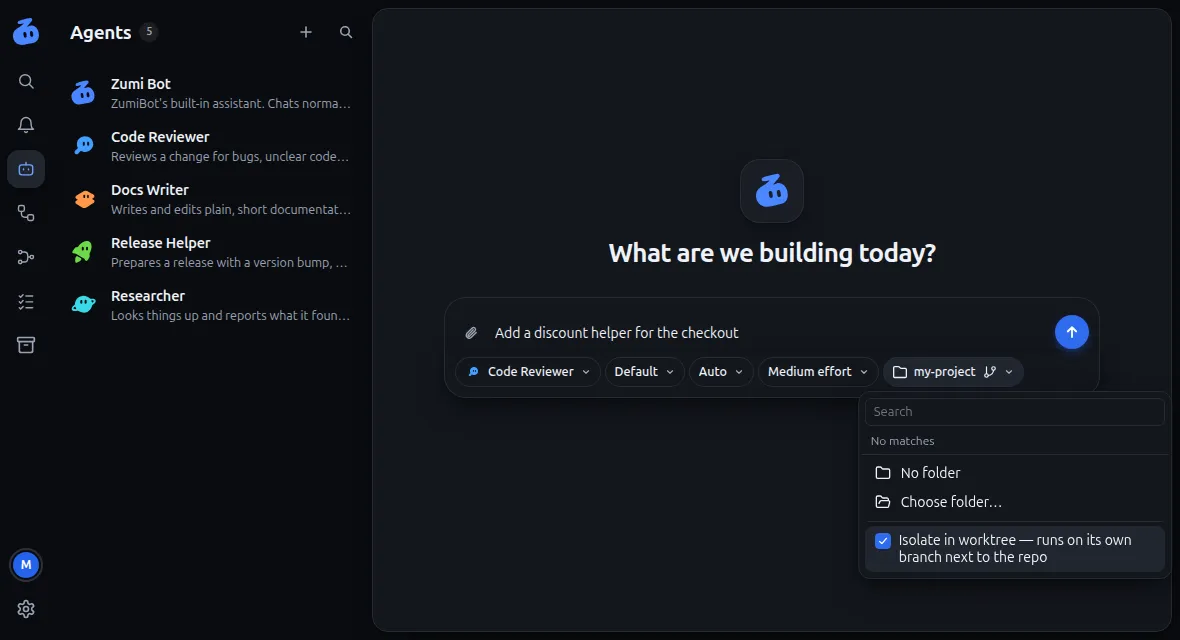
The setting belongs to the repository, not to one chat. Once it is on, every new chat in that repository gets its own worktree until you untick it. The option is grayed out, with the hint “Not a git repository”, for a folder that is not in a repository. It is not offered for the Zumi Bot assistant.
What ZumiBot makes:
- A branch named
zumibot/followed by the agent’s name and a few characters, such aszumibot/code-reviewer-a1b2c3. It starts from the commit your folder is on now. Rooms usezumibot/room-and a few characters. - A folder beside your repository, named after it and ending the same way as the branch. The chat runs in that folder. If you picked a subfolder, the chat starts in the same subfolder of the copy.
- A link to each
node_modulesfolder in the repository, so the copy does not need a fresh install. It is only made when your repository ignores that folder and does not use workspaces.
The chat’s branch chip shows the new branch, and its row in the left column has a branch mark. In the Changes panel, a new switch appears under the branch line:
- Uncommitted shows what is not committed yet. This is the default.
- Since start shows everything the chat has done since the worktree began, committed or not. Use it when the agent commits its own work. A worktree made by an older version of ZumiBot has no starting point, and the switch is grayed out.
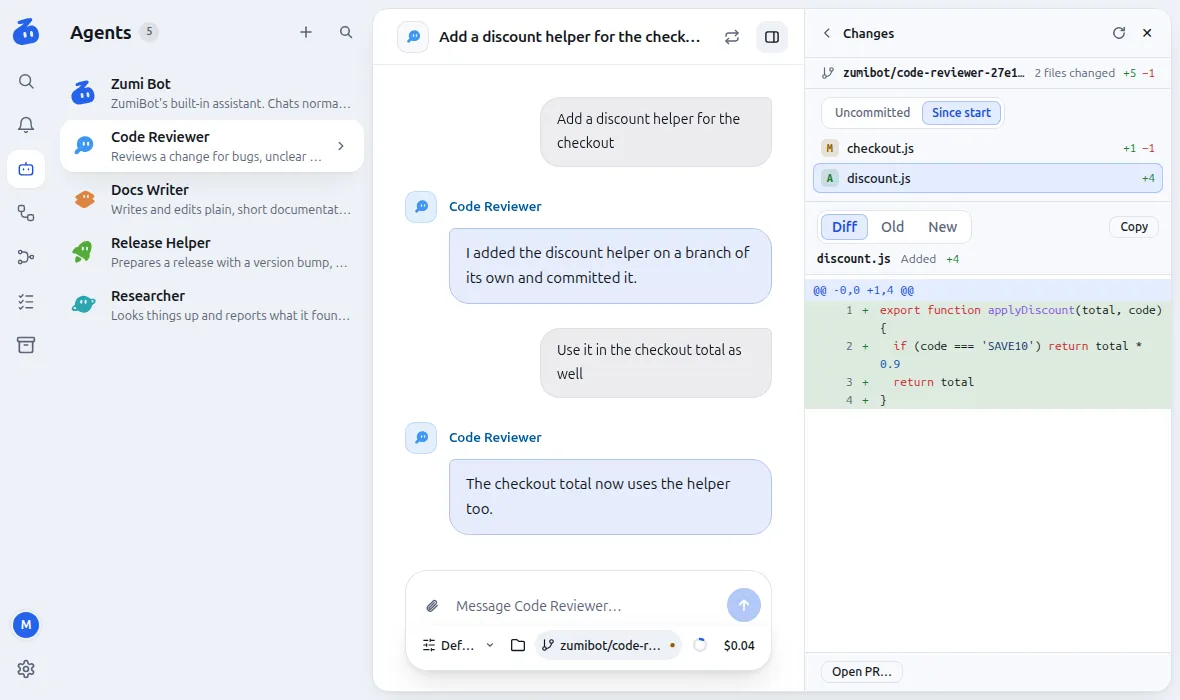
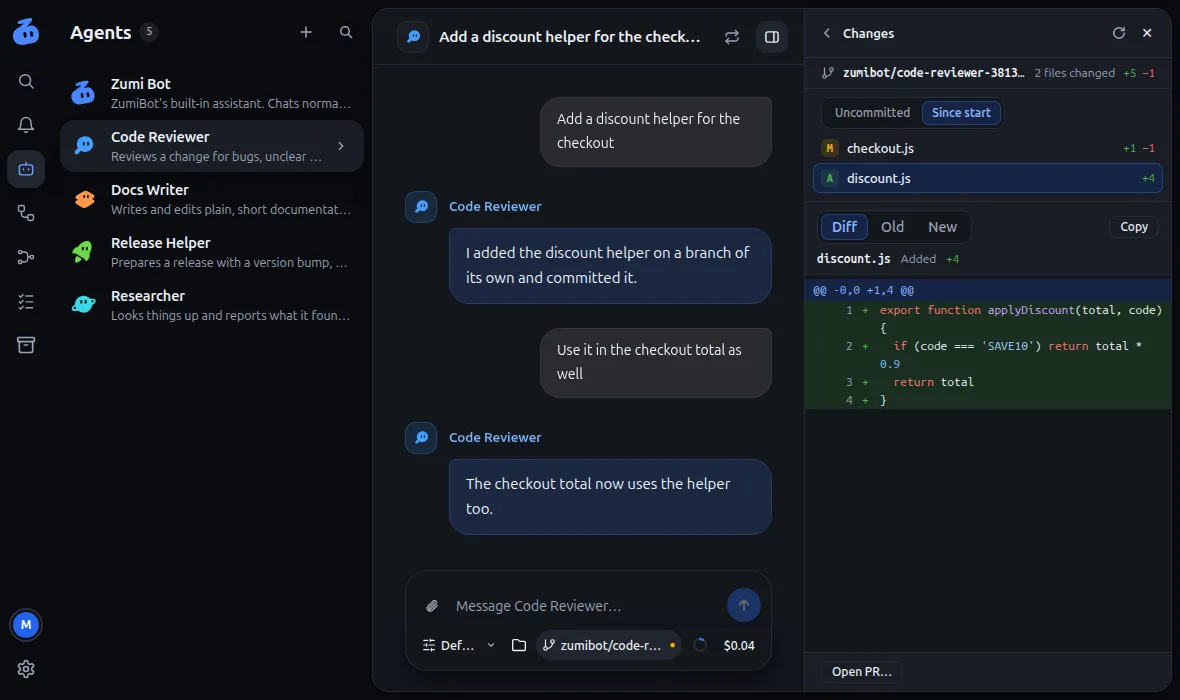
At the foot of the panel is Open PR…. See The review loop for pull requests and for sending the agent comments on specific lines.
When you archive the chat
Section titled “When you archive the chat”Archiving a chat removes its worktree folder when that is safe, to tidy up. The branch is always kept, so no work is lost. The archived chat says what happened:
- “Its worktree folder was removed. Branch zumibot/… is kept.”
- “Its worktree was kept: uncommitted changes.” The folder holds work that is not committed, so ZumiBot leaves it. The same goes for “ignored files that would be lost” (files git does not track, which would be deleted), “detached HEAD” (commits that belong to no branch), “another chat uses it”, and “removing its folder failed”.
A kept folder stays until you clean it up and archive the chat again, or remove it yourself.
If you send a message in an archived chat, ZumiBot makes the worktree again from the branch before the turn starts. If the branch is gone, it is made again from your repository’s current commit, and a note in the chat says so.
Tips and limits
Section titled “Tips and limits”- Never forced. ZumiBot never forces a branch, never deletes one and never writes inside your original checkout.
- You merge. ZumiBot does not merge branches for you. Merge or open a pull request when the work is ready.
- Several chats, one worktree. A fork and a cloned room share the original’s folder. A group room has one worktree for all its members.
- Not for background work. Routines, workflows, voice requests and the Zumi Bot assistant never get a worktree.
- One branch, one checkout. Git allows a branch in only one checkout at a time. If you have the same branch open elsewhere, the chat says to switch that checkout to another branch, then send again.