
Workflows
A workflow is a chain of steps you draw on a canvas. A trigger starts it. Each step does one job, such as asking an agent to write something, asking you to approve it, or sending you a notification. The output of one step feeds the next.
A routine sends one prompt. Reach for a workflow when the job has several parts, needs your approval in the middle, or has to choose between paths.
Build your first workflow
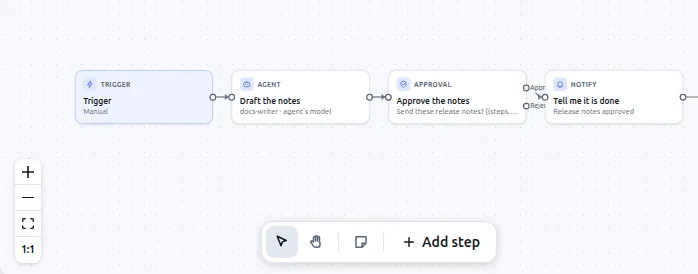
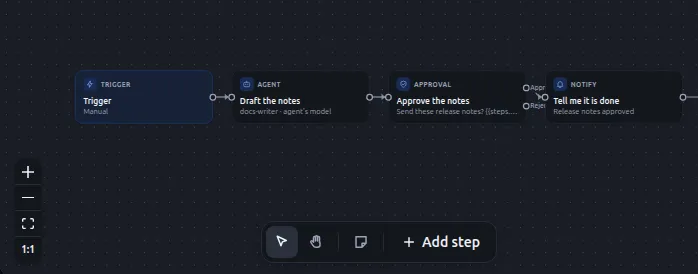
Section titled “Build your first workflow”This one drafts release notes with an agent, waits for your approval, then tells you it is done.
-
Open Workflows in the left bar and choose + (New workflow). A new workflow has one box, the Trigger, and is Off. Type its name at the top.
-
Add a step. Choose Add step in the toolbar at the bottom of the canvas, or press N, and pick Agent. The new step lands in the middle of the view.
-
Join it to the trigger. Drag from the Trigger’s right-hand dot to the step. A drag that ends on empty canvas opens the same menu and joins the step it adds. A dot with nothing after it shows a small + that adds a step there.
-
Fill it in. Choose the step. Its settings open in the panel on the right. For an Agent step you pick the agent, a folder and the prompt. Steps covers every kind.
-
Pass text along. In a prompt, type
{{to pick what to insert:inputis the text the previous step handed on, and another step’s output or a trigger field are in the list too. A step’s Handle names it for this, so a step with the handledraftis read as{{steps.draft.output}}. -
Add the next steps. Add an Approval step and a Notify step the same way. On Approval, join the Approved port to the Notify step. If you leave the Rejected port empty, nothing runs after a rejection.
-
Check and save. With nothing selected, the right panel says “No problems: it is ready to run.” when the workflow is complete. Otherwise it lists each problem, and choosing one opens that step. Choose Save, or press Ctrl+S.
-
Run it. Choose Run workflow. A box asks for an optional Input, which becomes the trigger’s text. Choose Run. A line reads “Run started.” with View run.
A new workflow is saved Off. Save always works, but Run workflow and turning the switch On wait until the workflow has no problems. If you save a workflow you asked to be On and it has problems, ZumiBot keeps it Off and says why.
The Off and On switch
Section titled “The Off and On switch”The switch matters for workflows that start by themselves: a schedule, a webhook or an event. An Off workflow never starts on its own, but you can still run it by hand. In the editor, the switch is saved with your other changes. The switch in the Workflows list applies at once.
Work on the canvas
Section titled “Work on the canvas”The toolbar at the bottom of the canvas has four tools: Select, Pan (or hold Space), Add sticky note and Add step. The buttons at the lower left zoom in, zoom out, fit the view and reset it to 100%.
| To do this | Do this |
|---|---|
| Move a step | Drag it. Steps snap to a grid. |
| Pick several | Drag a box on empty canvas, Ctrl-click (Cmd-click on a Mac) each one, or press Ctrl+A. They move, copy and delete together. |
| Join two steps | Drag from one step’s right-hand dot to the other step. |
| Put a step on a line | Point at the line and choose its +. The trash removes the line. |
| Open a step | Choose it, or press Enter. Press F2 to rename it. |
| Copy and paste | Ctrl+C, Ctrl+X and Ctrl+V work between workflows too. Ctrl+D duplicates. The trigger cannot be copied or deleted. |
| Undo and redo | Ctrl+Z and Ctrl+Shift+Z (or Ctrl+Y). ZumiBot keeps your last 100 edits. |
| Zoom | Ctrl and the wheel, or the + and - keys. Press 1 to fit the view and 0 to go to 100%. |
| More | Right-click a step, a line or the empty canvas for a menu with each action and its shortcut. |
Two helps for big workflows are for people, not for the run:
- Sticky notes. Press Shift+S, or choose Add sticky note, and write in Markdown. Pick a color from the bar that shows when you point at the note. Notes sit under the steps and the workflow never reads them.
- Groups. Pick two or more steps that form one connected chain and press Ctrl+G, or use the right-click menu’s Group. A group is a named box. Collapse it to one block to tidy the view. The steps in it still run. Ctrl+Shift+G ungroups. A group must be one unbroken chain with one way in and one way out, and the editor says why when yours is not.
Run it and read the result
Section titled “Run it and read the result”A run lists under its workflow in the Workflows list, with a dot for its status, the time, a tag such as “manual”, and what it cost. Choose a run to open it. A run’s status is one of “Running”, “Waiting on you”, “Done”, “Failed”, “Stopped” or “Skipped”.
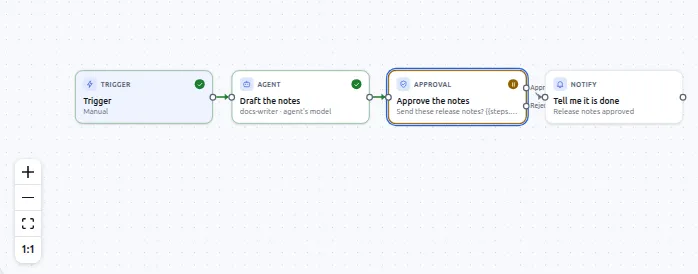
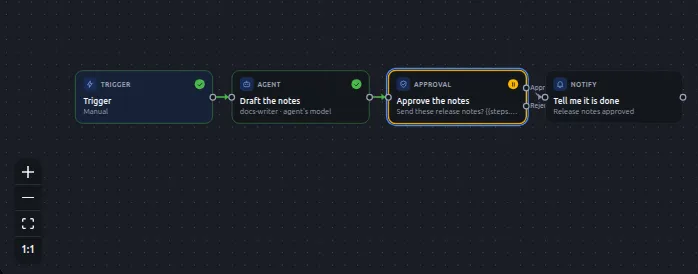
The run shows your canvas with a mark on each step: a tick for done, a pause for waiting, a cross for failed. Choose a step to see each time it ran, called a visit, with its input, its output, how long it took and what it cost. Two things need you:
- An Approval step waits. The run status reads “Waiting on you”, and the Workflows icon in the left bar shows a dot. The question is in the step’s panel, with Approve and Reject. The same card shows in your Inbox.
- A step failed. Choose it and press Retry to run that step again with the same input.
The header has Canvas and Audit log tabs, and a Stop button while the run goes. Stop ends the run at once: it stops the agents’ turns, cancels calls in progress and closes open approvals. The Audit log appears once the run has ended. It lists the trigger, then every visit in order with what went in and what came out, and ends with how the run finished, how long it took and what it cost.
Each Agent step runs in a chat of its own, titled with the workflow, the step and the date. Choose Open chat on a visit to read it or to answer a card the agent raised. The chat is archived when the step finishes, unless you chose to keep it.
Start a workflow from a chat
Section titled “Start a workflow from a chat”Type /run-workflow in the message box of an open chat, pick a workflow from the list, and add your text after its name. That text becomes the trigger’s text, and the chat’s title and the agent’s last reply there are available as trigger fields. A notice reads “Started” with Open run. See Slash commands.
Tips and limits
Section titled “Tips and limits”- Only five at a time. A workflow can have five unfinished runs.
- Loops are allowed, up to a point. You can join a step back to an earlier one. A step may run 20 times in one run, and a run 200 visits in all. After that the visit fails with “Ran too many times”, and Retry allows more.
- A run does not change when you edit. A run keeps a copy of the workflow as it was when the run began.
- Run settings. Select the trigger to find At the usage limit, If a run was missed (schedules) and Spend cap per run, which work like a routine’s. See Triggers.
- On a phone you can turn a workflow On or Off, run it, and read its runs. The note “Change steps on a larger screen.” means you edit steps on a computer or tablet.
- The ⋯ menu. Duplicate makes an Off copy named like “Release notes (2)” with the same steps. History… shows your saved versions, see Saved history. Discard changes goes back to the saved version. Delete stops unfinished runs and removes the workflow and its runs. The chats it made stay.
- Zumi Bot can build one. Describe the flow to Zumi Bot, or ask it to turn a chat into a workflow. It never runs the workflow itself.
- Zumi Bot cannot be a step. An Agent step needs one of your own agents.