
Edit, Resend and Fork
Sometimes a message was not quite right, or the answer was not what you wanted. Edit changes a message and runs the agent again from that point. Resend asks the same question again for a new answer. Fork copies a chat up to a point into a new chat, so you can try another direction. None of them destroy what you had.
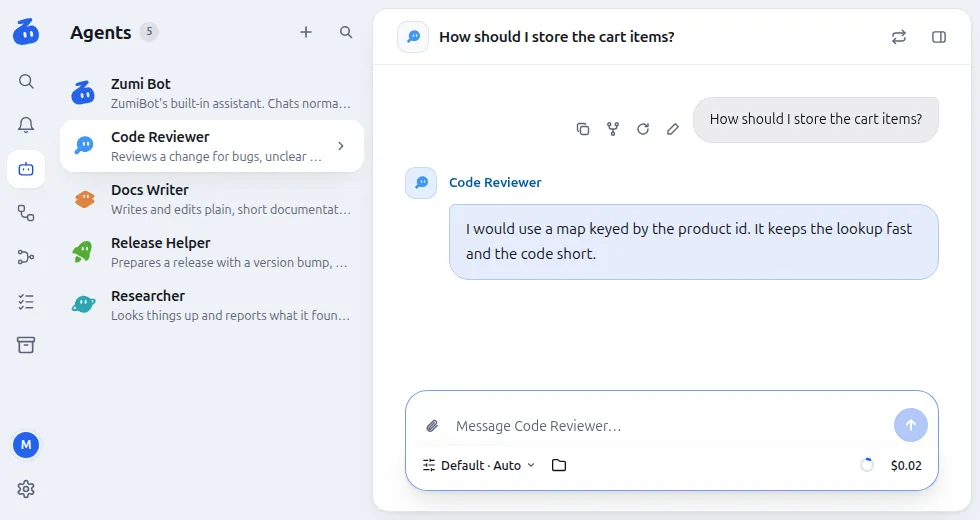
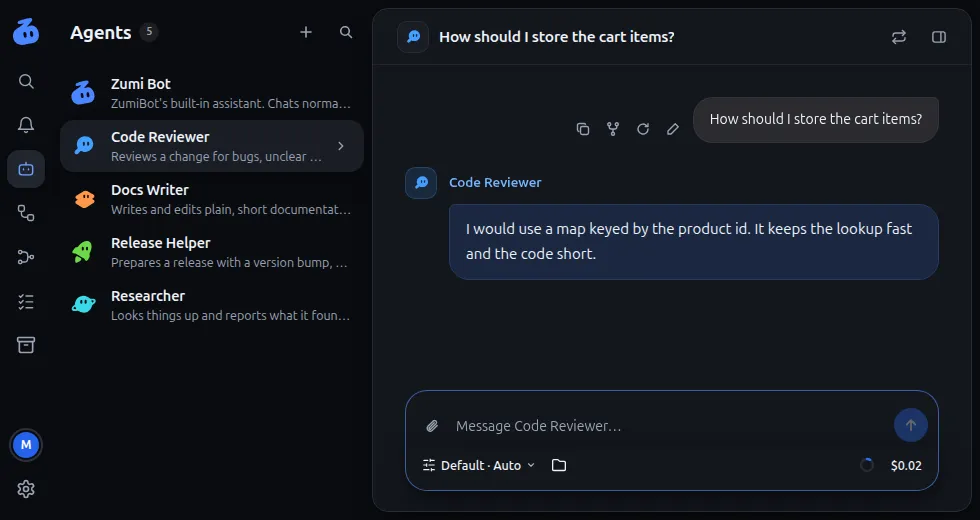
Point at one of your messages to see its buttons. Starting next to the message, they are Edit, Resend, Fork and Copy.
Edit a message
Section titled “Edit a message”-
Point at your message and choose Edit. The message turns into a box with your text in it. Everything after it dims, because it is about to be replaced.
-
Change the text. The box works like the message box: you can use
@to mention someone and/for commands. -
Choose Send. The agent answers the new version, starting from the conversation as it was before that message. Cancel, or Esc, closes the box and changes nothing.
If you choose Send without changing the text, it is a plain Resend.
Versions
Section titled “Versions”When you edit a message, the old version is kept. A small control under the message shows which version you are looking at, such as ‹ 2 / 2 ›. Use the arrows to switch. Each version comes with the reply that followed it, so the chat shows that whole branch again.
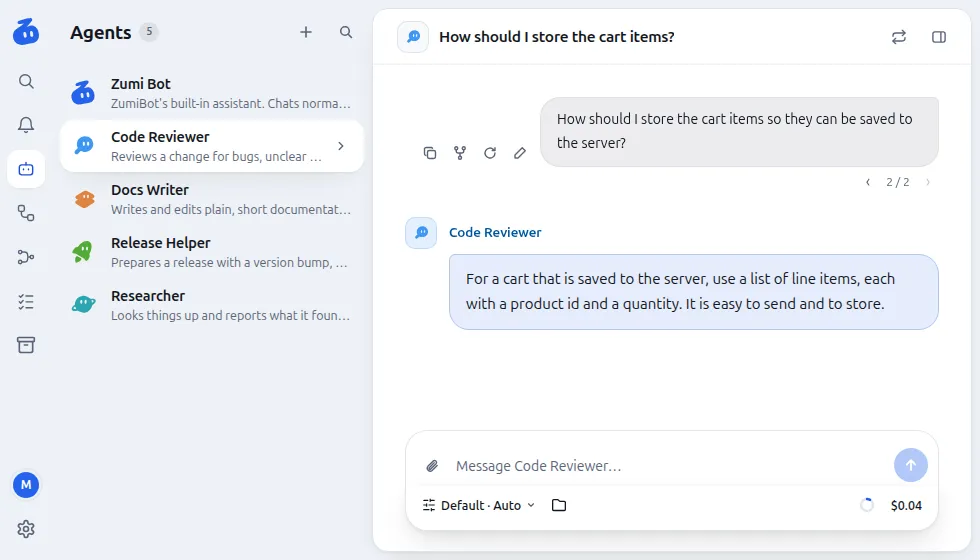
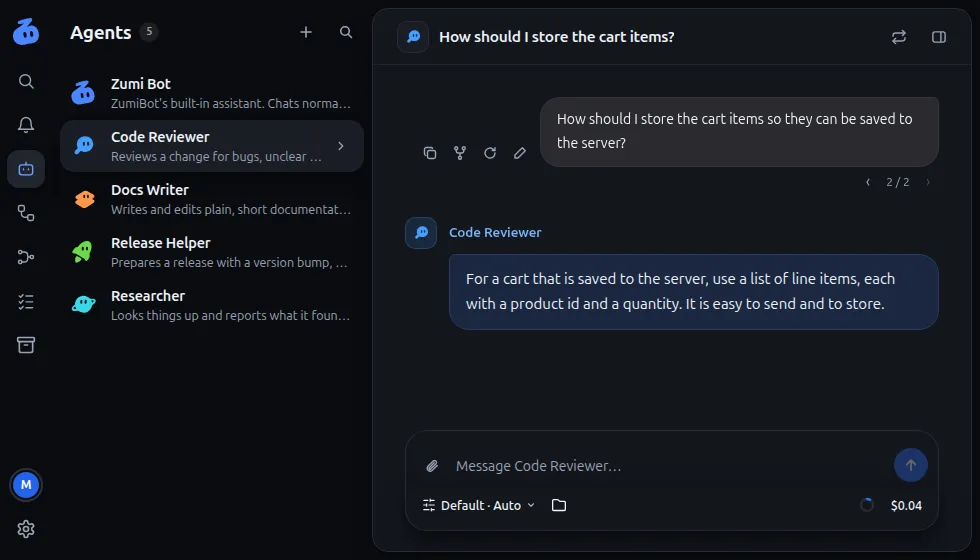
The arrows are off while a reply is running. Point at an arrow to see why: “Wait for the reply to finish to switch versions”.
Resend
Section titled “Resend”Resend sends the same message again, in the same place in the chat, and gives you a new answer. It is useful when the first answer was wrong or off topic and the question is fine. The new answer becomes a new version of your message, and the old one is kept.
You find Resend in two places. It is beside your own message. It is also beside the agent’s latest reply, where it resends the message above it. Older replies do not have it.
Fork a chat
Section titled “Fork a chat”Fork starts a new chat from a point in this one. The original stays as it is.
- Fork from your message: the new chat holds everything before that message. Your message and its files are put back in the new chat’s message box, so you can change it and send it.
- Fork from an agent reply (point at it and choose Fork): the new chat holds everything up to and including that reply.
The new chat opens at once. It is named “Fork of” and the old chat’s name, and it keeps the same agent, folder, model, effort and mode. In a group room, the fork is a room with the same members, and it sits right under the old room in the left column, in the same section.
Tips and limits
Section titled “Tips and limits”- Edit and Resend while the agent is working stop the reply that is running. Messages waiting in Tasks then stay there, and none is sent by itself. Choose Send now on a row when you want it to go.
- In a group room, a member’s message gets Fork once that member’s turn ends. While the member is still working, its finished messages offer the other buttons, such as Copy, Reply and reactions.
- The other versions of a message stay out of search, Export and forks. Only the version you are looking at counts.
- Some agents cannot edit, resend or fork, for example agents connected through ACP. Those buttons are left out. The small “i” beside the agent lists what it cannot do.
- If the agent cannot go back to the earlier point (for example its old session is gone), the chat shows the line “Earlier session expired. Continued in a new session using this chat’s history as context.” The agent still knows what was said.