
Clone a room
A long room gets heavy: every member carries its whole history. Clone room makes a new room with the same team and none of the weight. You can start clean, or hand the new members a short note about where the old room got to.
Clone a room
Section titled “Clone a room”-
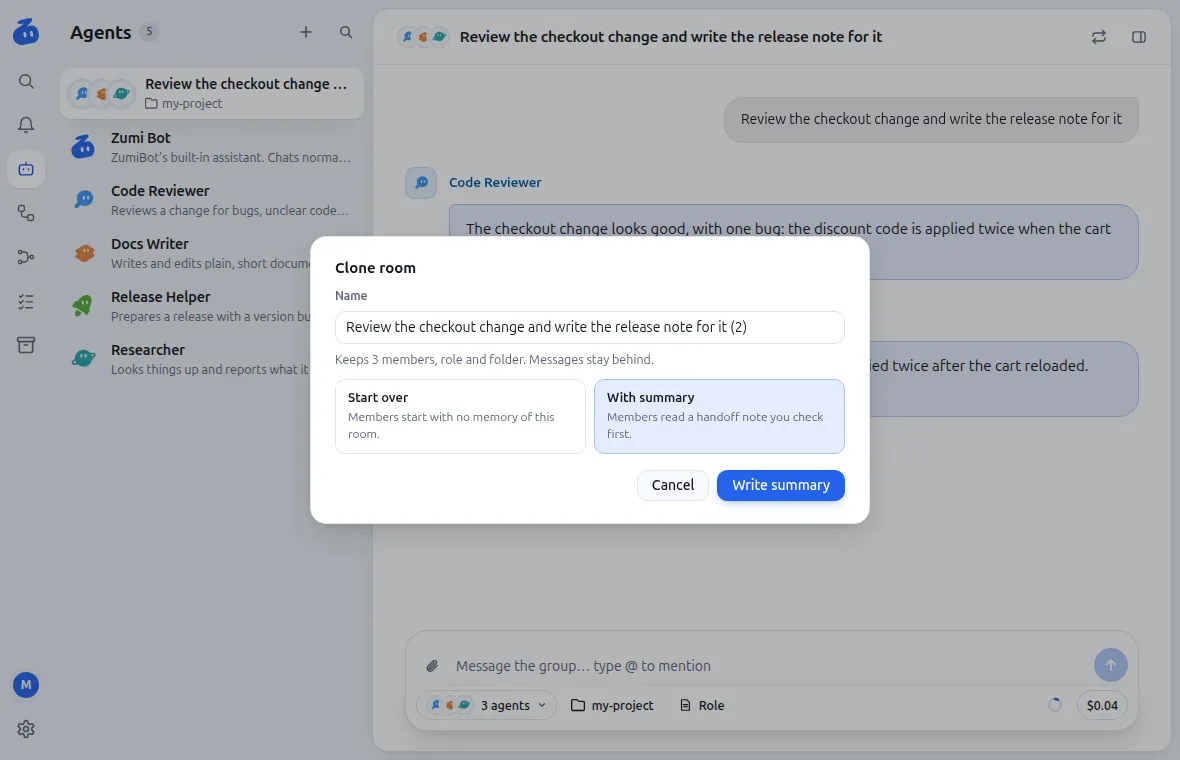
Open the clone dialog. Right-click the room in the left column (press and hold on a phone) and choose Clone room…. You can also open the context ring beside the cost under the message box and choose Clone room… at the bottom of its popover.
-
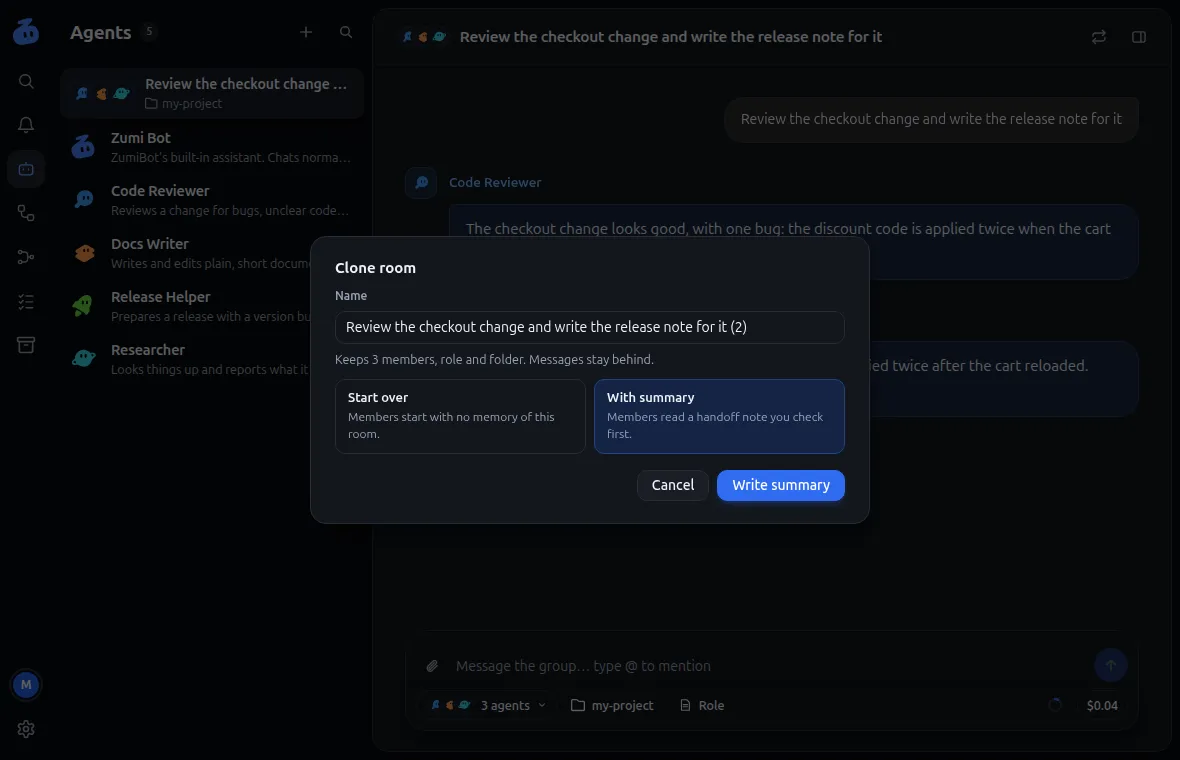
Check the name. It starts as the old name with “ (2)” added. The line under it reads, for example, “Keeps 3 members, role and folder. Messages stay behind.”
-
Choose how to start. Start over means members start with no memory of the old room. With summary means members read a handoff note that you check first.
-
If you chose Start over, choose Create room. The new room opens at once. You are done.
-
If you chose With summary, choose Write summary. The dialog reads “Writing summary…” and “It reads the room’s messages. This can take a minute.” Choose Cancel to stop it.
-
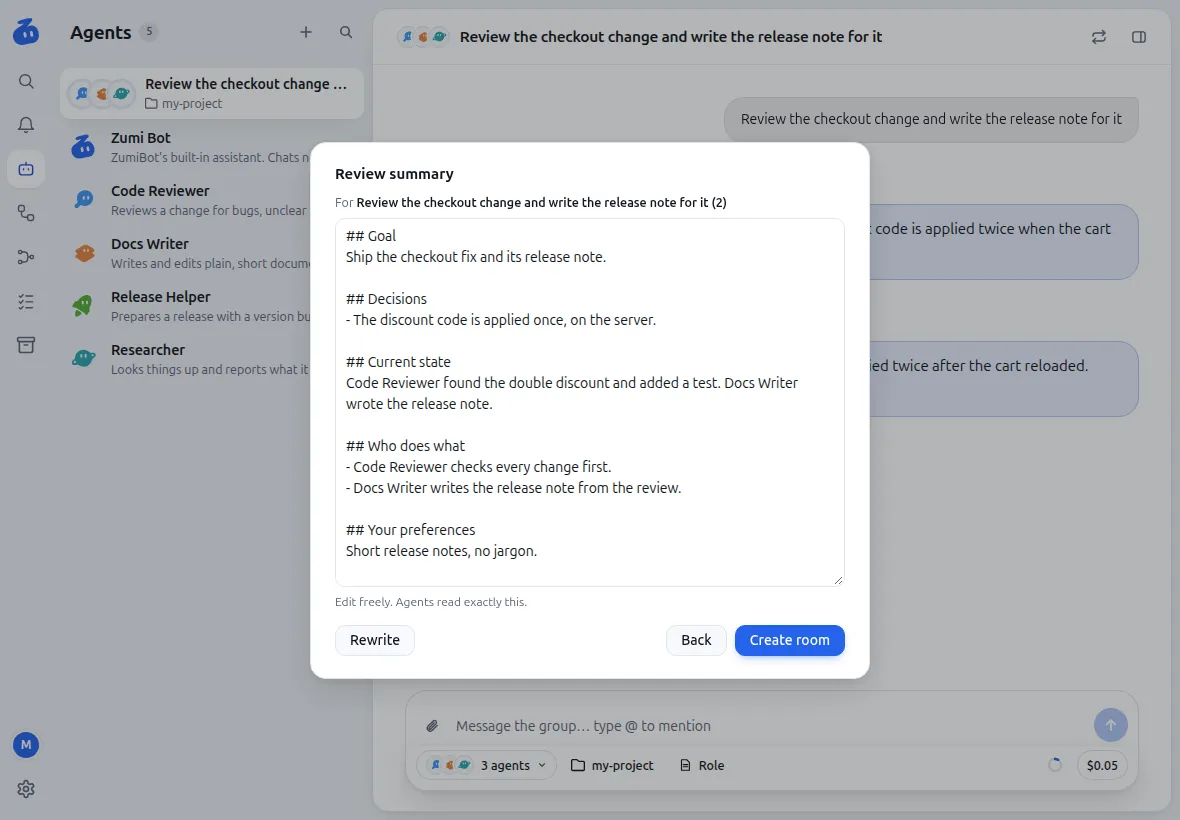
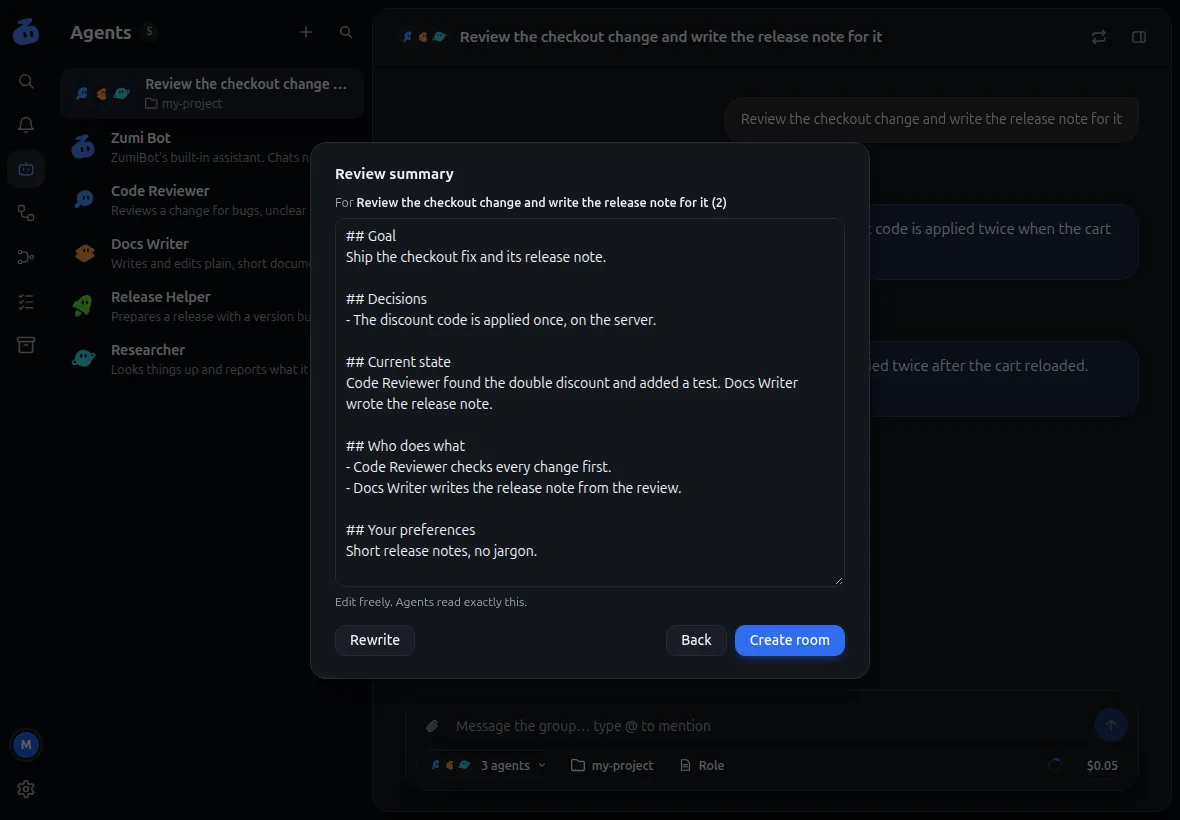
Read and edit the note. The next step is called Review summary. The note is plain text with sections such as Goal, Decisions, Current state and Open items. Change anything you like. The agents read exactly what is in the box.
-
Choose Create room. The new room opens.
What the new room has
Section titled “What the new room has”The new room keeps the same members in the same order, the same role and the same folder. Each member’s “Allow for this chat” approvals come along too. The new room sits right under the old one in the left column.
The old room does not change. Its messages, side questions, files, tasks and unread marks stay where they are, and none of them move to the new room.
With a summary, the new room shows a Handoff card at the top. It reads “Handoff from” and the old room’s name, which opens that room while it exists. The card is collapsed to its first lines, and Show all opens the whole note.
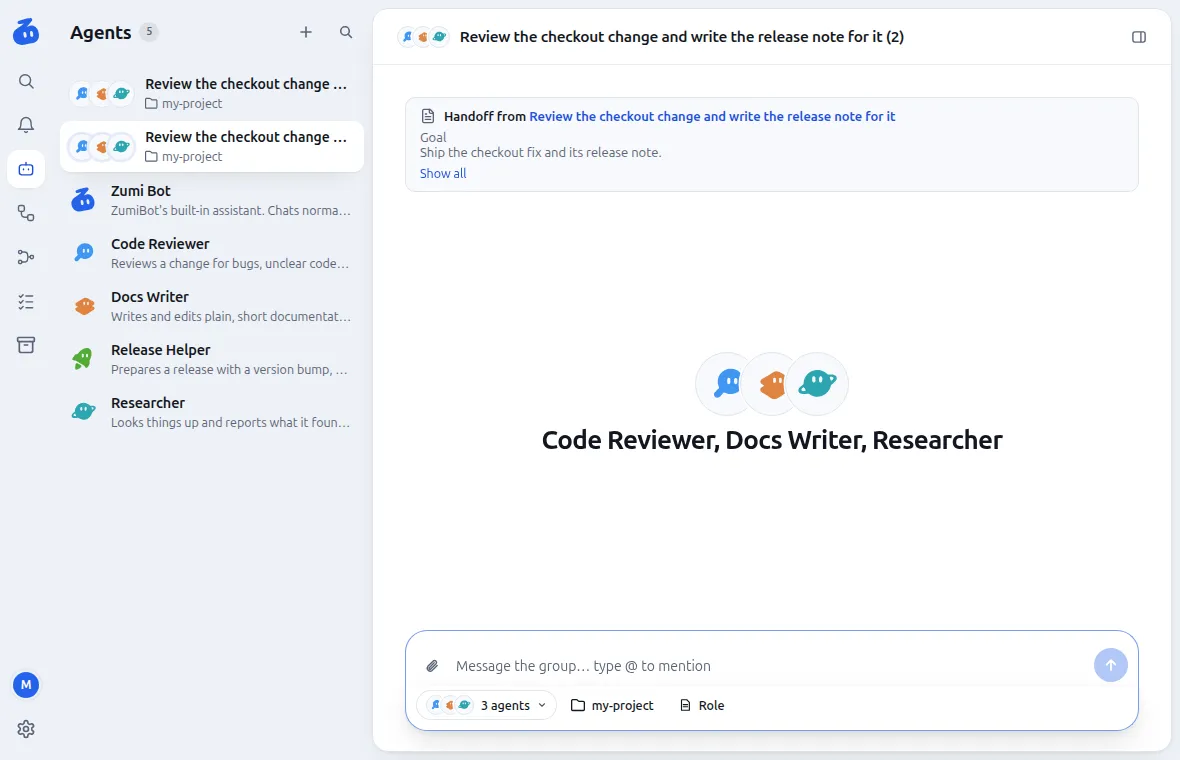
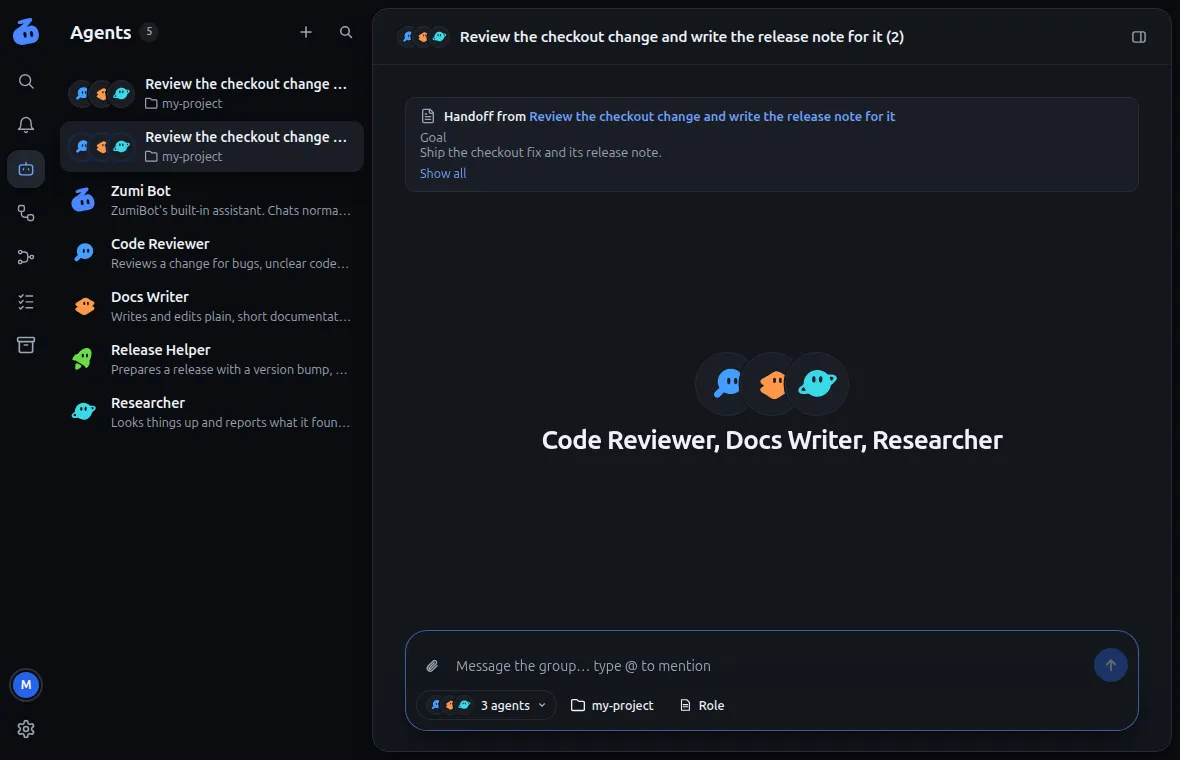
Every member reads the note on every turn, so it never falls out of the picture as the room grows. The moderator does not read it. The note is not a message: it has no actions, it is never unread and it is not in the Files panel.
Tips and limits
Section titled “Tips and limits”- With summary is not offered when the room has no messages yet. It reads “Nothing to summarize yet”.
- The note can be up to 12,000 characters. The box shows a count when it gets close, in the form “11,200 / 12,000”, and Create room waits until it fits.
- Rewrite asks for a new summary. If you edited the note, it first asks “Discard this summary?” because a new summary replaces your edits. Back goes to the first step and keeps the summary, so you can come back to it without waiting again.
- If the summary fails, the dialog says so. Choose Try again, or Back and use Start over.
- Writing the summary is one extra Claude call on the old room. Its cost shows in Usage as “Room handoff”.
- Closing the dialog while the summary is being written stops it.
- A summary can miss things. Read it before you create the room, and add anything that matters.
- To keep every message instead, use Fork on a message. See Edit, Resend and Fork.