
Slash commands
A slash command is a shortcut you type at the start of a message. Some are built into ZumiBot. Others are saved prompts that belong to the agent you are talking to, so you do not have to type the same long request again.
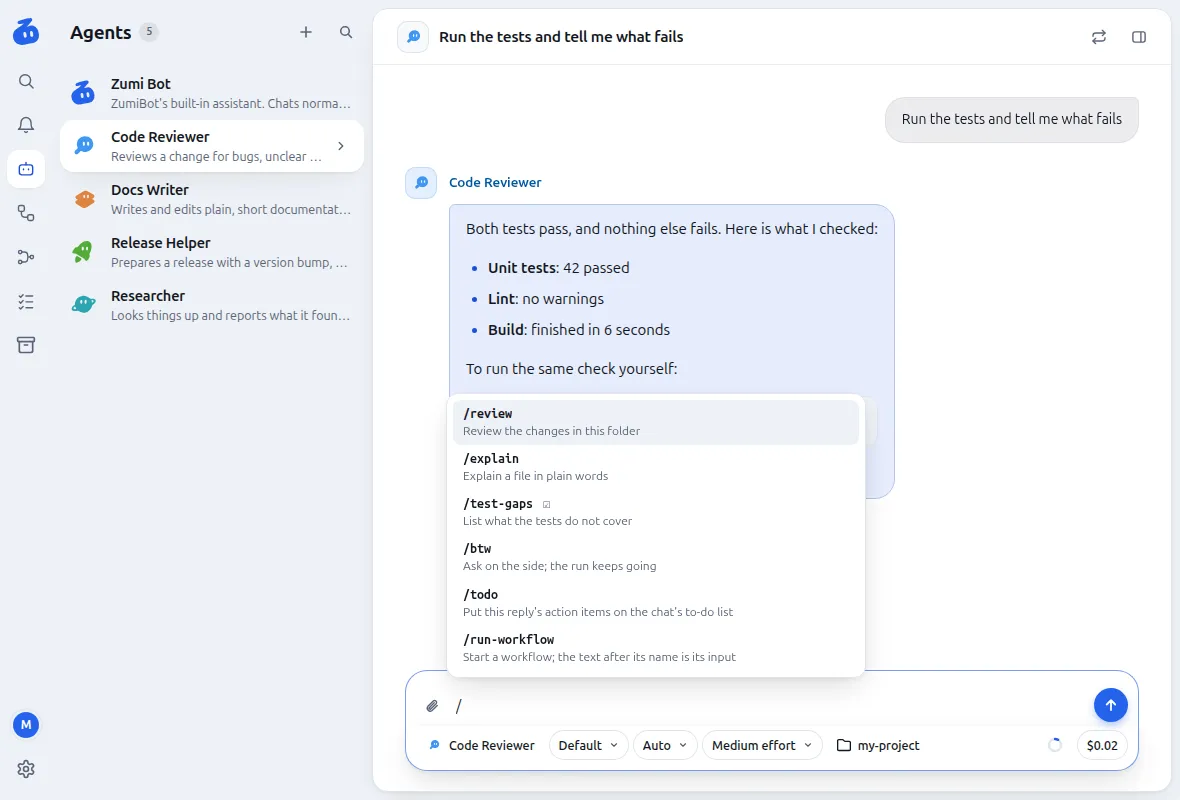
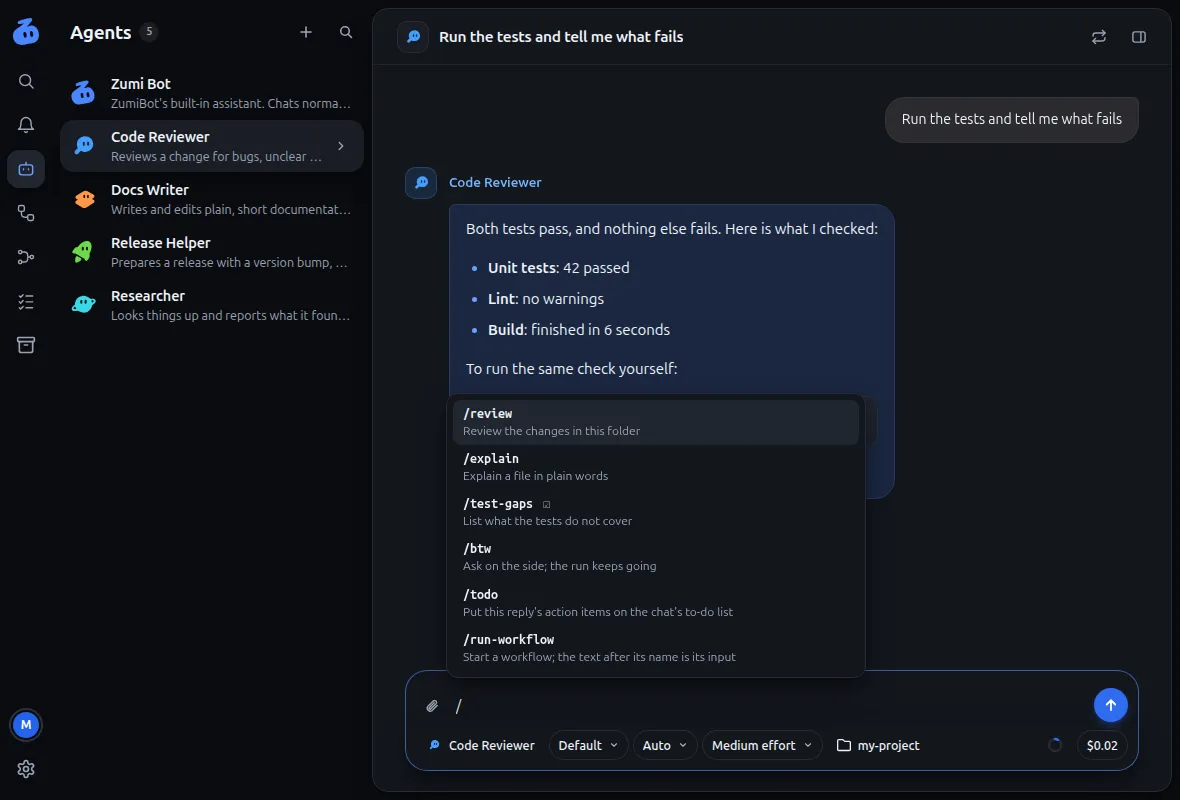
Use a command
Section titled “Use a command”-
Type
/at the very start of the box. The menu only opens at the start of your message, so a path like/home/mefurther in never triggers it. -
Narrow the list. Keep typing. The list shows commands whose name starts with what you typed, then commands with a word in their description that does.
-
Pick one. Click it, or use the arrow keys and press Enter or Tab. Esc closes the menu.
-
Add your text and send. The command is now at the start of your message. Type what comes after it, if anything, and press Enter.
After you send, your message shows the command as a colored chip. Choose the chip, or Full prompt under the message, to see exactly what the agent received.
The built-in commands
Section titled “The built-in commands”| Command | What it does |
|---|---|
/btw |
Ask on the side; the run keeps going. See /btw side questions. |
/todo |
Put this reply’s action items on the chat’s to-do list. Type it, a space, and / again, and the menu reopens so you can add an agent command after it. |
/run-workflow |
Start a workflow. After the command and a space, a Workflows list shows your workflows by name. Pick one, and the text after its name becomes its input. |
/later |
Send a message into this chat at a set time. See Send a message later. |
/run-workflow needs an open chat, so it is not offered on the new-chat screen. When the workflow starts, a “Started” notice appears with an Open run button.
Send a message later
Section titled “Send a message later”/later 9am check CI on this PR picks the same chat back up at 9:00: the chat gets “check CI on this PR” as if you had typed it then, and the agent gets to work. It is a one-off reminder for the agent, lighter than setting up a routine.
Write the time first, then the message. While you type, a line under the box says when it will go, such as “Sends tomorrow at 09:00”.
| You type | It goes |
|---|---|
9am, 9:30pm, 21:30, noon, midnight |
At that time today, or tomorrow if it has already passed |
in 20m, in 2h, in 1h30m, in 1d |
That long from now |
tomorrow 9am, mon 9am, friday 17:00 |
On that day; a weekday means the next one |
Times are read in your browser’s time zone, even when ZumiBot runs on a server somewhere else. A message can wait up to 30 days, and a chat can hold up to 10.
Waiting messages show in the Later list above the message box, each with its time. Send now sends it at once, and × cancels it. When it goes, it shows in the chat with “Sent by /later” under it.
- Messages you send in the meantime do not cancel it.
- If the agent is still replying at that time, it waits in the Tasks list and goes after the reply. In a paused chat it waits for Resume.
- If ZumiBot was off at that time, the message goes as soon as it starts again.
- It works in group rooms too: mention a member, such as
/later 9am @reviewer check the PR, to ask that member. - It needs an open chat, so the new-chat screen does not offer it. A
/latermessage carries text only, not files. - Sync drops messages still waiting, since both machines would send them; it tells you how many, so you can type them again.
Your agent’s commands
Section titled “Your agent’s commands”Each command in the menu under the built-in ones belongs to an agent. In a single chat, they are the chat’s agent’s commands. In a group room, the menu is grouped under each member’s name, and a command goes to its own agent.
A command with a ☑ mark makes to-dos: using it also asks the agent to put its action items on the chat’s to-do list.
If you type a /name that no command has, it is sent as typed.
Commands from the agent’s engine
Section titled “Commands from the agent’s engine”In a single chat (and on the new-chat screen), the menu also lists what the agent’s own engine can run. A Claude agent shows its Claude Code commands: skills, plugin commands, your own commands and the built-ins that do something, such as /goal. A Codex agent shows its Codex skills. The menu lists your agent’s own commands first, then ZumiBot’s (/btw, /todo, /run-workflow, /later), then the engine’s skills, labelled skill, then the engine’s other commands, labelled claude or codex. Pick one and send it like any other command; a Claude Code command is sent exactly as you typed it, and ZumiBot sends a Codex skill as $name.
Built-ins that only open a screen or change a setting, such as /model and /usage, are left out, since ZumiBot has its own controls for those. So are commands that hand the work to the other engine, such as a Claude Code plugin’s /codex:rescue: a Claude chat lists only Claude’s commands, and a Codex chat only Codex’s. If you type the name yourself and the agent has its own command with it, the agent’s command runs; pick the engine row from the menu to run the engine’s. Group rooms do not list these. The list can take a few seconds the first time for a folder, and refreshes in the background. A skill, command or plugin you add outside ZumiBot, in your Claude Code folder (~/.claude) or in the chat folder’s own .claude folder, joins the menu of open chats within a few seconds, with no restart.
Make your own command
Section titled “Make your own command”You add commands to an agent. Open it with Edit agent in its sidebar menu, then find the Commands card.
- Choose + Add command.
- Type a name in lowercase letters, digits and single hyphens, such as
review. This is what you type after the slash. - Write a description. It shows in the menu, so keep it to one line.
- Write the prompt, which is what the agent receives. Put
$ARGUMENTSwhere your own text should go. Without it, your text goes at the end. - Optional: tick Makes to-dos, or choose a Model (Opus, Sonnet or Haiku) for chats that command starts.
Then save the agent. For example, a command named explain with the prompt “Explain this in plain words, for someone new to the project: $ARGUMENTS” turns /explain the checkout form into a full request.
Tips and limits
Section titled “Tips and limits”- A command that names a model sets it only when it starts a chat, or when it asks for a stronger one than the chat has. A model you picked by hand always wins. See Mode, effort and model.
- The saved prompt is the one the agent had when you sent the message. Editing the command later does not change old messages.
- Only the command’s own agent reads its full prompt. Other agents in a room see the short form you typed.
- A Claude Code command only runs when it is the first thing in the message. When the earlier session cannot be reused (after an engine switch, or when the session expired or has to be rebuilt), the history is sent first and the command is read as plain text.
- If the menu does not show your new command, check the Commands card for a message under the command, such as a name that is already used.