
To-dos and the task board
You have one task board. Every to-do lands on it, whether you typed it, or an agent added it from a chat. A card can stay yours, or you can hand it to an agent, which then works on it in a chat of its own and comes back with questions or a finished result.
Add a to-do
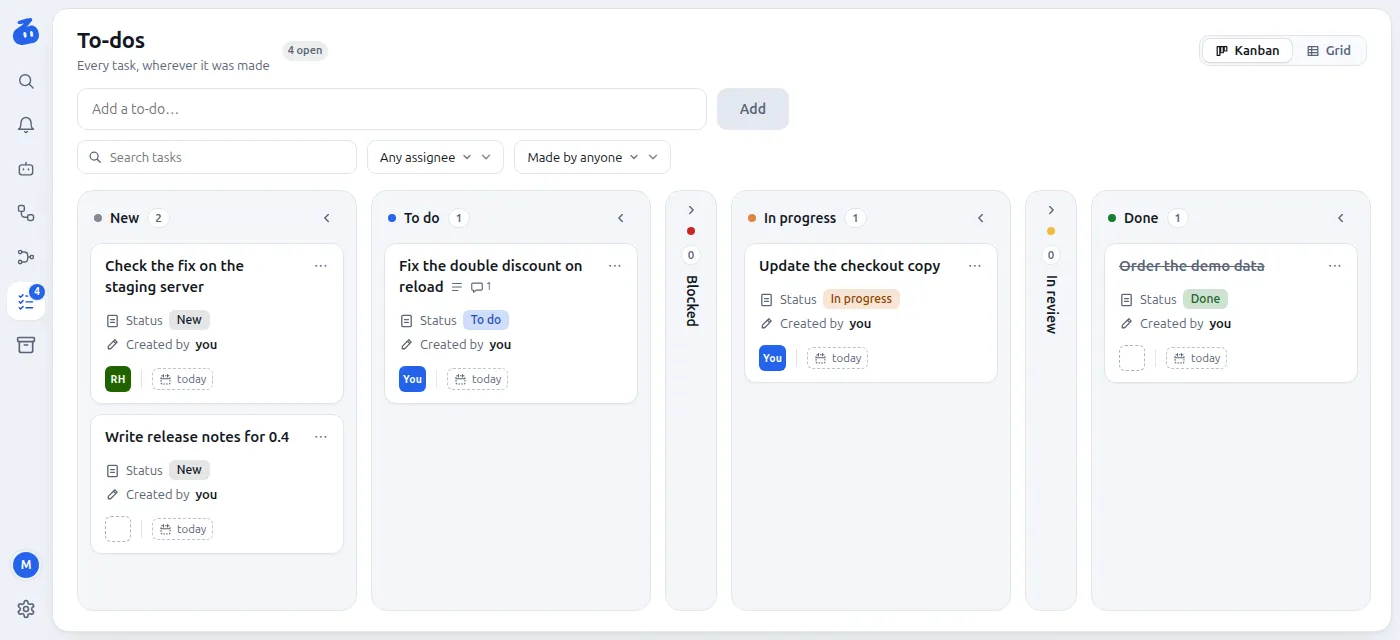
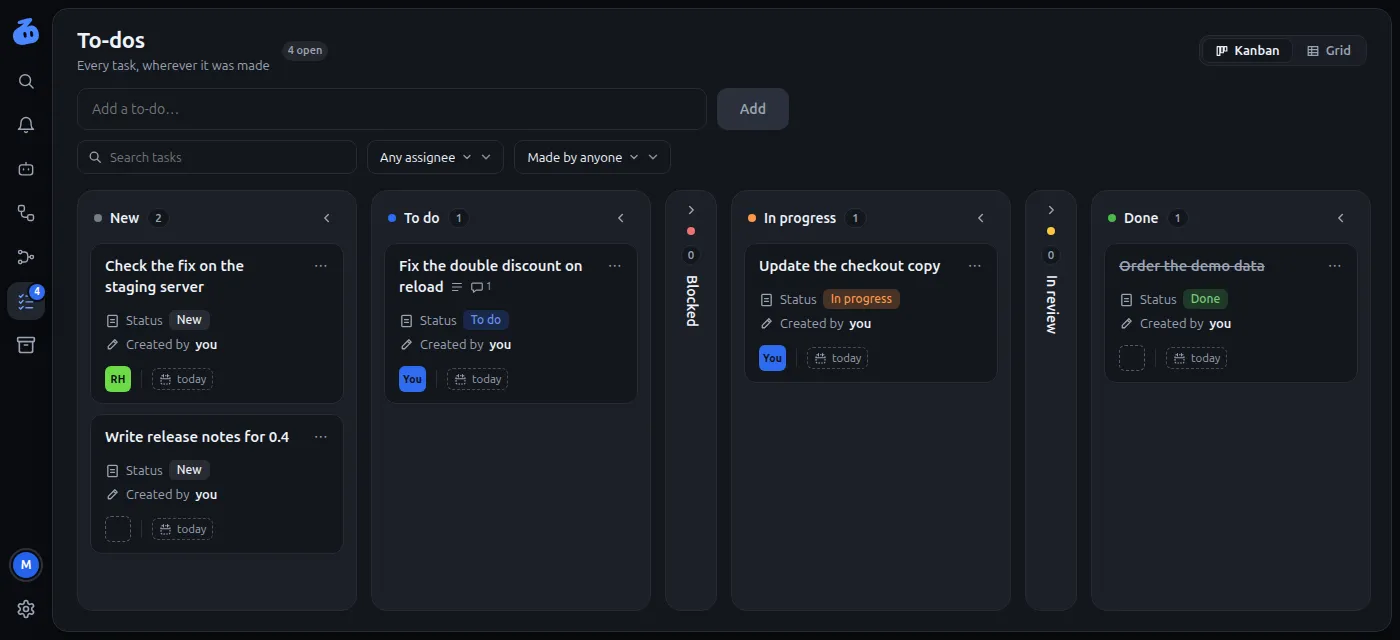
Section titled “Add a to-do”Open To-dos in the left bar. Type in the box that reads “Add a to-do…” and choose Add. The card lands in the New column, with nobody assigned. A number on the To-dos icon counts the open cards that are waiting on you, which is every open card except the ones an agent has in To do or In progress.
You can also add to-dos from a chat:
- Ask for a list. Start a message with
/todo, for example “/todo What is left before the release?”. The agent puts the action items of its reply on your board, each with a short description that holds what is needed to act on it. A line under the reply reads “3 new to-dos”. An agent only adds to-dos when you ask this way. - Add one yourself. Choose the panel icon at the top right of a chat, then Open To-dos. It shows the board’s items that were made in this chat, with the number left beside the title, grouped under the reply that made them. Type in “Add a to-do…” to add one under “Added by you”. Choose the dot at the start of a row to change its status, Show in chat to jump to the reply, the cross to remove it, or the arrow at the end to open the card. Removed items offer Undo for a few seconds. Finished items are folded under “Done”.
Every agent can read the whole board. It ticks off an item when it finishes it, and the reply shows what it changed. It removes an item only if you ask.
Move a card
Section titled “Move a card”The board has one column per status:
- New: where a card starts. Nothing happens on its own here, even if an agent is assigned.
- To do: the card’s agent should start.
- Blocked: the agent has a question for you, or approval cards wait in its chat.
- In progress: an agent is working on it.
- In review: the agent says it is finished. It is your turn to check.
- Done: finished. The column shows how many cards are done, and “N older done” when some are not loaded.
Drag a card to another column, or open it and pick a Status. The card’s ⋯ menu (Card actions) has Open, Copy link and Remove. Choose the arrow at the top of a column to fold it into a thin strip, which still counts its cards and still takes drops.
Beside the box that adds a card, above the columns, are a search (“Search tasks”), a filter for who a card is assigned to (“Any assignee”) and one for who made it (“Made by anyone”). Clear filters appears while one is on. On a phone they fold behind the Filters button beside Kanban and Grid, which shows how many are on.
The Grid view, switched at the top right, shows the same cards as one table with Status, Title, Assignee, Creator, Created and Updated. Choose a column heading to sort by it. Completed cards are hidden until you turn on Show completed. Tick the boxes at the start of rows and choose Delete to remove several at once, with an Undo. The board starts in Kanban each time ZumiBot starts.
Open a card
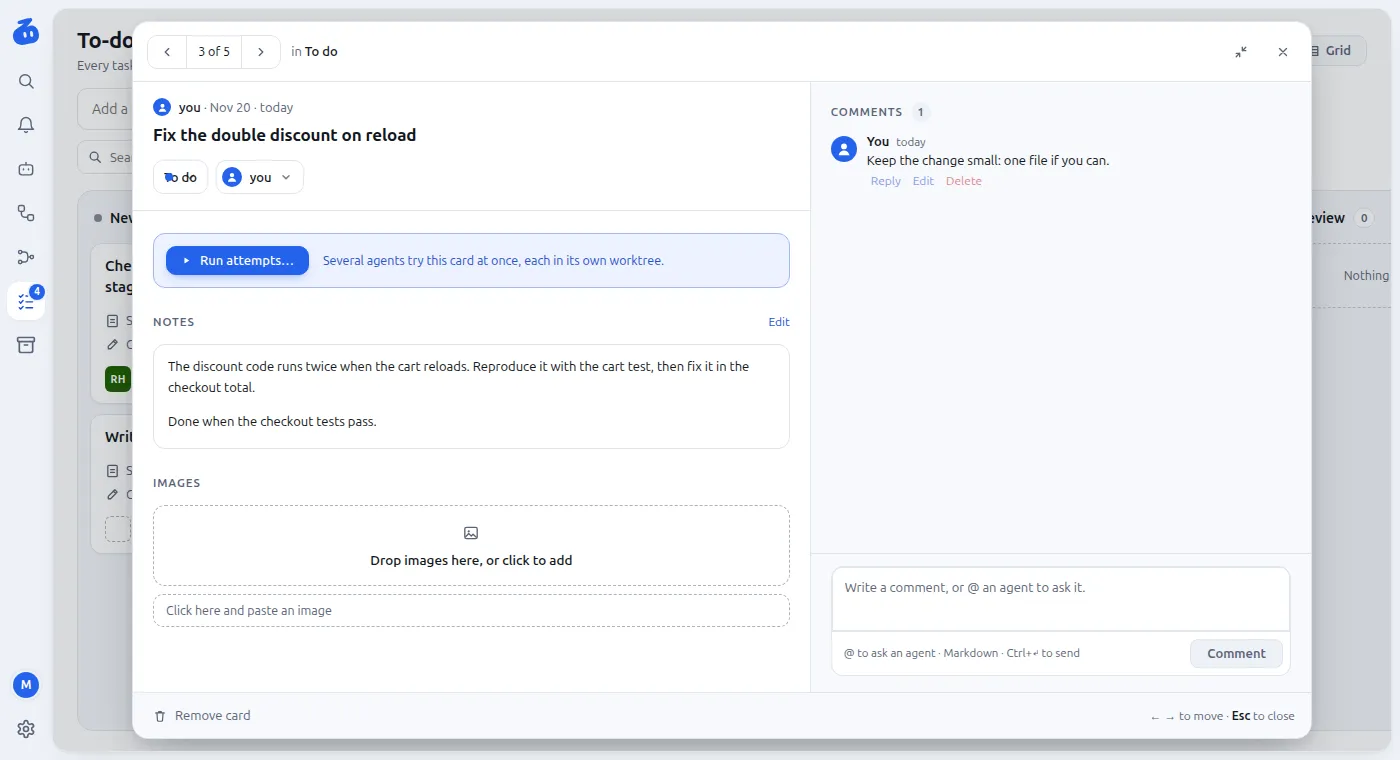
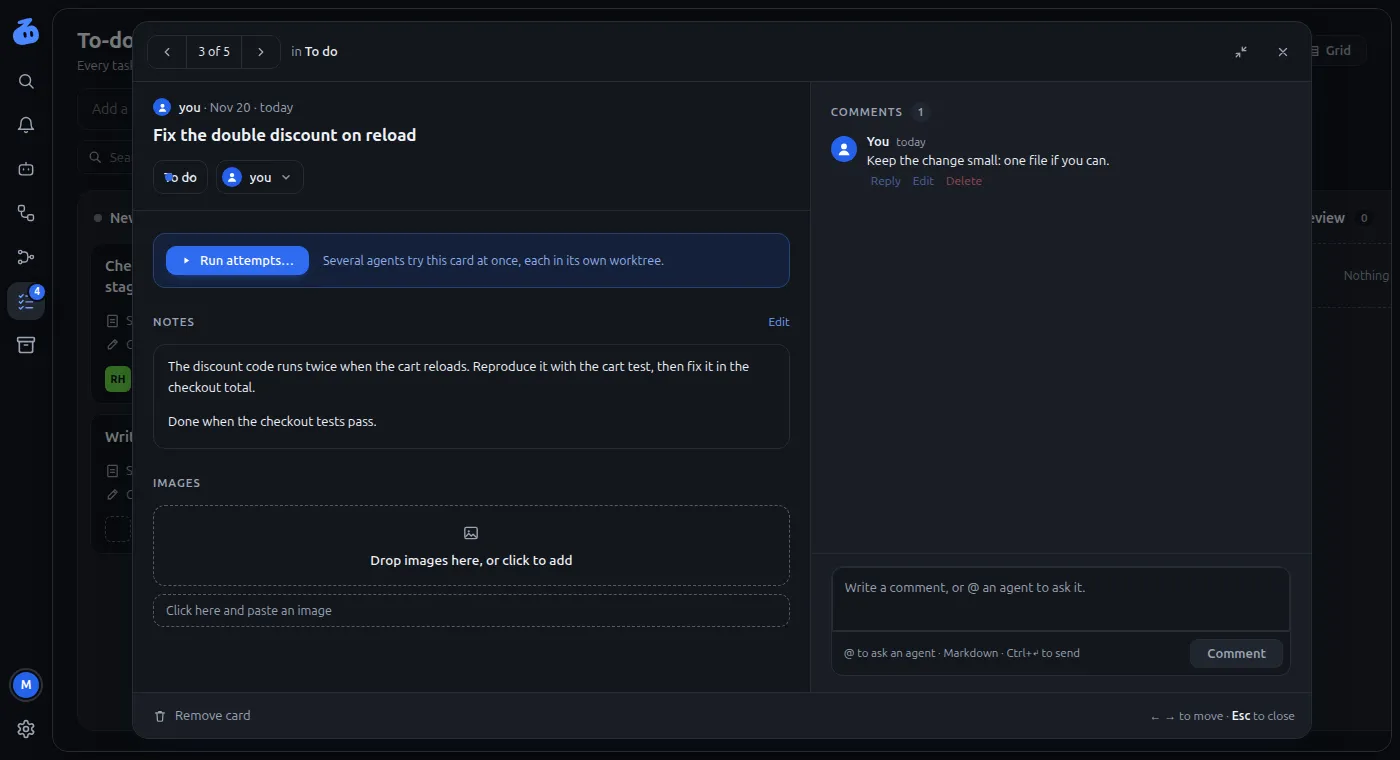
Section titled “Open a card”Choose a card to open it in a panel on the right. At the top, the line says who made it, in which chat (a link), and when. Then:
- Status and Assignee. The assignee button offers Nobody, You, and each agent that can take cards.
- Notes: what to do, links, how to check it. Choose “Add notes the agent should read first” to write them, and Edit to change them or the title. Markdown works.
- Images: add up to 10 by dropping them, choosing Drop images here, or click to add, or pasting into “Click here and paste an image”. The agent gets them with the task.
- Comments: a thread for you and your agents. See below.
- Run attempts… when nobody is working on the card, which has several agents try it at once. See The review loop.
Use the arrows at the top to step through cards, and the expand button to show the card and its comments side by side. Esc closes the card.
Hand a card to an agent
Section titled “Hand a card to an agent”-
Open the card and choose the Assignee button, then pick an agent. A small form opens with the agent and the folder its chat will run in. Choose Change… to pick another folder, and then Assign.
-
Write the task. The agent reads the card’s title, notes and images, so put in the card everything it needs. It may never see the chat the card came from.
-
Move the card to To do. The agent starts at once: a new chat opens with the card as its first message. The card moves to In progress once the agent begins. Dropping a card nobody has onto To do asks who first, with a button “Assign and move to To do”.
-
Follow along. The card shows “Working…” while the agent works and “Needs approval” while a command waits for your answer, and Open chat → takes you to its chat. In the card, the agent’s section is named after it, such as “@Code Reviewer’s work”.
Assigning on its own starts nothing. The agent starts only when the card is in To do or In progress. If you assign another agent, the first one stops working on the card, and its chat stays. A card that was Blocked or In review goes back to New.
While the agent works, it moves the card for you:
- A question moves the card to Blocked. The question shows in the card, often with answer choices. Write your answer and choose Send answer. A waiting question also shows in the Inbox.
- A finished job moves the card to In review, with a summary under “Ready for review”. Move the card to Done if you agree, or write to the agent in the box under it (“Write to @Code Reviewer…”) to ask for more. Your message goes into its chat and the card goes back to work.
- Moving a card to New or Done stops the agent. Moving it back to To do carries on in the same chat.
- A stopped or failed reply sends the card back to New, so you can read what happened and move it to To do to try again.
If the agent’s chat is deleted, the card shows “Chat deleted”. Moving it to To do starts a new chat.
If the agent opens a pull request from its chat, the card shows it too. See The review loop.
Comments
Section titled “Comments”A card has its own comment thread. Write a comment, and the agents that are working on the card read it on their next turn. Put @ and an agent’s name in a comment and that agent answers in the thread, in a chat of its own for that card, without taking the card over. Only the agents you talk to answer: in “@Work Assistant, ask @Workiom Master to check”, Work Assistant answers and asks Workiom Master itself. Your comment posts at once; under it, “Picking who to ask…” shows for a few seconds, then the agents it asks. Choose Reply under a comment to answer in its thread. In that agent’s chat, a short line saying what you asked of it shows under a small link to the card, and Full prompt shows everything the agent was sent, your comment as you wrote it included. You can Edit and Delete your own comments. A / in a comment lists the commands of the agents it mentions.
Tips and limits
Section titled “Tips and limits”- One board for everything. A to-do lives once, under the chat it was made in. Forking a chat or cloning a room copies no to-dos, and deleting a chat leaves its cards on the board, where the card says it was made in a deleted chat.
- Limits. A title holds up to 300 characters, notes 10,000, a comment 4,000. A card holds up to 10 images. The board keeps 500 open cards, and an agent adds up to 50 at once.
- Who can take a card. Zumi Bot, and agents that cannot use ZumiBot’s to-do tools, do not appear in the assignee menu.
- Spend caps still apply. An agent working on a card follows its daily spend cap like anywhere else.
- Keep cards self-contained. An agent sees the whole board, but not the chat behind a card. Notes beat a long reply you hope it remembers.