
Chats and the message box
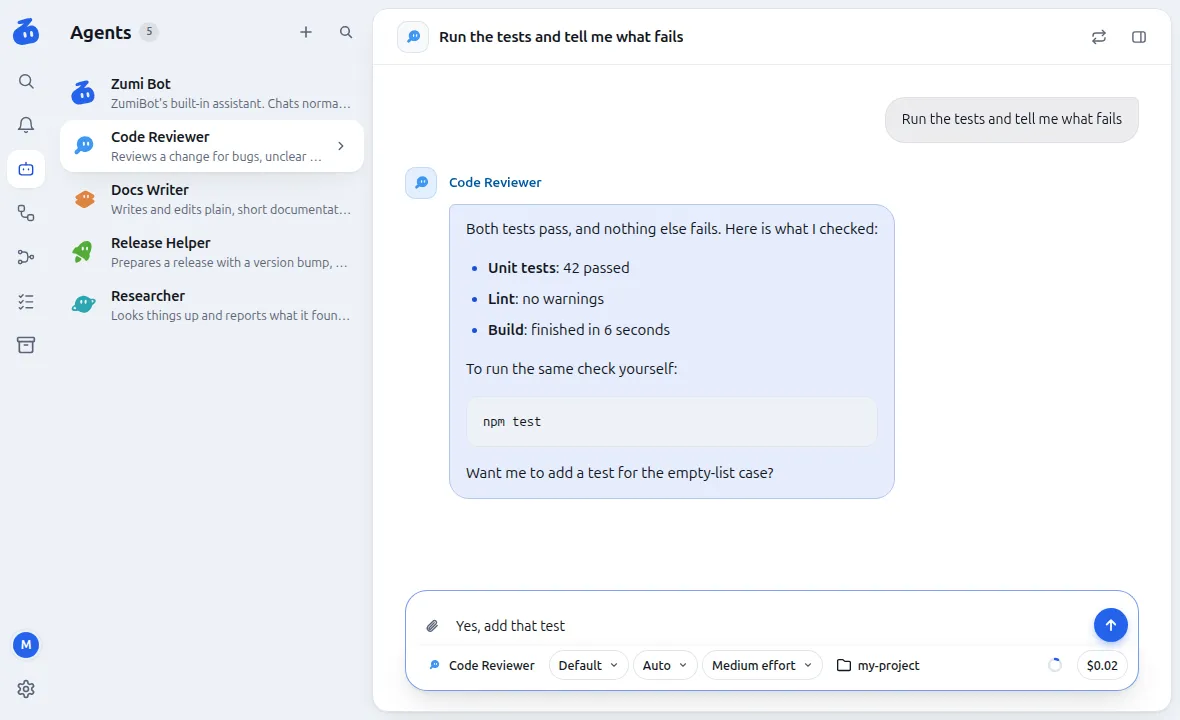
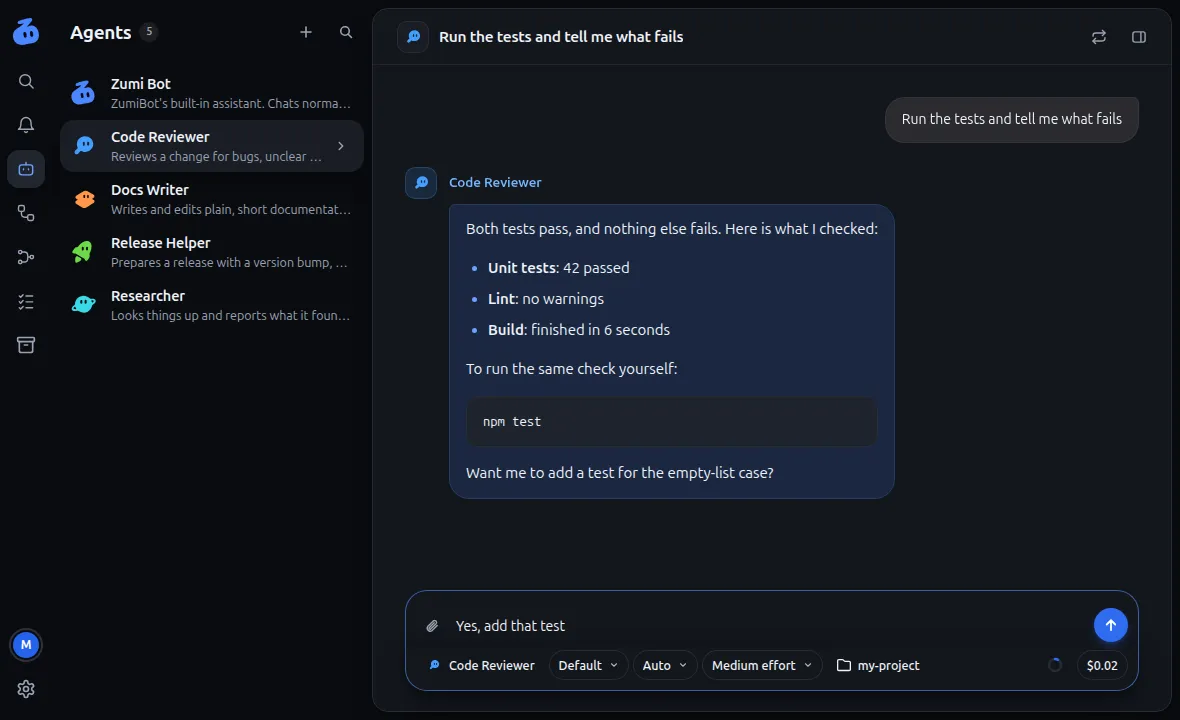
A chat is a conversation with one agent in one folder. The message box at the bottom is where you write to it, and the row under the box holds the settings for the next message.
If you have not started a chat yet, begin with Your first chat.
Find and open a chat
Section titled “Find and open a chat”Your chats sit under their agent in the left column. Choose the arrow beside an agent to show or hide its chats, and choose a chat to open it. A new chat is named after your first message.
Open a chat in its own window
Section titled “Open a chat in its own window”To keep an eye on one chat while you work in another, open it in a window of its own: hold Ctrl (Cmd on a Mac) and click the chat or room, click it with the middle mouse button, or right-click it and choose Open in new window. The window you were in stays where it was.
The new window shows only that chat, with its side panel. You can write to it, answer its cards and open its files there. In the desktop app its title bar has two more buttons: Open in main window brings the main ZumiBot window forward on this chat, and Keep on top keeps the window above your other windows. Opening the same chat again brings its window forward instead of opening a second one.
Links to other chats, Settings or a workflow run open in the main window (in a browser, in a new tab). Switching server or quitting closes these windows.
Write and send a message
Section titled “Write and send a message”-
Click the message box. It reads “Message” followed by the agent’s name.
-
Type your message. Press Enter to send. Press Shift+Enter for a new line. On a phone, Enter starts a new line and the round send button sends.
-
Watch the reply. It streams in under your message. Each tool the agent uses shows as a small card, and cards that need you wait for your answer. See Approvals, questions and plans.
The box shows formatting as you type. Start a line with - for a bullet list, 1. for a numbered list, or > for a quote. Put text between single backticks to make it code. Text you paste in keeps its line breaks and indentation.
Press the Up arrow on the first line of an empty box to bring back the messages you sent before in this chat. Press Down to walk forward again.
The agent says what it’s about to do
Section titled “The agent says what it’s about to do”Every message you send starts with one short line from the agent saying what it’s doing now, such as “Checking all channels and building your day right now.” When the message asks for to-dos, the line also says it will add tasks to your board. The line shows a few seconds after you send, above the agent’s reply. ZumiBot writes it with a quick, small model call, so it adds a little to the chat’s cost. Routines, workflows and messages between agents don’t get one, and neither do group rooms.
Suggested replies
Section titled “Suggested replies”When a reply ends by asking you to choose or to confirm, ZumiBot offers what you might send next:
- Two or three choices show in a card right under the reply, in the chat itself: a line on what the agent just did, the question it’s asking, and the choices as buttons. Click one to send that text as your message.
- One likely answer, such as “Yes, commit it”, shows in the empty message box. Press Tab (or tap Use on a phone) to write it into the box, change it if you like, then send it yourself.
The card stays while you type your own answer and goes once you send a message; clicking a choice sends only that choice and leaves what you typed in the box. The one-answer hint goes as soon as you type. They appear in single chats, group rooms and routine chats, after any agent, and only for the latest reply. Chats whose questions you answer somewhere else never get them: task and card chats (you answer on the card), chats linked to Telegram or Slack, voice requests, workflow steps and parallel attempts. ZumiBot reads the end of the reply with a quick, small model call, so each reply that asks you something adds a little to the chat’s cost. To turn them off, go to Settings › General and switch off Suggested replies; they disappear right away in every open window.
Reply to one message
Section titled “Reply to one message”To answer a specific agent message, hover over it and choose Reply. A card above the box reads “Replying to” and the agent’s name, and the next message goes out as a reply to that message. Choose the ✕ on the card, or press Esc, to cancel.
To quote part of a reply, select the text and choose Quote. It lands in your message box as a quote, ready for you to write under it. Explain sends the selected text with a request to explain it.
Send while the agent is working
Section titled “Send while the agent is working”You do not have to wait for a reply to end. While the agent works you can add details to the reply that is running, or line up a message for after it.
- Enter (or the round send button) sends your message into the running reply. The agent reads it at its next step, such as after the command it is running now, and carries on with it without starting over. Until then it waits above the box as “Waiting for the agent’s next step”. Once read, it shows in the chat where the agent read it, followed by a short line confirming it, such as “Got it, I’ll get only the unread notifications.” If the agent was already finishing, it answers your message right after.
- Ctrl+Enter (Cmd+Enter on a Mac), or holding the send button, queues your message instead. It joins the Tasks list above the box, and each one goes in on its own, in order, once the run before it ends. Choose the ✕ on a row to remove a message from the list before it is sent.
A message you send into a reply cannot be edited, sent again or forked on its own, because it is part of that reply. Edit or resend the message that started the reply instead. If the reply stops before the agent reads your message, for example because you choose Stop, the message moves to the top of the Tasks list so nothing is lost.
This works in single chats with Claude agents. In group rooms, and with Codex and other agents, a message you send while the agent works always joins the Tasks list. Commands and /todo messages also wait for the next turn.
Choose the red Stop button to end the reply that is running.
The row under the box
Section titled “The row under the box”The row under the message box shows what the next message will use:
- The agent and the folder. They are fixed for the chat, so start a new chat to change them.
- The model, the mode and the effort. You can change these any time. See Mode, effort and model.
- A context meter and the cost so far, at the right end.
In a narrow window or on a phone, the model, mode and effort share one chip, and the folder shows as an icon.
Tips and limits
Section titled “Tips and limits”- If the box is grayed out, look at the banner at the top of the screen. “Claude CLI not found.” means Claude Code is missing or not on the path. See What you need.
- If the connection to the server drops, the send button is held and its tooltip reads “Reconnecting…”. It works again once the connection is back.
- Press Enter on a phone’s keyboard to start a new line. Use the round button to send, or hold it to queue while the agent works.
- Attach files by dropping them on the chat or choosing the paperclip. See Attachments.
- Type
/at the start of the box to see commands. See Slash commands. - Type
#to attach a copy of another chat or a board card. See Attachments.
Related
Section titled “Related”- Your first chat
- Attachments
- Dictation
- Approvals, questions and plans
- Mode, effort and model
- Slash commands
- /btw side questions
- Thinking
- Context and Compact
- Edit, Resend and Fork
- Pause and Resume
- Usage limit waits
- Search, unread and archive
- Export a chat
- Group rooms and the moderator
- Agent asks
- Files panel and Restore
- Git and worktrees
- To-dos and the task board
- Jev: the optional agent suggestion on the new-chat screen.