
Computer use
Computer use lets an agent work in real apps, not only on websites. It gets its own private desktop, sees it through screenshots, and clicks, types and launches programs. It is off for every agent until you switch it on, and it asks you before every desktop click, key or launch. Shell commands the agent runs are not desktop actions. They follow the usual approval rules for shell commands.
This is a separate desktop. It is not your screen, and the agent never sees or touches what you have open. It runs on the machine that runs your ZumiBot server, and you can watch it or take over from the app.


What you need
Section titled “What you need”Computer use needs Linux, and a few programs on the machine that runs the server. The server is your own computer in Local mode, or your server. Without the programs, everything else in ZumiBot works as before, and the agent’s desktop view says what is missing.
ZumiBot never installs a program and never needs sudo while it runs. You install these yourself.
| Program | Package on Ubuntu or Debian | What it is for |
|---|---|---|
Xvnc |
tigervnc-standalone-server |
The desktop’s screen |
dbus-daemon |
dbus-daemon |
The desktop’s own message bus |
xfsettingsd, xfwm4, xfce4-panel, xfdesktop |
xfce4-settings, xfwm4, xfce4-panel, xfdesktop4 |
A light desktop: windows, panel and wallpaper |
| AT-SPI | at-spi2-core |
Lets the agent read what is in a window |
| Noto fonts | fonts-noto-core |
Latin, Arabic and other scripts on screen |
cua-driver |
Its own installer | The tool the agent uses to see and click |
As an admin user, install the packages:
sudo apt-get install -y tigervnc-standalone-server dbus-daemon at-spi2-core fonts-noto-core \ xfwm4 xfce4-panel xfdesktop4 xfce4-settingsThen install cua-driver as the user that runs ZumiBot, not as root. Download its installer, read it, and run it. The option keeps it from editing your shell profile:
f=$(mktemp) && curl -fsSL https://cua.ai/driver/install.sh -o "$f"less "$f"/bin/bash "$f" --no-modify-path; rm -f "$f"Its makers mark Linux support as pre-release. ZumiBot turns off its usage reporting and update checks, and its script runner and unrestricted mode.
If you want the agent to browse the web on its desktop, install Firefox from Mozilla’s own package repository, using the steps on Mozilla’s Linux install page. Do not use the Ubuntu snap version of Firefox. It does not run properly on the agent’s private desktop. A text editor such as mousepad and a terminal such as xfce4-terminal are also handy for an agent to use.
To see what is missing, turn computer use on for an agent (below). If a program is absent, its card in Agent Studio reads “Desktop unavailable on this server”, followed by “(missing: …)” with the program names from the table. Install them and look again.
In the desktop app’s Local mode, the same programs have to be on your own computer. A server and your PC have separate agent desktops, and they are never copied between them. Computer use needs Linux, so it is not available in Local mode on Windows: use a Linux server for it.
Turn it on for an agent
Section titled “Turn it on for an agent”-
Open the agent in Agent Studio and find the Computer use card.
-
Switch it on. The switch reads “On”. Choose Save changes. Until you save, the card says “Save the agent to turn it on.”
-
Choose Open Desktop to see the agent’s desktop. It starts when you open it, or when the agent first needs it.
To turn it off, switch it off and save. Zumi Bot never gets computer use. Some agents set up to run on a different tool do not either, so the card is not shown for them.
Everything it does asks first
Section titled “Everything it does asks first”An agent has tools to look and tools to act.
- Looking is a screenshot, a list of windows, a list of apps, the state of a window, and a zoom into a window. These follow your chat’s mode.
- Acting is a click, a drag, scrolling, moving the pointer, typing, pressing keys, launching an app and bringing a window to the front. Every one of these shows an approval card, even in Auto mode.
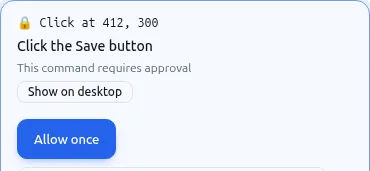
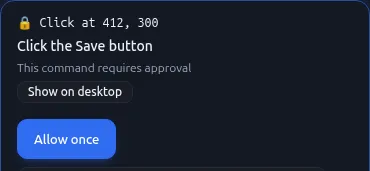
The first line says what will happen, in words you can check:
- “Click at 412, 300”, or “Click element …” when the agent picked a named control
- “Type: …” with the text. Each Return shows as a ⏎ mark. Hidden characters show as codes, so nothing is concealed.
- “Press CTRL+S”
- “Launch Firefox”
- “Drag from 100, 200 to 300, 400” and “Scroll down 3 at 640, 400”
- “Move pointer to 640, 400” and “Bring window 3 to front”
Choose Allow once, or one of the other choices the card gives you, or Deny. The card’s buttons work the way they do for any tool: see Approvals, questions and plans.
A click, drag, scroll or move card has Show on desktop. It opens the desktop with a mark at the spot the agent wants to act on, so you can see before you answer. The other cards have Open Desktop, which opens the view for watching.
The cards cover the agent’s desktop tools. Shell commands the agent runs follow the usual approval rules for shell commands.
Watch the desktop
Section titled “Watch the desktop”-
Open the view. Choose the panel icon at the top right of a chat, then Open Desktop. The row only shows when an agent in the chat has computer use on, and it is grayed with “Computer use is off for this agent” when the chosen one does not. In a group room, a picker names the member. You can also use Open Desktop on a card, or in the agent’s Computer use card.
-
Read the status. The panel header reads “Desktop · “ and the agent’s name. The status on the right is one of “Idle”, “Agent working”, “Waiting for approval”, “Waiting for you”, “Starting…”, “Waiting for a desktop…” or “Disconnected”.
-
Close it with the cross at the top right.
The footer reads “Live desktop” while you are connected. The picture only streams while the panel is open on a page you can see. If the desktop is not running, the panel reads “The desktop is not running.” with a Start desktop button.
Take control
Section titled “Take control”The Take control switch starts off, even when you open the view from a card.
- Switch it on. The status reads “Pausing agent…” while the agent’s call finishes, then “You have control”. The footer says “Your keys and clicks go to the desktop”.
- Click and type in the picture. Pressing Ctrl+V pastes plain text from your clipboard into the desktop, under 256 KB, and only while you have control.
- Switch it off when you are done. The agent takes a fresh look before it acts again.
Only one window can hold control at a time. Elsewhere the status reads “Controlled in another window”. Control ends if you close the panel, hide the page or lose the connection.
When the agent asks for help
Section titled “When the agent asks for help”For things only you can do, such as typing a password into an app, the agent asks. A card headed “Action required” and labeled “Desktop” appears in the chat, with Open Desktop, I’m done and Cancel. Take control from there, finish the step, then choose I’m done. The agent waits and checks the result. The request also shows in your Inbox.
Clear its desktop
Section titled “Clear its desktop”Each agent has its own home on the desktop, with each app’s settings and sign-ins. They stay when the desktop stops. Clear desktop data in the Computer use card deletes them. The dialog reads “Clear desktop data?” and says it stops the agent’s desktop and deletes its desktop home folder on this server. The card then says “Desktop data cleared.”
Tips and limits
Section titled “Tips and limits”- Two desktops at once. A server runs two agent desktops at a time by default. A third waits, and the panel reads “Waiting for a desktop…”. An idle one is stopped first to make room.
- It stops when idle. A desktop that nobody uses is stopped after about 15 minutes. Its open apps close, and its saved settings stay.
- One turn at a time. An agent’s desktop works for one chat’s turn at a time.
- It uses real memory. Every desktop starts a screen, a light desktop and whatever the agent opens. Firefox is the heavy one. Watch your server before you allow more.
- No open port. The desktop’s screen is reachable only through the signed-in ZumiBot connection. Nothing about your firewall or proxy changes.
- Slow steps are cut off. A single desktop call that takes longer than 30 seconds is stopped.
Related
Section titled “Related”- The agent’s browser: websites only, lighter than a full desktop.
- Approvals, questions and plans
- Mode, effort and model
- Agent Studio
- Inbox