
Jev
Jev is a fast decision model from TypeSafe AI. It writes no text. It answers short questions, such as “which of these agents should reply?”. ZumiBot can ask it for four small decisions, and every one of them has a fallback that works without Jev. It is optional, and it does nothing until you add a key.
It is reached through OpenRouter, a service that gives you one key for many AI models. You need an OpenRouter account and an API key.
What Jev decides
Section titled “What Jev decides”- Who answers in a group room. In an idle room, Jev can settle the easy cases before the moderator runs. When it is not sure, the moderator decides as it always did. See Group rooms and the moderator.
- A risk hint on approval cards. A pending card can show “Low risk”, “Medium risk” or “High risk” with “Jev’s guess” beside it. It shows only when Jev is fairly sure.
- An agent for a new chat. On the new-chat screen, while no agent is picked, Jev can suggest one from what you typed. A chip reads “Use” and the agent’s name, with a question mark. One click picks it.
- A condition on a webhook. A routine or workflow that starts from a webhook can have a condition in plain words, such as “The CI run failed on the main branch”. Jev reads each call and skips the run when the condition is not true.
Jev never approves a tool call. The risk hint is a hint and nothing more: you still answer every card yourself. Read the card’s input before you answer, because a guess can be wrong.
Get a key and turn it on
Section titled “Get a key and turn it on”-
Make an OpenRouter account. Sign up at openrouter.ai.
-
Create an API key. OpenRouter’s keys page, at openrouter.ai/keys, creates one. You give it a name and can set a credit limit on it. A limit is a good idea, because a key without one can spend your whole balance.
-
Keep some credit on the account. OpenRouter bills the key’s owner for each call. Check the price of the Jev model in your OpenRouter account before you turn it on.
-
Open Settings, then Jev decisions. The gear in the rail opens Settings.
-
Paste the key into the “OpenRouter API key” box and choose Save. ZumiBot tests it straight away. The note under the box reads “Jev answered. The key works.” when it does. The box is empty afterwards and the line above it reads “A key is saved.” Your server holds the key and never shows it again.
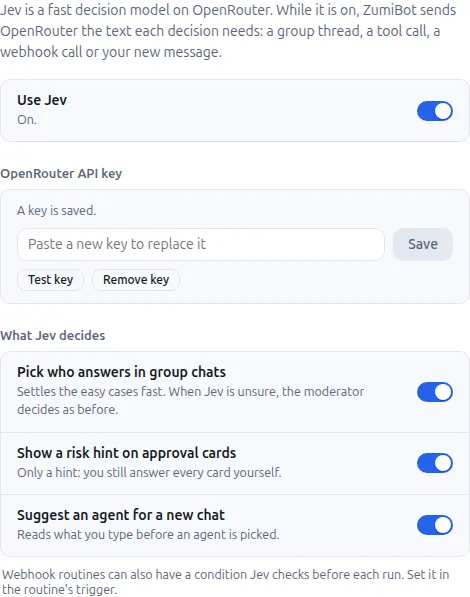
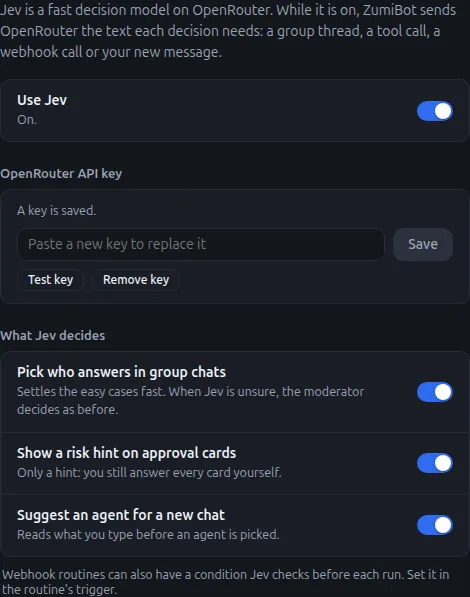
The picture shows the page after a key is saved. Before that, the line above the box reads “No key saved.” and the Test key and Remove key buttons are not there.
Dictation uses OpenRouter too, but each feature keeps its own copy of the key. You can paste the same OpenRouter key into both. See Dictation.
The switches
Section titled “The switches”All switches are on by default, so saving a key is what turns Jev on.
| Switch | What it does |
|---|---|
| Use Jev | The master switch. Off, nothing calls Jev. Your key stays saved. The line under it reads “Off: everything works as it did before Jev.” With the switch on and no key, it reads “On, but nothing happens until you add a key.” |
| Pick who answers in group chats | Lets Jev settle the easy cases in an idle room. “When Jev is unsure, the moderator decides as before.” Jev is skipped when you use @everyone. |
| Show a risk hint on approval cards | Adds the risk line to a card. “Only a hint: you still answer every card yourself.” |
| Suggest an agent for a new chat | Reads what you type before an agent is picked. It starts once you have typed about a dozen characters and paused for a moment. It never suggests a remote agent. |
The three switches below Use Jev turn gray while it is off.
The webhook condition has no switch of its own. It follows Use Jev and the key. Set it in the trigger of a routine or a workflow, in the box “Only run when (optional)”. Leave it empty to run on every call. When Jev decides a call does not meet the condition, no chat is made, and the run’s history says “Condition not met” with how likely Jev thought it was. If Jev could not answer, the run goes ahead and says “Condition not checked: Jev did not answer, so the run went ahead”. Run now ignores the condition, because you asked for that run.
What is sent to OpenRouter
Section titled “What is sent to OpenRouter”While Jev is on and has a key, ZumiBot sends OpenRouter the text each decision needs:
- Group rooms: the recent messages of the thread, the same excerpt the moderator reads.
- Risk hints: the tool’s name, its input, and its description and reason. The input can hold file text or commands.
- New chats: the message you are typing, and each agent’s name and description.
- Webhook conditions: the webhook call, which is its method, query and body.
Test key sends one fixed sentence and none of your data. The key itself stays on your server. It never goes to the browser, a log or an error message.
If you would not send some of that text to OpenRouter, turn off the matching switch, or Use Jev altogether.
Turn it off
Section titled “Turn it off”Switch Use Jev off, or choose Remove key. The first keeps the key, and the second deletes it and keeps your switches. The page says “Key removed. Jev is not used until you add one.” With Jev off, or without a key, ZumiBot works exactly as it did before: the moderator decides who answers in rooms, approval cards have no risk line, no agent is suggested, and every webhook call starts its run. A saved webhook condition stays in the trigger, but it is ignored, and the box says “Jev is off, so this is ignored and every call runs.”
Tips and limits
Section titled “Tips and limits”- A failure changes nothing. If the key is wrong, the network is down, Jev takes longer than eight seconds, or its answer is unclear, ZumiBot does what it did before Jev.
- Jev’s cost is not in Usage. Its calls are billed by OpenRouter, so check them in your OpenRouter account. ZumiBot’s Usage page does not count them.
- Jev is not a safety check. Do not rely on a “Low risk” line. Read what the agent wants to do.
- A wrong key shows an error. Save keeps the key and then tests it, so a bad key stays saved. The error appears under the box. Use Remove key or paste another.
Related
Section titled “Related”- Group rooms and the moderator
- Approvals, questions and plans
- Routines
- Workflow triggers
- Dictation: another feature that uses an OpenRouter key.