
Workflow triggers
Every workflow has one trigger, the first box on the canvas. It says when the workflow starts, and it hands its text on to the first step.
Choose a trigger
Section titled “Choose a trigger”-
Choose the Trigger box on the canvas. Its settings open on the right.
-
Pick an option in Starts. The list has eight.
-
Fill in what it asks for, then save. For anything but By hand, turn the workflow On. An Off workflow never starts by itself.
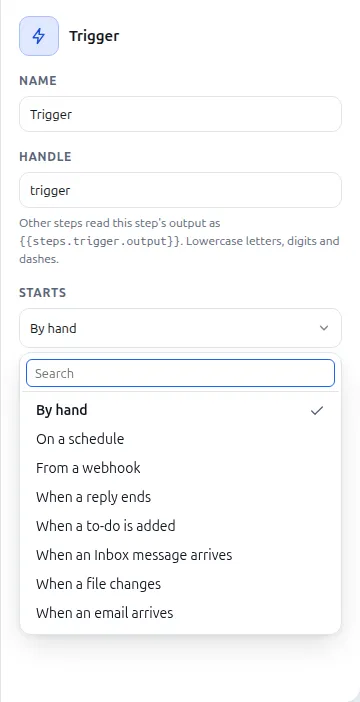
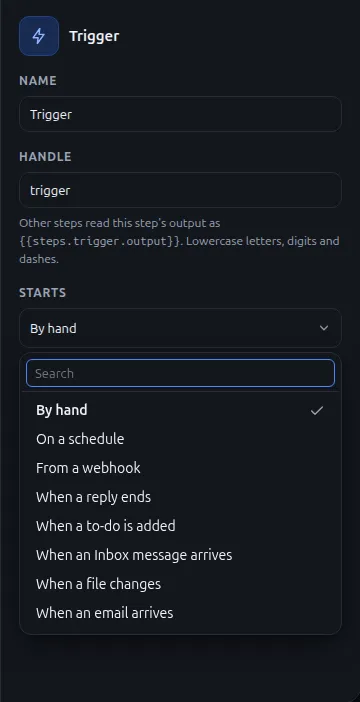
| Starts | The workflow runs |
|---|---|
| By hand | When you press Run workflow. |
| On a schedule | At the times you set. |
| From a webhook | When another program calls a web address. |
| When a reply ends | When an agent finishes a reply in any chat or room. |
| When a to-do is added | When you or an agent add to-dos to any chat. |
| When an Inbox message arrives | When a Notify step of another workflow files a message. |
| When a file changes | When a file in a folder is added, changed or removed. |
| When an email arrives | When a new message reaches a mailbox. |
Routines have only the first three kinds, with different names. See Routines.
What the trigger hands on
Section titled “What the trigger hands on”The trigger’s output is the text the first step reads as {{input}}, and the text any step can read as {{trigger.text}}. What it holds depends on the kind:
- By hand: whatever you type in the Input box of the Run workflow window.
- Webhook: the call’s body, as JSON.
- An event: a short text made from the event, and its details as fields, such as
{{trigger.body.subject}}for an email. - Schedule: nothing, since nothing happened to describe.
A Run workflow press on a workflow with an event trigger is a run by hand. Only the text you type reaches it, and the event’s fields stay empty. Run step on a step after it fills the fields from an example instead.
By hand and on a schedule
Section titled “By hand and on a schedule”By hand needs nothing more. In the Run workflow window, type an Input if the workflow needs one. A webhook workflow that has a test call runs with that call instead, as if it had just arrived.
On a schedule uses the same picker as a routine: Once, Hourly, Daily, Weekly, Monthly, Yearly or Custom with a cron expression. See Routines. A schedule only fires while the workflow is On and ZumiBot’s server is running.
From a webhook
Section titled “From a webhook”A webhook trigger works as a routine’s does. The panel shows a URL and a Secret. The caller sends the secret in an X-ZumiBot-Secret header. The workflow runs with the call’s body as its output. Call the address once, choose Check test call, and the panel lists the call’s fields. A webhook workflow can be saved without a test call, but it needs one before you can use the fields in a template.
Filters decide which calls start a run. Choose Add filter, or the Filter button beside a field of the test call. Each filter has a Field, such as body.action, a comparison, equals or contains, and a Value, such as opened. Text must match exactly, capitals included. All filters must match. A call that fails a filter is kept as a skipped run that says “Filter did not match”, so you can see what was refused. Note that an equals filter with an empty value matches only an empty field.
From GitHub. A GitHub webhook works too, because ZumiBot also accepts GitHub’s signature in place of the secret header. In your repository’s webhook settings, enter the URL as the Payload URL, choose the content type application/json and enter the secret as the Secret. The JSON type matters: GitHub’s default form type hides the fields from filters.
When a reply ends, a to-do is added or an Inbox message arrives
Section titled “When a reply ends, a to-do is added or an Inbox message arrives”These three start a workflow from something that happens inside ZumiBot. There is nothing to configure except filters.
- When a reply ends runs after an agent’s turn ends in any chat or room, whether it replied or failed. The text is the reply. Fields include
body.chat.title,body.agent,body.outcome(ok or error) andbody.reply. - When a to-do is added runs when to-dos are added to a chat’s list, by you or by an agent. The text is the new to-dos, one per line. Fields include
body.chat.title,body.by,body.countand the to-dos. - When an Inbox message arrives runs when a Notify step of another workflow files a message. The text is its title, a blank line and its body. Fields include
body.message.title,body.message.bodyandbody.workflow.name.
When you pick one of these, or a file or email trigger, the panel lists the fields from an example, each with a Filter button. The values are made up, to show the shape. A filter you add that way starts empty.
To keep a workflow from setting itself off in a loop, ZumiBot ignores some events:
- A chat a workflow made never starts a reply or to-do workflow, and neither does a chat that a running workflow step is waiting in.
- An Inbox workflow never starts from its own messages, and a chain of Inbox-started runs ends after three.
- A workflow starts at most 30 times a minute. An event past that is dropped.
- An event that arrives while the workflow already has five unfinished runs ends as a skipped run, “Too many runs in progress”.
When a file changes
Section titled “When a file changes”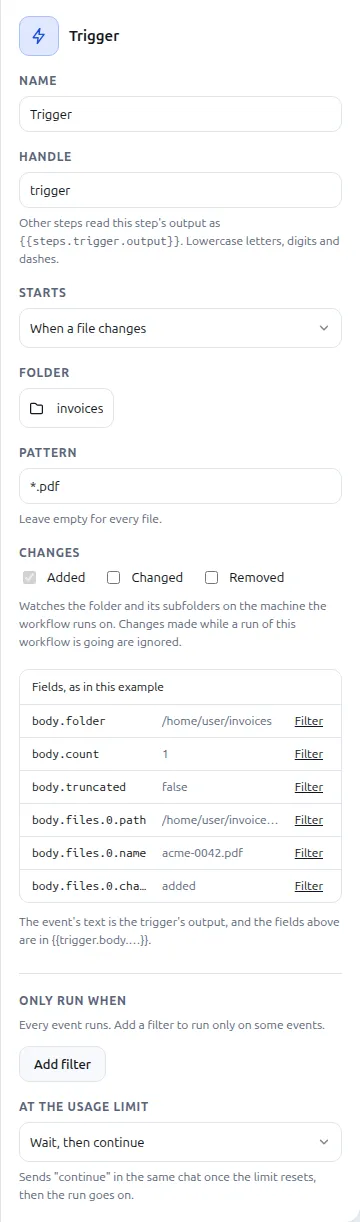
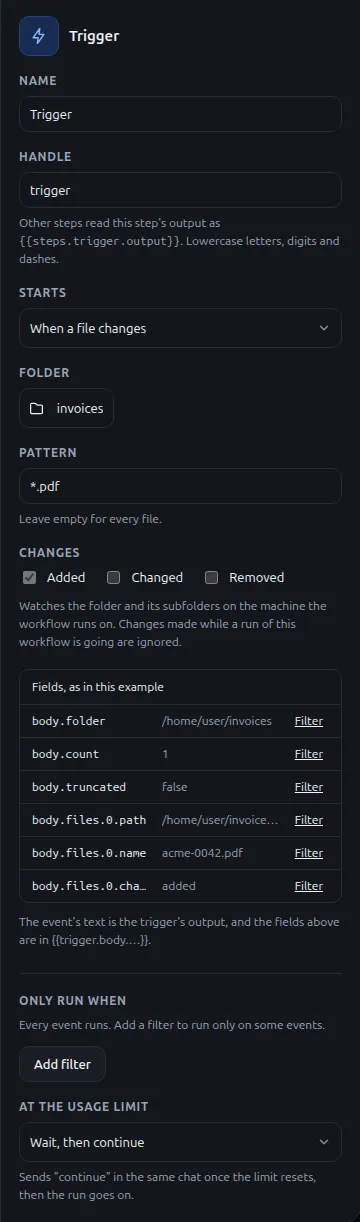
Choose Folder and pick the folder to watch from the folder picker. ZumiBot watches it and every folder in it. A folder that is missing keeps Run and the On switch off.
- Pattern limits it to some file names, for example
*.pdf.*stands for any text and?for one character, capitals do not matter, and an empty pattern means every file. - Changes picks what counts: Added, Changed and Removed. One must stay ticked.
- A burst is one run. ZumiBot waits two seconds after the last change, then starts one run. The text lists the files, one path per line, up to 100, and
body.countsays how many there were. - Its own changes are ignored. While a run of the workflow is going, and for a moment after, changes in the folder do not start another run, because the workflow’s own agent may be writing there. Folders named
.gitandnode_modulesare skipped. - It watches the machine ZumiBot runs on. On a server, that is the server’s folder, not your computer’s.
When an email arrives
Section titled “When an email arrives”Choose an Account, then fill in Server, Port and Folder, for example imap.example.com, 993 and INBOX. Choose Check mailbox to sign in once and see the number of messages, or the reason it cannot.
The account is a login in your Vault. Open Settings › Vault, add a login for the mailbox, and switch on Workflows may use it (email trigger). Only logins with that switch are listed. Many mail providers ask for an app password instead of your normal one. The password never reaches a run, and an error never shows it.
- It checks every two minutes. Mail that is already there when you turn the trigger on never starts a run. Only new messages do, oldest first, one run each, up to 10 per check.
- Nothing is marked read. ZumiBot opens the mailbox read-only.
- A mail starts a run only if the workflow can take it. If five runs are already going, the mail waits in the mailbox for a later check.
- The text is
From:,Subject:, a blank line and the message. Fields includebody.from.address,body.subjectandbody.text.
Settings every trigger has
Section titled “Settings every trigger has”At the bottom of the trigger’s panel:
- At the usage limit. Wait, then continue sends “continue” in the same chat once the limit resets. Skip the run ends the run, marked skipped, the first time a limit stops it.
- If a run was missed (schedules only). Run once when back makes one late run. Skip it waits for the next time.
- Spend cap per run. Leave empty for no cap. With an amount, a run stops starting new steps and pauses its agents once it has spent that much, and you are notified. Continue on the run allows the same amount again.
Tips and limits
Section titled “Tips and limits”- Test with a filter off. If a workflow never starts, remove the filters and try again. A filter on a field that does not exist never matches.
- Look at the list. A webhook’s skipped runs and a schedule’s late runs are in the run list, tagged so you can tell them apart.
- Workflows run where ZumiBot’s server runs. In Local mode that is your own computer, so a schedule, a watched folder or a webhook works only while ZumiBot is open. On a server, it keeps working when your computer is off.
- Start one from a chat. For a run on demand with text from a chat, use
/run-workflow. It works with any trigger.
Related
Section titled “Related”- Workflows
- Steps
- Routines
- Inbox
- Spend caps
- Vault: the login an email trigger uses.
- Slash commands
- Jev: a condition on a webhook trigger.