
Servers, plugins, skills & hooks
Claude Code can be extended with four kinds of add-on. ZumiBot shows what is loaded and lets you change it, in two places: Settings › Claude Code for everything on this machine, and the What this agent loads card in Agent Studio for one agent.
- Servers (MCP servers) give an agent more tools, such as a notes search or an issue tracker.
- Skills are folders of instructions that Claude reads when a skill fits the job.
- Plugins are bundles that can add servers, skills and hooks together. You install them with the
claude plugincommand. - Hooks are commands that run at set moments, such as before a tool is used.
See what loads
Section titled “See what loads”-
Open Settings with the gear at the bottom of the left strip, then choose Claude Code. You can also press Ctrl+K (Cmd+K on a Mac) and type “Claude Code”.
-
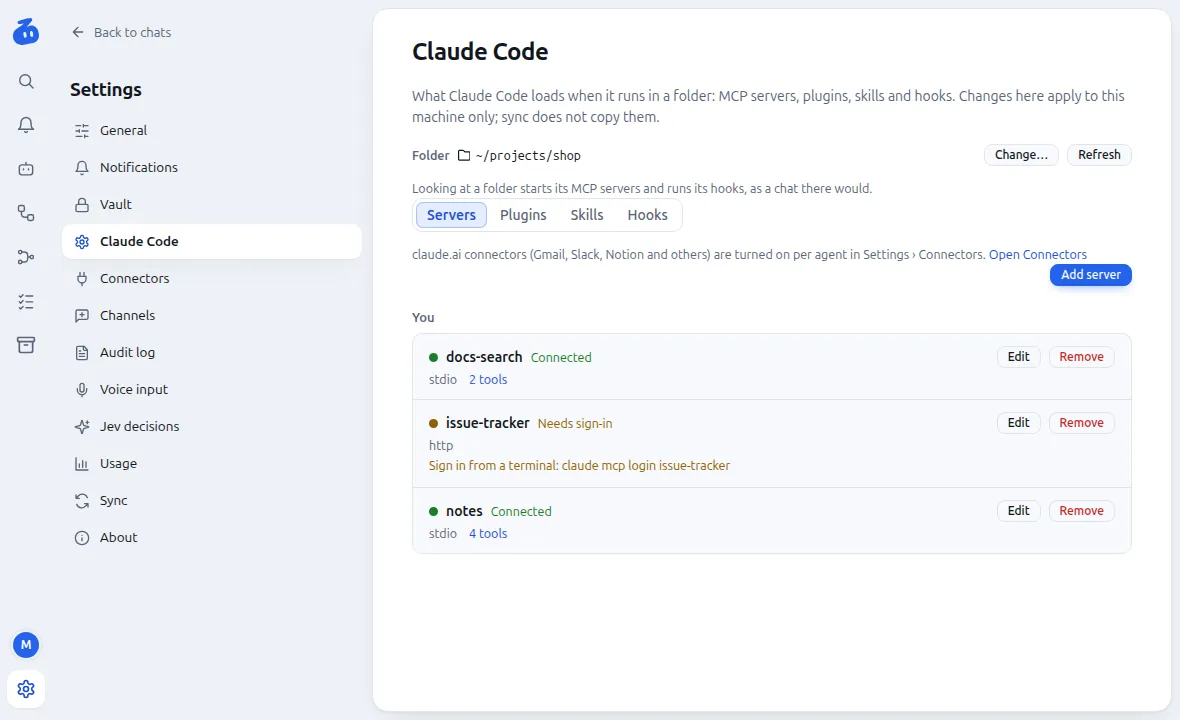
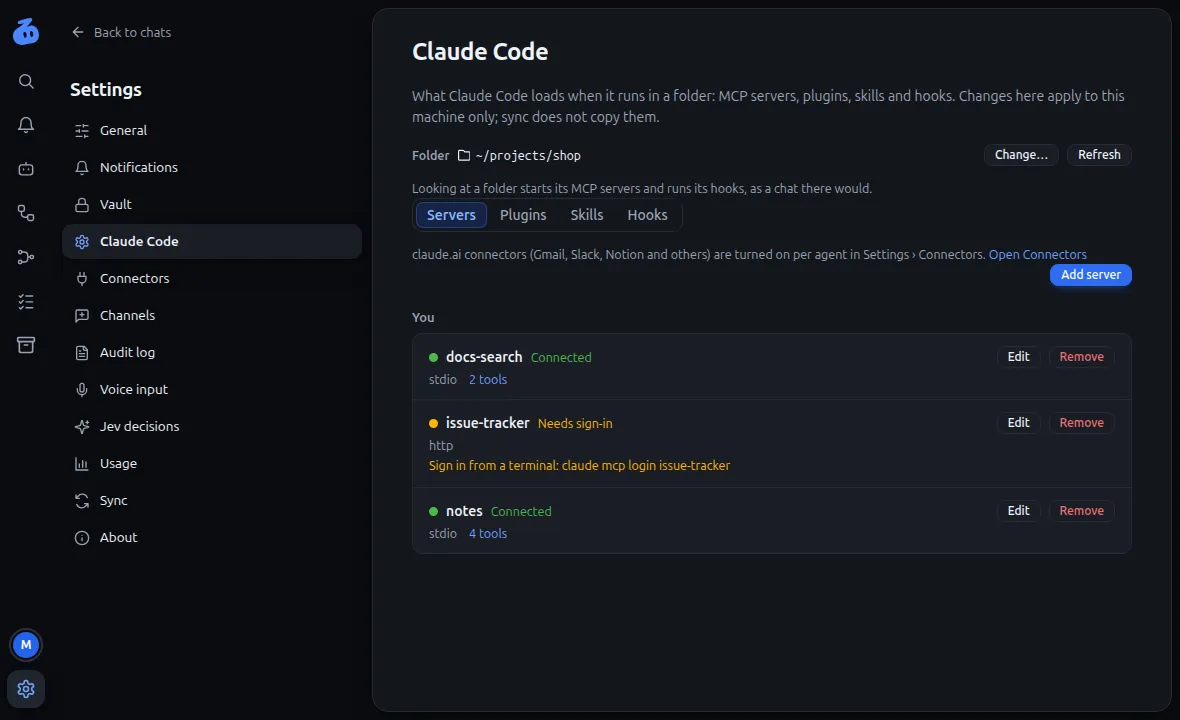
Look at the folder. The Folder line starts at your home folder. Choose Change… to pick a project. What loads depends on the folder, because a project can add its own servers, skills and hooks. The page says “Looking at a folder starts its MCP servers and runs its hooks, as a chat there would”, so pick a folder you trust.
-
Pick a tab: Servers, Plugins, Skills or Hooks. Rows are grouped by where they come from, such as You, Project, Plugin or claude.ai.
-
Refresh asks Claude Code again after you change something outside ZumiBot.
The lists come from Claude Code itself, so they match what a chat in that folder would get. Asking sends no message to a model and uses no quota. While it asks, the page reads “Asking Claude Code…”.
Servers
Section titled “Servers”Each server row shows a status: Connected, Needs sign-in, Failed, Connecting… or Off. Choose the tools count, such as “4 tools”, to list the tools it gives. A server that needs sign-in tells you the command to run in a terminal.
To add a server:
-
Choose Add server.
-
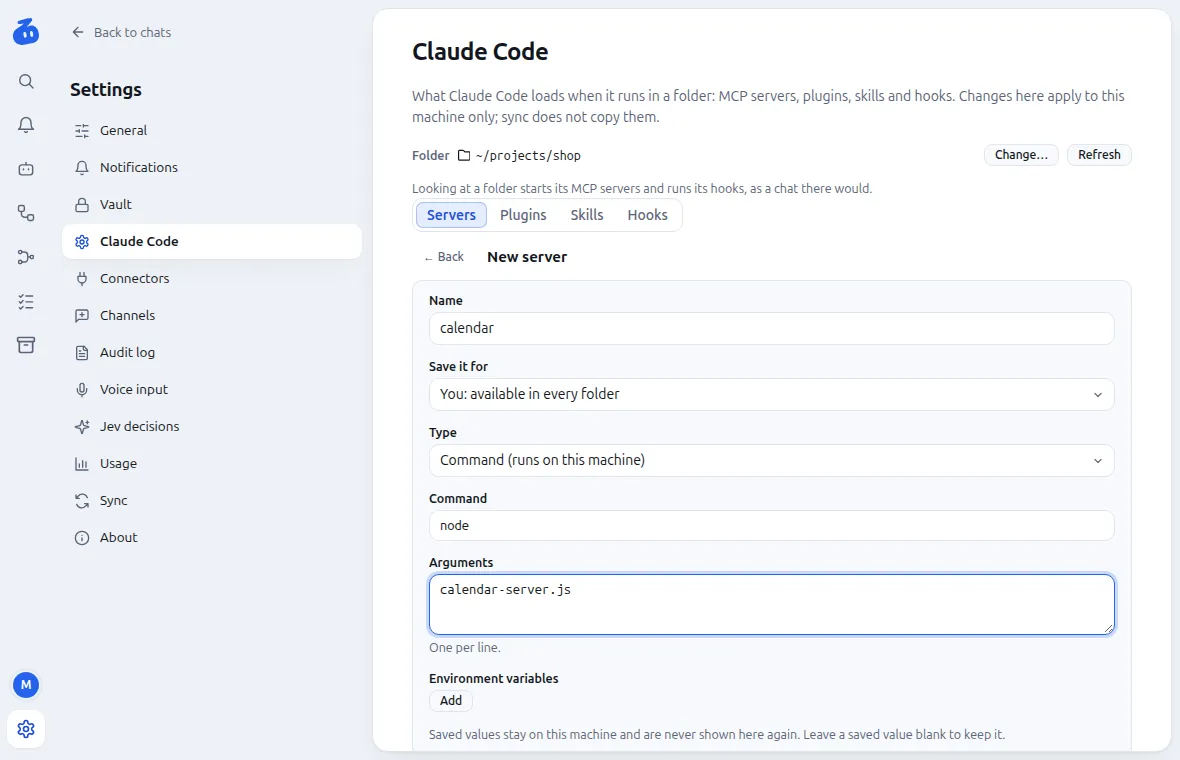
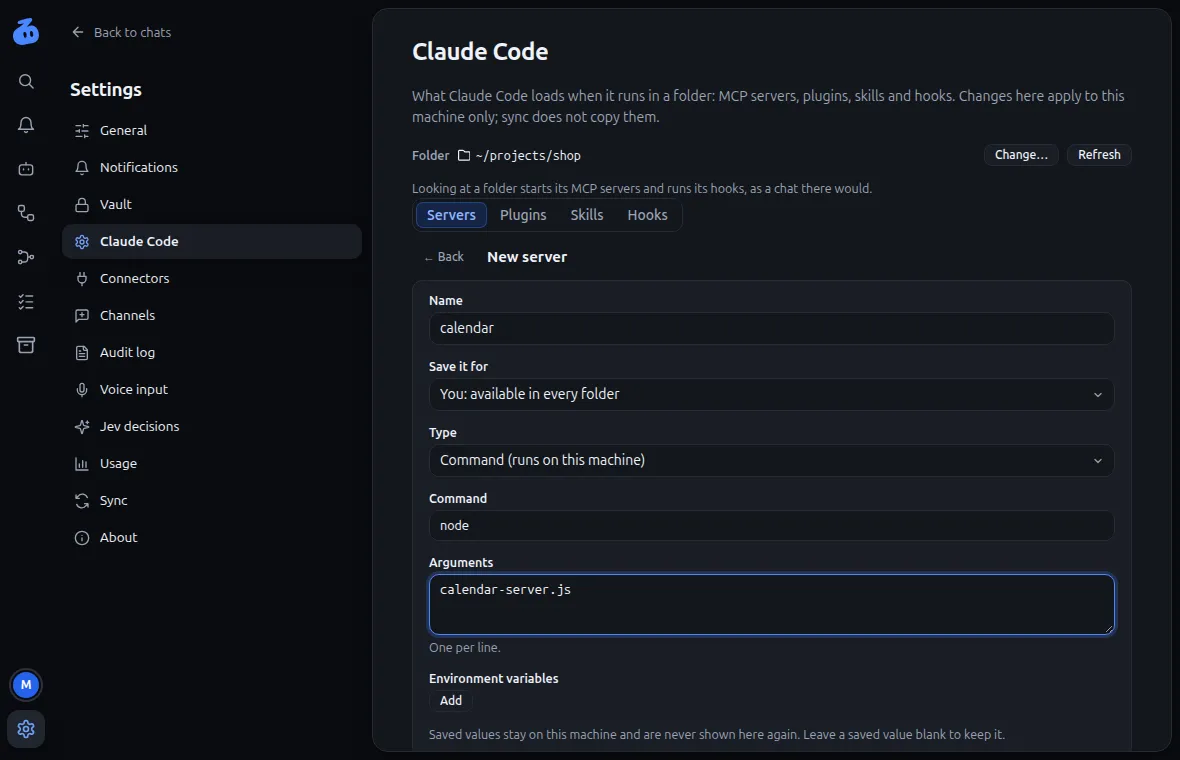
Name it, then choose Save it for: You: available in every folder, This project, only for you, or This folder, shared with the project (.mcp.json). The last one is shared with everyone who uses that project.
-
Pick the Type. Command (runs on this machine) takes a Command, Arguments (one per line) and Environment variables. HTTP URL and SSE URL take a URL and Headers.
-
Choose Save. The list updates and shows the new server with its status.
Choose Edit or Remove on a row to change it. Remove asks first. Only servers from your own settings or a project can be edited here. Servers that come from a plugin or from claude.ai have no buttons.
Saved values stay on this machine, and the form never shows them again. Leave a saved value blank to keep it.
claude.ai connectors, such as Gmail or Slack, are turned on per agent in Settings › Connectors. The Servers tab says so and has an Open Connectors link. See Connectors.
Plugins
Section titled “Plugins”The Plugins tab lists installed plugins, each with a switch. Install a plugin with the claude plugin command in a terminal, then switch it on or off here. A plugin’s servers, skills and hooks go with it.
Skills
Section titled “Skills”The Skills tab lists skills with a short description and an estimate of their size in tokens. The switch applies to every agent. An agent can turn a skill off for itself in Agent Studio.
To write your own, choose Add skill. Give it a Name (lowercase letters, digits and single hyphens), choose Save it for (You: available in every folder (~/.claude/skills) or This folder, shared with the project (.claude/skills)), write a Description that tells Claude when to use it, and write the Instructions in Markdown. Save creates it. In an existing skill, Delete moves its whole folder to the Trash after you confirm.
The Hooks tab lists the commands that run at set moments. Add hook asks for where to Save it in: Your settings (~/.claude/settings.json), This project (.claude/settings.json) or This folder, only for you (.claude/settings.local.json). The last one is private to you. This project is the project’s own settings file, so it applies to everyone who uses the project, the Event (for example PreToolUse), a Matcher that says which tools it applies to (empty means every tool), the Command, and an optional Timeout (seconds).
A hook runs a command on your machine every time its event happens, with your permissions. Add only commands you trust.
Choose what one agent loads
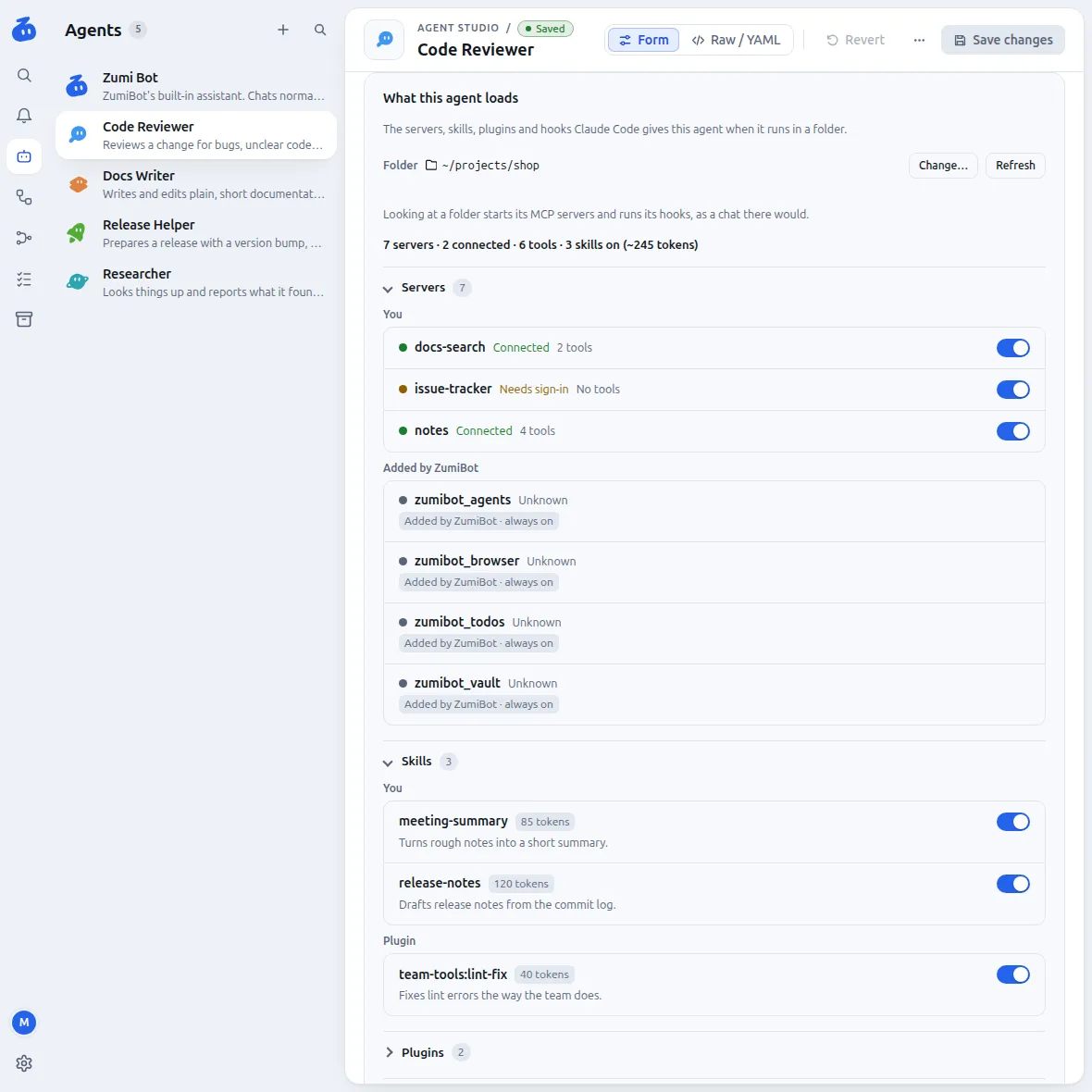
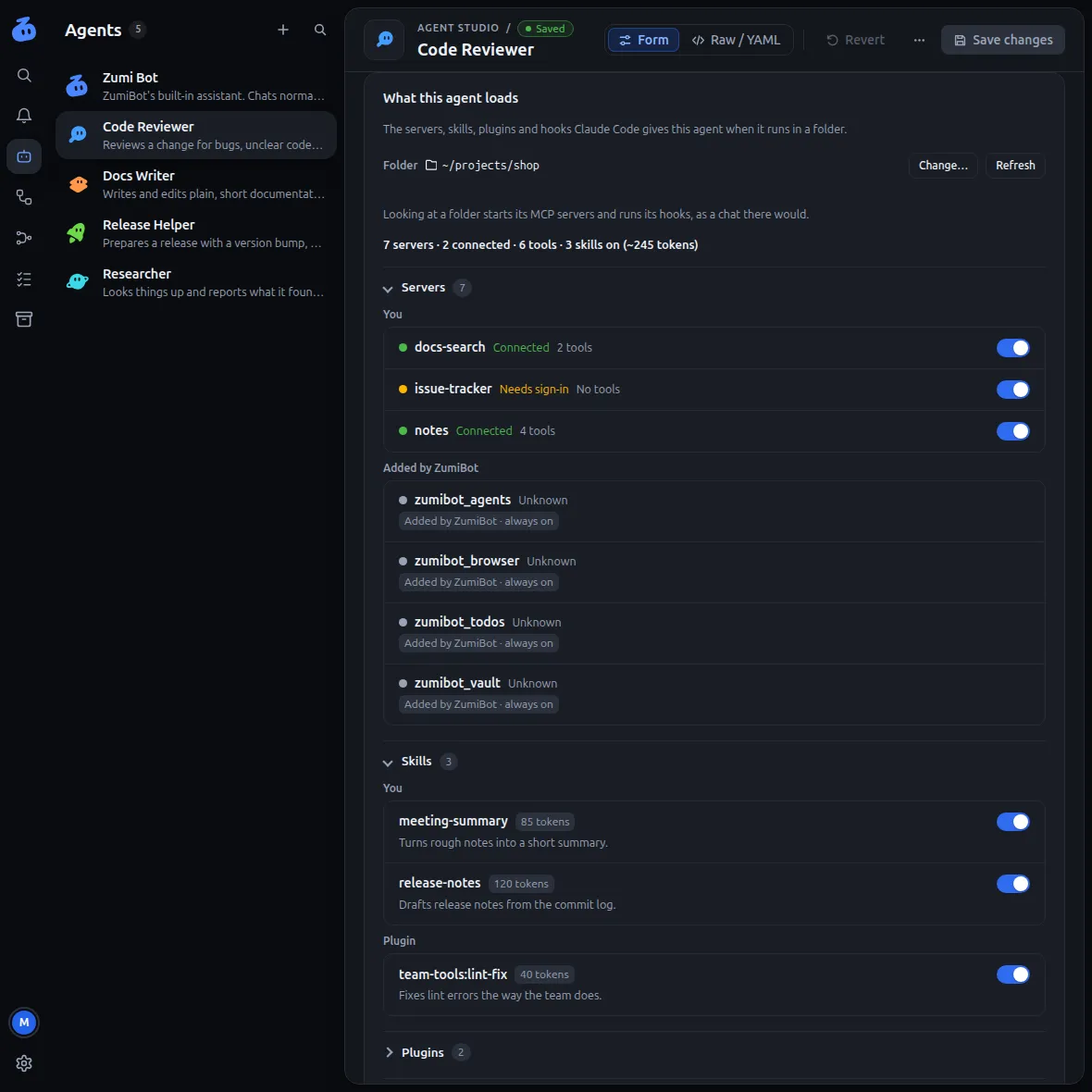
Section titled “Choose what one agent loads”Open an agent in Agent Studio and scroll to What this agent loads. It shows what Claude Code gives that agent in a folder, starting with the agent’s last folder. A line at the top counts it, for example “7 servers · 2 connected · 6 tools · 3 skills on (~245 tokens)”.
-
Flip a switch. Each server, skill and plugin has one. Off means this agent does not get it, and the other agents are not affected.
-
Choose Save changes at the top of Agent Studio. The switches are part of the agent’s file, so nothing changes until you save. A saved change applies from the agent’s next message.
Some rows work differently:
- Rows under Added by ZumiBot are tools ZumiBot adds to every agent’s runs itself, such as the ones for the to-do list, the browser and the vault. Each is tagged “Added by ZumiBot · always on” and has no switch. Their status reads Unknown and they show no tool count. That is normal: ZumiBot adds these itself, so there is nothing for you to switch or sign in to.
- A server that needs sign-in shows “No tools” until you sign in.
- A skill that is off for everyone shows “Off for everyone” and has no switch.
- Hooks from your settings, a project or a plugin show “Applies to every agent”. Turn off the plugin that adds a hook to drop it.
- A claude.ai connector row says “Set on the Connectors page” and links there instead of showing a switch.
The card warns when you change these: “Changing these makes the agent’s next message re-read its whole context once.” Switching things on or off changes the list of tools the agent sees, so the next message costs a little more.
An agent’s own servers and hooks
Section titled “An agent’s own servers and hooks”Under the lists, This agent’s own servers and This agent’s own hooks add things only this agent has. Choose Add server or Add hook, fill in the form, and choose Save changes. They are saved in the agent’s file.
In a server’s Environment variables or Headers, From Vault… fills a value from a key you saved in the Vault and granted to this agent, so the secret is not written in the file. A value you type yourself is stored as plain text in the agent’s file, and the form says so.
Tips and limits
Section titled “Tips and limits”- Settings › Claude Code changes your real Claude Code setup. The page says “Changes here apply to this machine only; sync does not copy them.”
- Zumi Bot’s card is a view only, and agents set up to run on a different tool than Claude Code do not get per-agent choices.
- If Claude Code does not answer, a note says so. Choose Retry or Refresh.
- A project’s servers and hooks start when you look at that folder. Look only at folders you trust.