
Dictation
Dictation types for you. Tap the mic in the message box, say what you want, tap again, and the words land in the box at the cursor. You read them, fix anything you like, and send. It works in English and Arabic.
What you need
Section titled “What you need”Dictation is off until you turn it on and add a key. The recording is turned into text by a speech service reached through OpenRouter, so you need an OpenRouter account and an API key. OpenRouter (openrouter.ai) is a service that gives you one key for many AI models. Sign up on its site and create a key there, then come back and paste it in ZumiBot. ZumiBot sends it to ElevenLabs Scribe v2 with zero data retention, and it does not keep the audio. Your server holds the key and never shows it again.
OpenRouter bills the key’s owner for the speech it turns into text. ZumiBot’s own Usage page does not count that cost, so check it in your OpenRouter account.
Turn it on
Section titled “Turn it on”-
Open Settings, then Voice input.
-
Add your key. Under “OpenRouter API key”, paste the key and choose Save. The note under it reads “OpenRouter accepted the key.” when it works. The key field is empty afterwards, and the line above it reads “Key saved”.
-
Switch on “Use voice input”. The line under the switch reads “On, but nothing happens until you add a key.” until a key is saved, and “On.” after that.
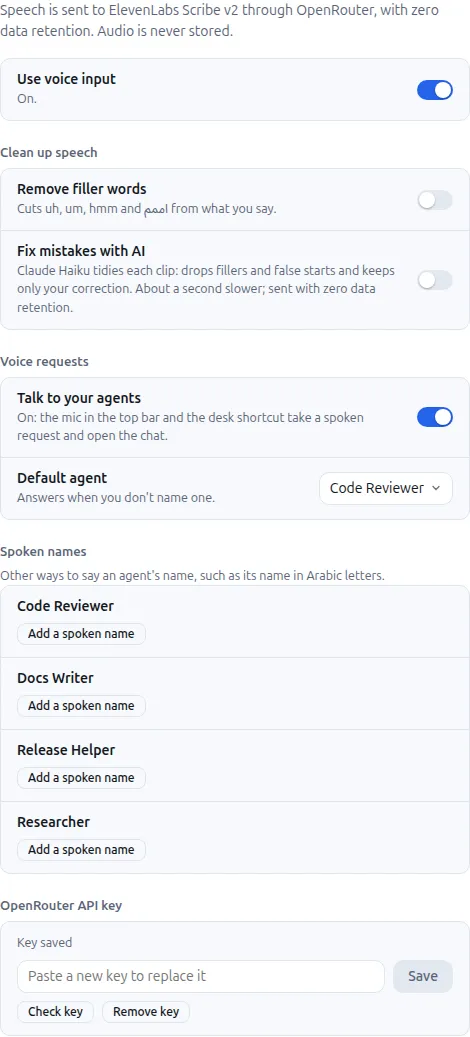
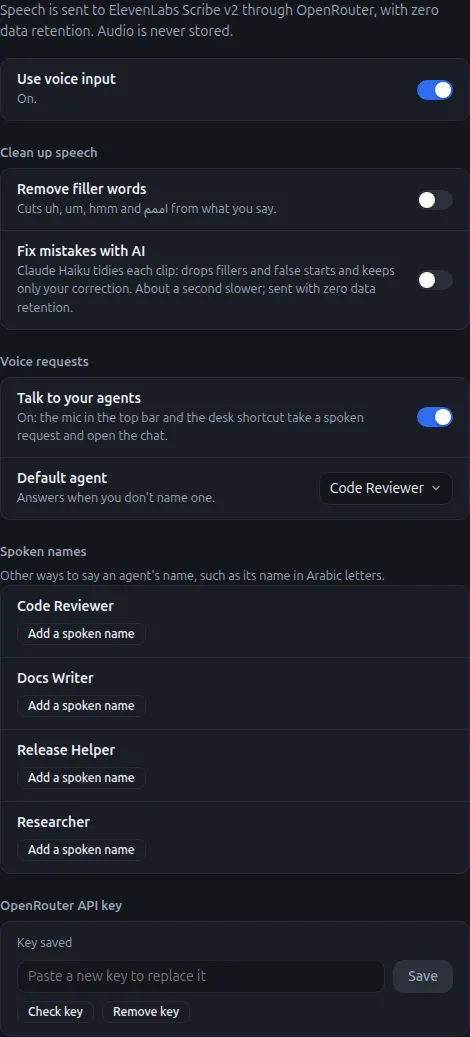
The “Clean up speech” and “Voice requests” groups in that picture show up only once voice input is on and a key is saved. The same page has Check key, which asks OpenRouter whether the key still works, and Remove key, which stops voice input until you add another. The mic buttons are hidden while voice input is off, or while no key is saved.
Dictate a message
Section titled “Dictate a message”-
Click in the message box where you want the words. The mic button sits beside Send. Its tooltip reads “Start dictation”.
-
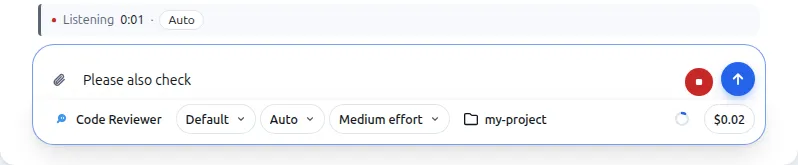
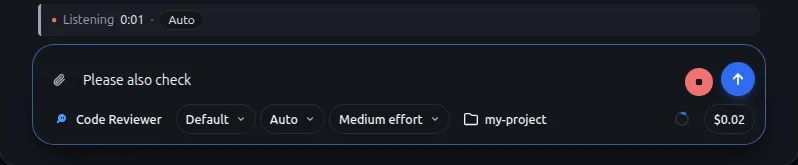
Tap the mic. Your browser asks for the microphone the first time. Allow it. A line above the box reads “Listening” with the time, and the mic turns into a stop button.
-
Speak. Say your message the way you would say it to a person.
-
Tap the mic again. The line reads “Transcribing…”, and then the text appears at the cursor, followed by a space. Nothing is sent. Read it, change it if you like, and send as usual.
The mic is also in the box you get when you edit a message, with the same buttons.
If you press Send while you are still dictating, ZumiBot waits for the text, puts it in, and sends once. The line reads “Transcribing, then sending…”.
Language
Section titled “Language”The small button on the “Listening” line sets the language. It cycles through Auto, EN and AR each time you tap it, and remembers your choice on that device. Leave it on Auto unless a word keeps coming out in the wrong language. Arabic text reads from right to left in the box.
Clean up speech
Section titled “Clean up speech”Two switches under “Clean up speech” tidy what you said before it reaches the box. Both are off to begin with, and a change applies to your next recording.
- Remove filler words cuts hums such as “uh”, “um” and “hmm” in English, and long hums such as اممم in Arabic. It leaves real words alone. It keeps “mhm” and “uh-huh”, since those mean yes, and it keeps names such as “Umm Ahmad”.
- Fix mistakes with AI also has Claude Haiku tidy each clip. It drops fillers, stutters and false starts, and when you correct yourself it keeps only the correction. It keeps your language, names, numbers, @mentions and /commands, and adds nothing. It is about a second slower, and it is sent with zero data retention too.
The tidy-up never makes a recording fail. If it cannot run, you get the text as it was heard, and clips of three words or fewer are never rewritten.
Tips and limits
Section titled “Tips and limits”- Short clips are ignored. A recording under about half a second is never sent, so an accidental tap does nothing.
- One recording lasts up to 5 minutes. At 5:00 it stops by itself, converts what it has, and shows “Stopped at 5:00” for a moment. A recording is also stopped, and converted, when you switch to another tab or the page is hidden.
- Leave the box and the recording is dropped. If you switch chats or close the edit box while recording, nothing is inserted and nothing is sent.
- The mic is released right away every time recording ends.
- The mic can be missing from the box. It is hidden where it cannot work: when voice input is off, when your browser cannot record, and in an older desktop app, which does not give the page the microphone. Update the desktop app if the mic is missing there.
- When it goes wrong, the box says why: “Microphone is blocked. Allow it in the browser’s site settings.” means the browser has the mic blocked for this site. “No microphone found.” means there is no mic. “Didn’t catch anything.” means the clip had no speech. “Transcription failed. Try again.” comes from the speech service. “That recording is too long.” and “Too many recordings. Wait a moment.” are limits, and “Couldn’t reach the server. Try again.” is a lost connection.
- A server needs HTTPS. Browsers only give a page the microphone on a secure address, and the install steps already set that up.
- It needs a connection. The speech service is on the internet, so dictation does not work offline.
Related
Section titled “Related”- Voice requests: speak a request and have it open as a new chat.
- Chats and the message box
- Edit, Resend and Fork
- Slash commands
- Telegram and Slack
- Jev: another feature that uses an OpenRouter key.