
Search, unread and archive
When you have many chats, three things keep them in order. Search finds a message wherever it was written. Unread marks the chats that have a reply you have not seen. Archive tucks away chats you are done with, and keeps them safe.
Search
Section titled “Search”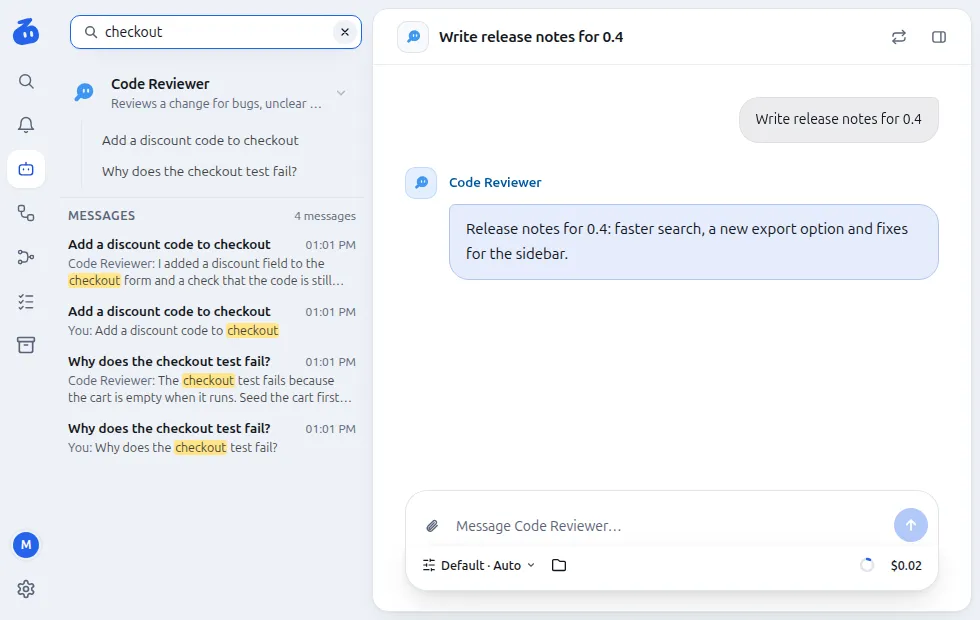
-
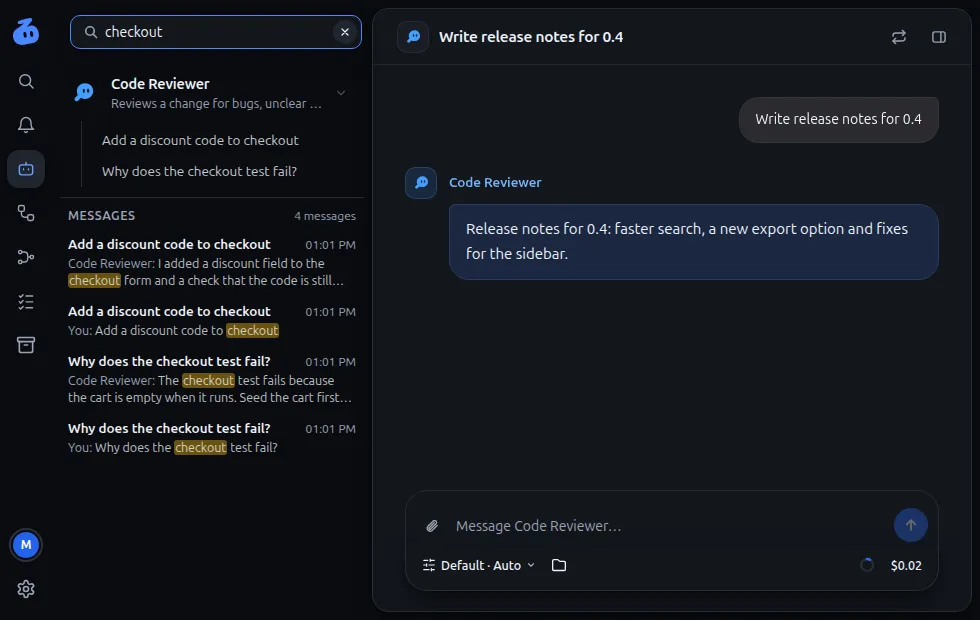
Choose the magnifier at the top of the left column, which reads “Search agents, chats and messages”. You can also press Ctrl+K (Cmd+K on a Mac) to go anywhere, and type there: the first few matching messages show under the places.
-
Type what you remember. Agents and chats whose names match show first. Under them, a Messages section lists the messages that contain your words, newest first. A line over the list says how many it found, such as “4 messages”.
-
Choose a hit. The chat opens at that message, the message flashes, and your words are highlighted in it. Choose Show more at the end of the list to load the next 30.
Each hit shows the chat’s name, an Archived tag if it is archived, when it was written, who wrote it (“You” or the agent’s name), and a snippet with your words marked.
How matching works
Section titled “How matching works”- Every word you type must be in the message. Up to 8 words count.
- A word of two letters or more matches the start of words, so “check” finds “checkout”. Capital letters and accents do not matter.
- Put words in quotes to find them together in that order, such as
"release notes". - Search looks at your messages and the agents’ replies. It skips tool steps, thoughts, notices, approval cards, side questions and other versions of an edited message.
- Archived chats are searched too.
A message you just sent or received can take a couple of seconds to show up. After ZumiBot restarts, it reads your chats again in the background. The line over the hits then adds “still indexing older chats…”, and the list fills in as it goes. If a search fails, the line reads “Couldn’t search messages.”
Unread
Section titled “Unread”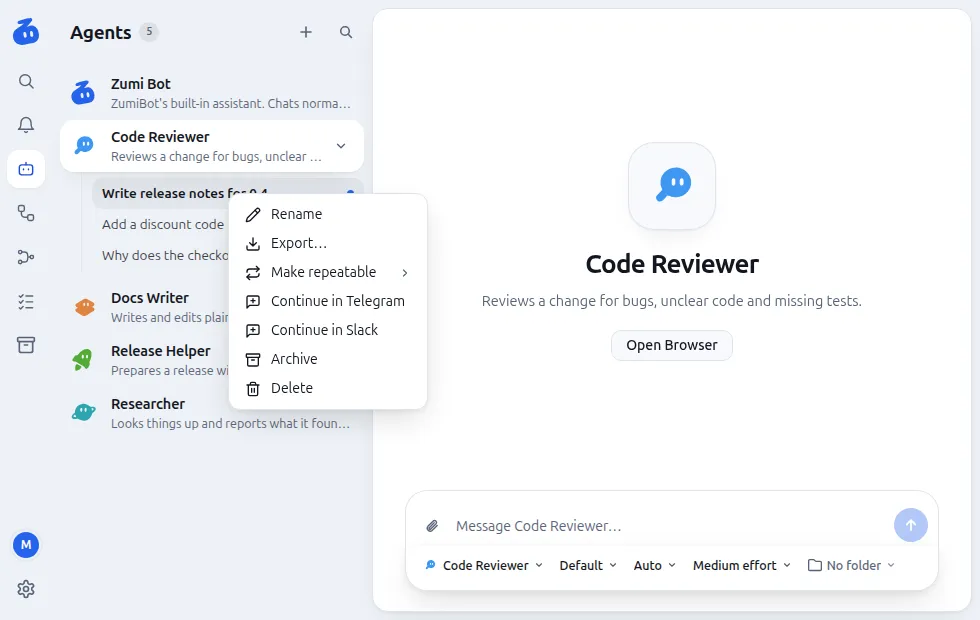
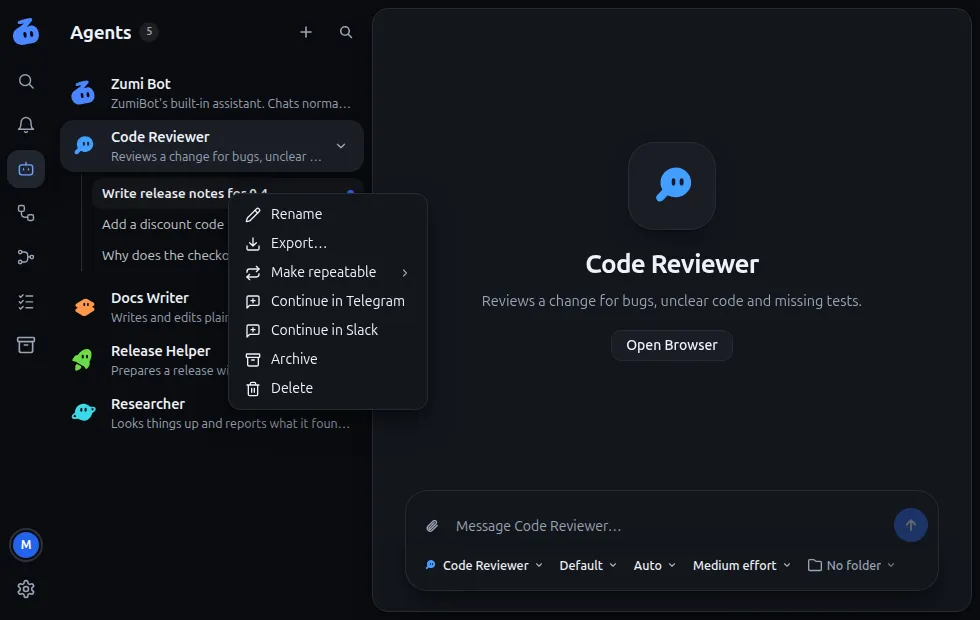
When an agent’s reply arrives and you are not looking at that chat, the chat gets a blue dot in the left column. The dot also shows on the agent when its chats are folded, on a folded section, on the left column’s button on a phone, and on the Agents button in the narrow column at the window’s edge. Opening the chat clears it.
When you open a chat with unread replies, a New line marks the first message you have not seen, and the chat opens there.
An approval card that needs you shows a badge in the same place, and the badge wins over the dot.
Mark a reply unread
Section titled “Mark a reply unread”Point at an agent’s reply and choose Mark unread. The chat shows its dot again and a New line above that reply, and you stay where you are. It stays unread until you open the chat again.
Archive
Section titled “Archive”Archive moves a chat out of your list without deleting it. Use it for chats you might want later but do not want to see every day.
-
Right-click the chat or room in the left column (or press and hold on a phone).
-
Choose Archive.
A chat that is still running cannot be archived. The menu entry is grayed out and its tooltip reads “A chat can be archived once its reply ends”.
Find archived chats
Section titled “Find archived chats”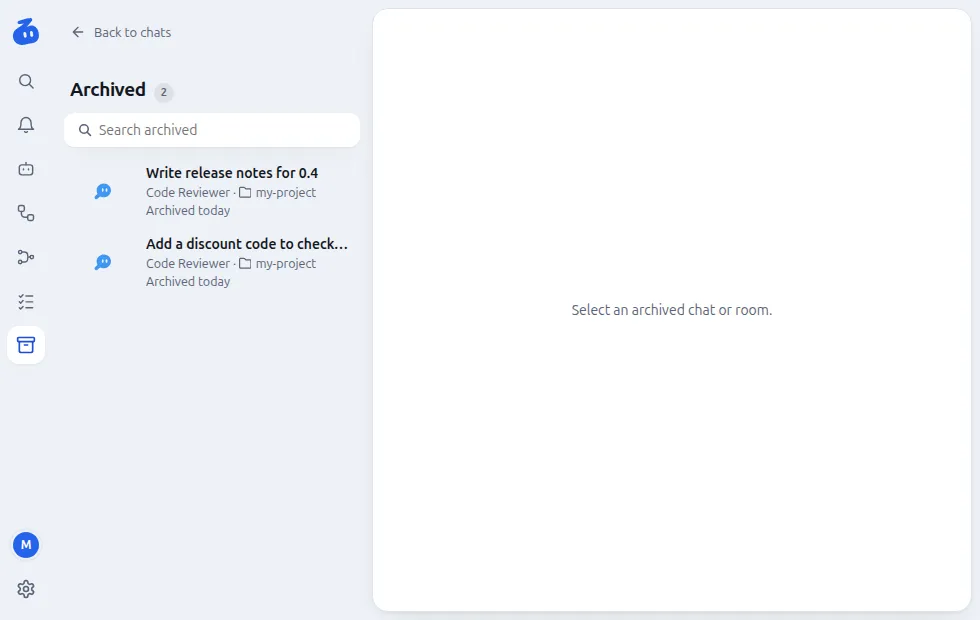
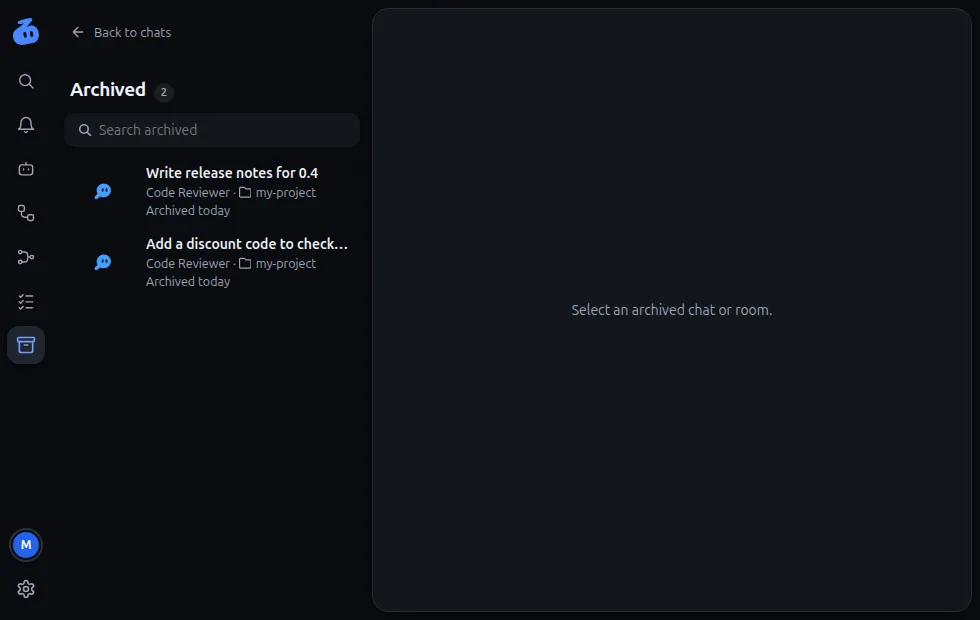
Choose Archived in the narrow column at the window’s edge. The left column becomes the list of archived chats, with a search box that reads “Search archived”. Choose Back to chats at the top to return to the normal list. Choose an archived chat to read it. A note on top reads “Archived. Sending a message brings it back.” with an Unarchive button.
- To bring one back, choose Unarchive in its note, or in the menu of its row.
- To act on several at once, tick the boxes beside the rows. Shift-click ticks a range. A bar shows “3 selected”, Select all, Unarchive and Delete.
- Delete asks you to confirm. It removes the chat from ZumiBot. Claude’s own session file is left alone.
Tips and limits
Section titled “Tips and limits”- Sending a message to an archived chat brings it back. So does a routine run into it, a question from another agent, or a Compact. That way no card that needs your answer hides in the archive.
- Archiving does not change the order of the rest of your chats. A room goes back to its old spot when you unarchive it.
- Unread marks and archive status are saved on the server, so every device you use shows the same.