
Notifications
Notifications tell you when an agent needs you or has finished, even when no ZumiBot window is in front of you. They work on a phone, in another browser tab, and in the desktop app. Each device picks its own events.
What you need
Section titled “What you need”- In a browser or on a phone: a ZumiBot server. A browser notification is pushed by your server through the browser’s own push service, so the server has to be reachable. On a phone, add ZumiBot to the home screen first. The steps for that are on Use it on your phone.
- In the desktop app: nothing extra. The app shows the notification itself. If Settings says “Update the desktop app to get notifications”, your app is too old, so update it.
A browser tab opened on a desktop app that runs in Local mode cannot get push notifications, because there is no server to push them. Use the desktop app itself on that computer.
Turn them on for this device
Section titled “Turn them on for this device”-
Open Settings, then Notifications.
-
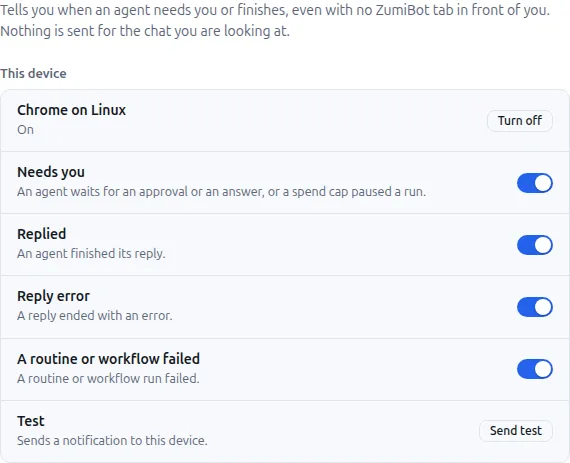
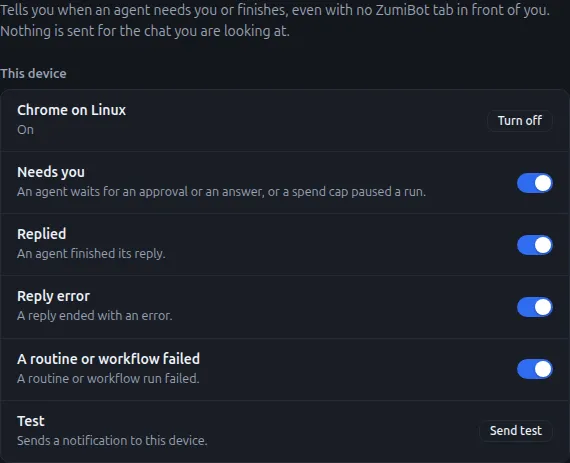
Choose Enable. Under “This device”, the status line reads “Off” until you do. In a browser, it asks for permission to show notifications. Allow it. The line then reads “On”.
-
Choose Send test. A notification that reads “Notifications work on this device” should show in a moment. The page says “Sent. It should show on this device in a moment.” If you have not enabled the device, it says “Nothing was sent. Enable this device first.”
-
Choose your events. Each has its own switch, and all four start on:
- Needs you: an agent waits for an approval or an answer, or a spend cap paused a run.
- Replied: an agent finished its reply.
- Reply error: a reply ended with an error.
- A routine or workflow failed: a routine or workflow run failed.
Choose Turn off to stop notifications on this device. That removes the device and its choices, so Enable starts again from the defaults, with all four switches on.
What a notification says
Section titled “What a notification says”A notification names the chat and says what happened. The chat’s title is the first line. The second line is one of these:
| Event | Second line |
|---|---|
| An approval, question or plan is waiting | The agent’s name, then “needs you” |
| A to-do card’s question is waiting | The agent’s name, then “has a question for you” |
| A reply finished | The agent’s name, then “replied” |
| A reply ended with an error | The agent’s name, then “reply ended with an error” |
| A routine failed | “Routine failed” |
| A workflow failed | “Workflow failed” |
A workflow’s Notify step sends the title and the first part of its text. A spend cap that paused a run sends the amounts. A notification never includes your messages, the agent’s reply, commands, answers or file paths, so it is safe on a lock screen.
Choosing a notification opens the chat. A to-do card’s question opens the Inbox. A Notify message opens that message in the Inbox, and a failed workflow run opens the run. A notification never answers a card for you.
When you do not get one
Section titled “When you do not get one”ZumiBot tries not to buzz for what you already see.
- You are looking at the chat. A chat counts as looked at while its page is visible, the window is focused, and you typed or clicked there in the last three minutes. Nothing is sent for it on any of your devices.
- You look away. If something happened while you were looking and you have not answered it, you get the notification once you look away. If you answered it first, you get nothing.
- It is already settled. When you open a chat, or answer its card on another device, its notifications close by themselves.
- You stopped the reply. A stopped reply, a Compact, and the moderator’s own turns never notify.
- Too many at once. A device gets at most 10 notifications a minute, apart from “Needs you”.
- Several replies in a row. In a room, replies from different members merge into one notification.
If you sign out, your browser devices pause with one notification that reads “Signed out. Notifications are paused until you sign in again.” Sign in and choose Enable to turn them back on.
Other devices
Section titled “Other devices”Every browser, phone or desktop app you enable shows up under “Other devices” with its kind (Push or Desktop app), when ZumiBot last saw it, and a note such as “Paused: signed out” or “Needs enabling again”. Choose Remove to take one off. A removed device stays removed until you enable it again on that device.
Notifications in Telegram or Slack
Section titled “Notifications in Telegram or Slack”You can also send the same notifications to your own Telegram or Slack chat. They are off until you turn them on. See Telegram and Slack.
Tips and limits
Section titled “Tips and limits”- Each device has its own switches. Turn “Replied” off on your laptop and keep it on for your phone, if you like.
- Keep private text out of Notify steps. A Notify step’s first lines show on your lock screen. The Inbox keeps the whole text.
- “Blocked by the browser” means you refused permission. Allow notifications for the site in the browser’s settings, then come back and choose Enable.
- “Off: enable it again” means the browser’s push service dropped the connection. Choose Enable again. Your switches are kept.
- On an iPhone, notifications work only after you add ZumiBot to the Home Screen.