
Routines
A routine sends one prompt to an agent, or to a group room, whenever its trigger fires. Use it for jobs you would otherwise type again: a morning summary, a Friday report, a check that runs each time a tool reports a failure.
Each run is an ordinary chat. You can open it, read it, answer its approval cards and carry on talking.
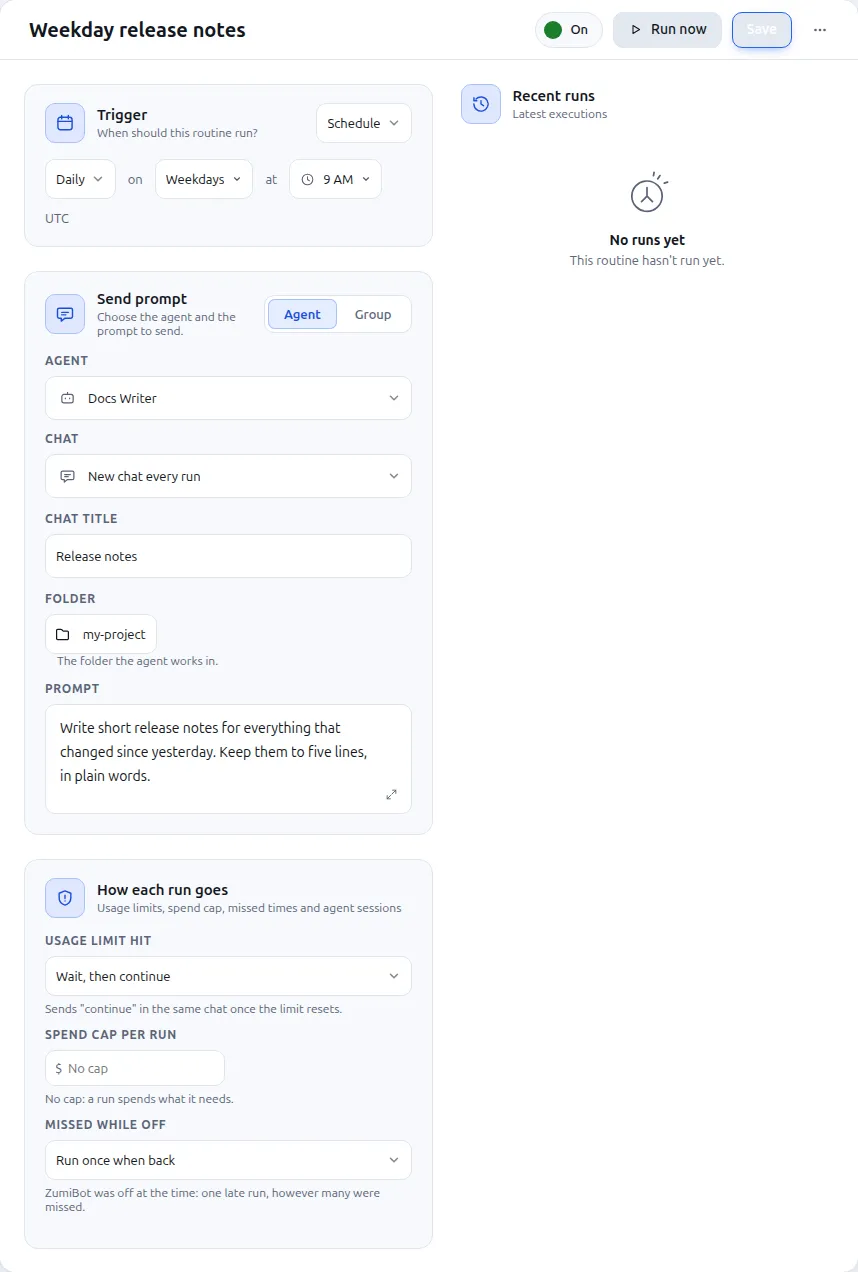
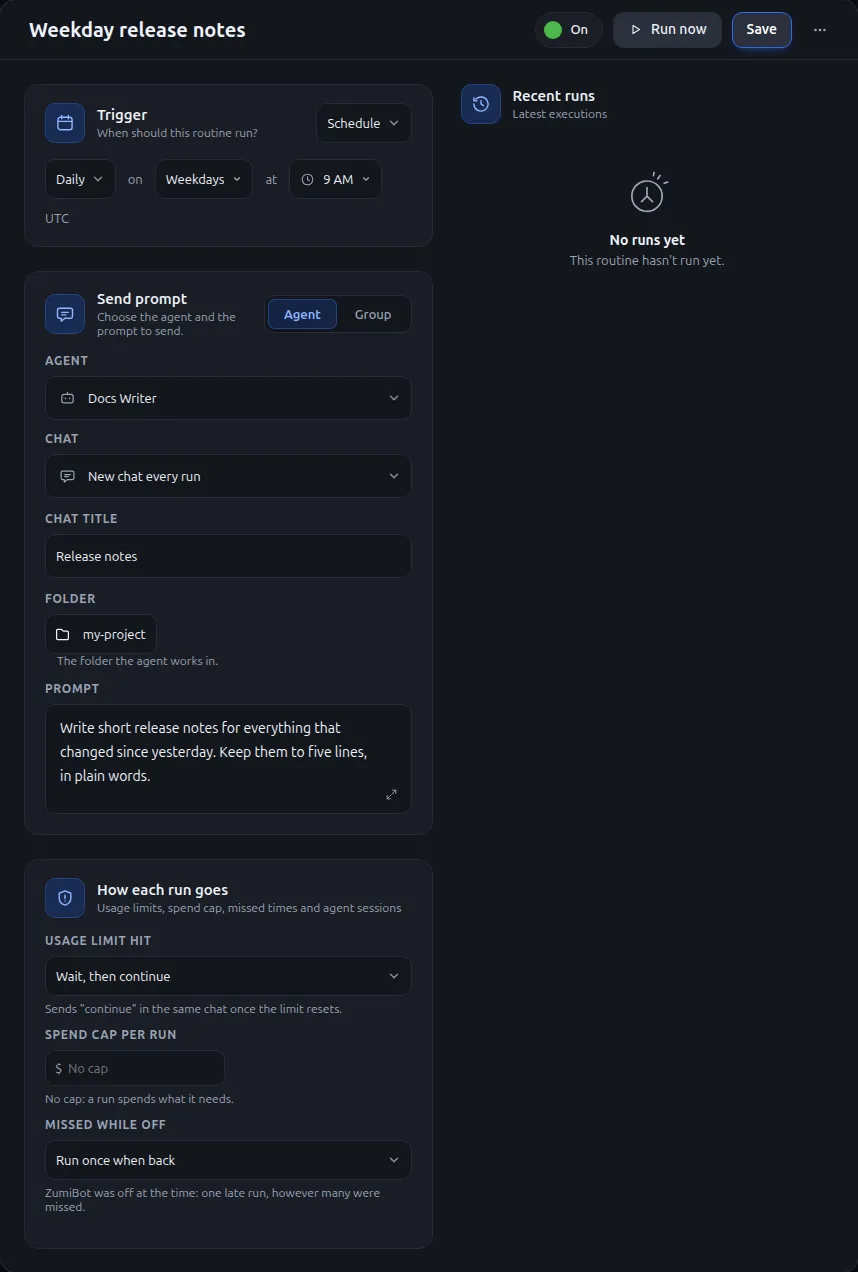
Make a routine
Section titled “Make a routine”-
Open Routines in the left bar, then choose + (New routine) at the top of the list.
-
Name it. Type the name at the top. It is required.
-
Choose the trigger. Pick Schedule, Manual only or Webhook in the Trigger card. The next section tells them apart.
-
Choose who gets the prompt. In the Send prompt card, choose Agent or Group. For an agent, pick it and a folder. For a group, pick at least two members, a folder, and the rules the team follows.
-
Choose the chat. New chat every run (or New group chat every run) starts a fresh chat each time. You can also pick a chat that already exists, and every run then posts into it.
-
Write the prompt. This is the message the agent receives. Start it with
/to run one of the agent’s own commands. -
Save. The button stays off until the list under “Before you save” is empty. Ctrl+S saves too. Once the routine is saved, Save stays off until you change something. Use the switch at the top to turn the routine On or Off; it is saved with your other changes. The switch next to each routine in the Routines list applies at once.
A run has the chat title you typed in Chat title. Left empty, it is the routine’s name and the date, such as “Weekday release notes · Nov 21”. A group routine can also put each new room in a sidebar section you pick.
Triggers
Section titled “Triggers”Schedule
Section titled “Schedule”Pick how often: Once, Hourly, Daily, Weekly, Monthly, Yearly or Custom. The row then asks for the day and time. Daily and hourly runs also let you tick the days of the week. The time zone shown beside the time is the one the routine uses.
Custom takes a cron expression: five fields for the minute, hour, day of the month, month and day of the week. For example, 0 9 * * 1-5 is 9:00 on weekdays. The card lists the next three times it will fire, so you can check it before you save. A routine that is not valid shows “Invalid cron expression”.
Schedules only fire while ZumiBot’s server is running. If it was off at the time, Missed while off decides what happens, as described below.
Manual only
Section titled “Manual only”The routine runs only when you press Run now. It is a saved prompt with a button.
Webhook
Section titled “Webhook”A webhook lets another program start the routine by calling a web address. Choose Webhook and the card shows a URL and a Secret. Copy both into the program that will call it, and send the secret in a header named X-ZumiBot-Secret. Any HTTP method works. For GET, ZumiBot reads the address’s query. For other methods, it reads the body, as JSON or a form.
curl -X POST "https://zumibot.example.com/hooks/YOUR-HOOK-ID" \ -H "X-ZumiBot-Secret: YOUR-SECRET" \ -H "Content-Type: application/json" \ -d '{"title": "Checkout is slow", "severity": "high"}'A webhook routine needs a test call before you can save it. Call the address once from your tool, then choose Check test call. The card lists the fields of that call. Choose Insert beside a field, or type {{ in the prompt, to put its value into the prompt, so a prompt can say A new issue came in: {{body.title}}. A run whose call lacks a field you used shows “Missing:” with the field names.
Choose Show to read the secret and New secret to replace it. The old secret stops working at once, so update the caller.
Run it and read the result
Section titled “Run it and read the result”Choose Run now to start a run by hand, whatever the trigger. It is off until the routine is saved.
Recent runs on the right lists the latest runs, newest first. Each shows when it started, its status, and tags such as “manual” or “late”. A run’s status is one of “running”, “waiting”, “limited”, “paused”, “done”, “failed” or “skipped”. Choose Open chat to read it.
- waiting means the agent asked for an approval or an answer. The Routines icon in the left bar shows a dot until you answer in the run’s chat.
- limited means the usage limit stopped the run, and the row says when it continues.
- failed shows the reason under the row.
- skipped shows why: “Skipped: ZumiBot was off when it was due”, or “Skipped: the usage limit was reached”.
How each run goes
Section titled “How each run goes”The card How each run goes has settings for the cases where a run does not go smoothly.
| Setting | Choices |
|---|---|
| Usage limit hit | Wait, then continue sends “continue” in the same chat once the limit resets, up to five times. Skip the run ends the run where the limit stopped it, marked skipped. |
| Spend cap per run | Leave empty for no cap. Set an amount and a run’s chat pauses and notifies you once it has spent that much. Resume allows the same amount again. See Spend caps. |
| Missed while off (schedules only) | Run once when back makes one late run, however many were missed. Skip it waits for the next time. |
| Agent sessions (existing chat only) | Continue from the last run keeps the agents’ memory of earlier runs. Start fresh each run starts new sessions from the chat’s recent messages, which uses far fewer tokens. |
If you send every run to one long chat, Start fresh each run keeps the cost down: a big chat that sat idle overnight is otherwise reloaded in full.
Tips and limits
Section titled “Tips and limits”- Check before you rely on it. Press Run now once and read the chat. A routine in the middle of the night is a poor place to find a typo.
- Five at a time. A routine can have five unfinished runs. A sixth one fails with “Too many runs in progress”. ZumiBot keeps the last 50 runs of each routine.
- Webhook limits. A webhook accepts 60 calls a minute and a body of up to 1 MB. A wrong or missing secret gets a plain refusal.
- Approvals still ask. A routine runs the agent as in any chat, so a tool that needs your approval waits for you. Plan for that when you schedule something while you sleep.
- The ⋯ menu. Duplicate adds an Off copy named like “Weekday release notes (2)”. A webhook copy gets its own URL and secret. History… lists the versions you saved, see Saved history. Discard changes puts back the saved routine. Delete removes the routine and its run list, and the chats it made stay.
- Zumi Bot can set one up. Describe the routine to Zumi Bot and it fills the form in for you.
- Need several steps? A routine sends one prompt. For a chain of steps with approvals and branches, use a workflow.
Related
Section titled “Related”- Workflows
- Saved history
- Zumi Bot assistant
- Pause and Resume
- Usage limit waits
- Notifications
- Spend caps
- Jev: a condition on a webhook routine.