
First-run setup
A new server has no way to sign in yet. The first time you open it, ZumiBot shows a setup page where you set a password and add an authenticator app. It takes a few minutes.
You only do this on a server. The desktop app in Local mode needs no sign-in.
Set up
Section titled “Set up”Open https://zumibot.example.com/setup, using your own address. Anything else you open on a new server sends you here. The page shows “Step 1 of 5” and counts up.
-
Enter the setup code. The server printed a one-time code when it started. Read it from the log:
Terminal window journalctl --user -u zumibot -n 20 --no-pagerIt looks like
XXXX-XXXX-XXXX-XXXX. Paste it into the “Setup code” box and choose Continue.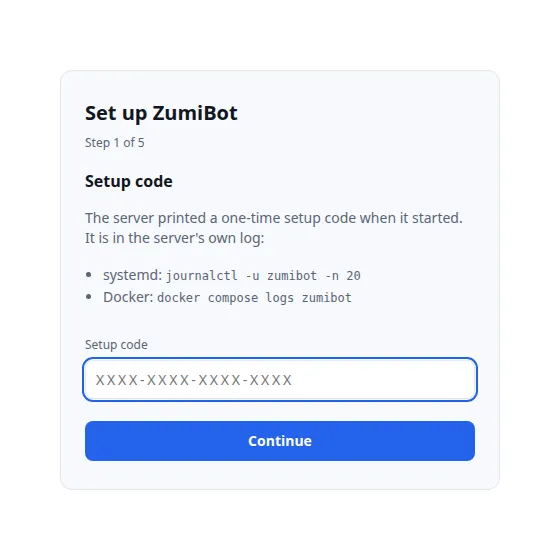
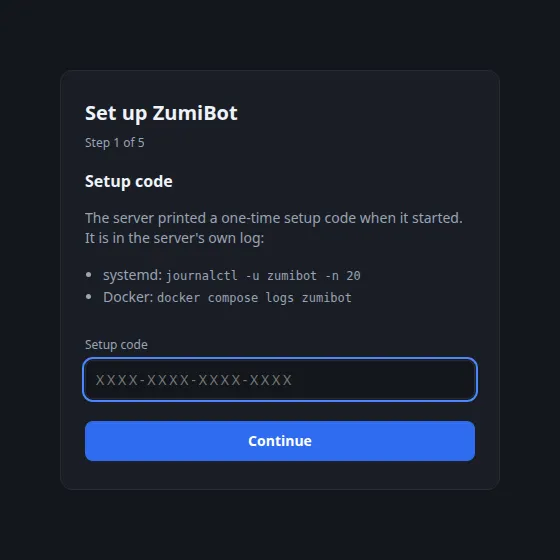
The page’s own hint is written for a system service, so it leaves out
--user. A server made by the installer runs as a user service, so use the--usercommand above. -
Choose a password. Type at least 16 characters in “Password”, repeat them in “Repeat password”, and choose Continue. This is the password you sign in with. A long phrase is easier to remember than a short, odd one.
-
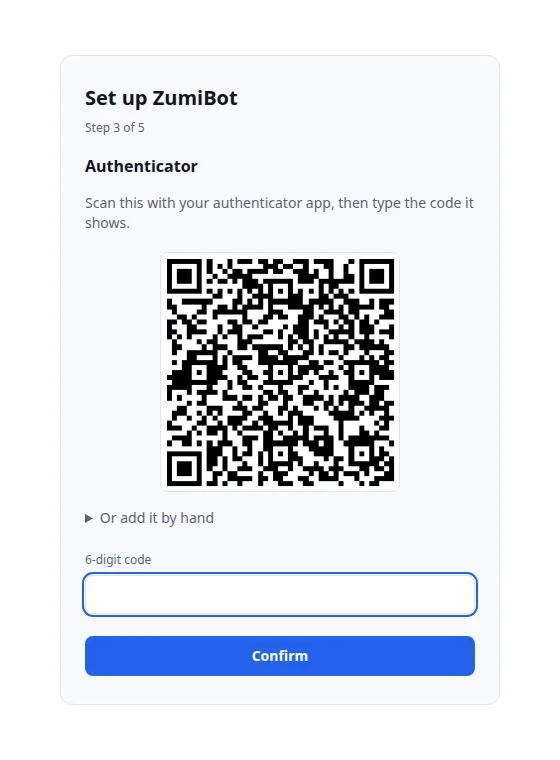
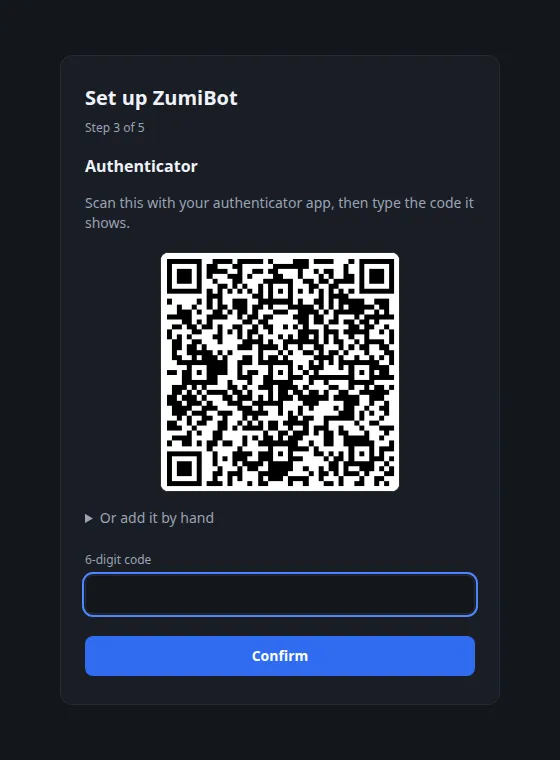
Add an authenticator. Scan the QR code with an authenticator app, such as the one on your phone. If you cannot scan, open “Or add it by hand” to see the secret and type it in. Then enter the 6-digit code the app shows in “6-digit code” and choose Confirm.
-
Save your recovery codes. The page shows ten recovery codes, once. Each works one time, and each replaces your authenticator code if you lose your phone. Save them somewhere safe, such as a password manager. Choose Copy to clipboard if that helps. Tick “I have saved these codes”, then choose Continue.
-
Check Claude Code. The last step checks that the
claudecommand is there. A good result reads “Found and signed in as” and your account. If it says the command was not found, or that no login was found, run the commands the page shows as the user it names, then choose Check again. This step never blocks you. Choose Finish.
The page says “Setup is done. Starting ZumiBot…” and takes you to the sign-in page. Sign in with your password and a 6-digit code from your authenticator.
Signing in later
Section titled “Signing in later”The sign-in page asks for your password and a 6-digit code. If you lost your phone, choose “Use a recovery code” and enter one of your recovery codes instead. Each recovery code works once.
You stay signed in on that browser for 30 days. Repeated wrong guesses are slowed down, and then locked for a while.
Tips and limits
Section titled “Tips and limits”-
The setup code exists only in the running server’s memory. If the server restarts before you finish, it prints a new code and the old one stops working. Reloading the page also asks for the code again.
-
There is no way to skip the authenticator, and nothing works without the setup code. ZumiBot does this on purpose, because the server is reachable from the internet.
-
Setup cannot replace a password or authenticator that already exists, so a leaked code cannot take over a finished server.
-
If you mistype the password and notice only afterwards, set it again from a terminal on the server:
Terminal window ~/zumibot/bin/zumibot-server set-password -
Recovery codes are shown only once. If you did not save them, make a new set from the server:
Terminal window ~/zumibot/bin/zumibot-server setup-2fa
Related
Section titled “Related”- Install on a server
- What you need
- Your first chat
- Admin commands: reset a lost password or authenticator.
- Troubleshooting