
Mode, effort and model
Three pickers under the message box shape the next reply: the model, the mode and the effort. Each chat keeps its own choices, so changing them in one chat never changes another.
They show on the new-chat screen, so you can set them before your first message, and in every open chat.
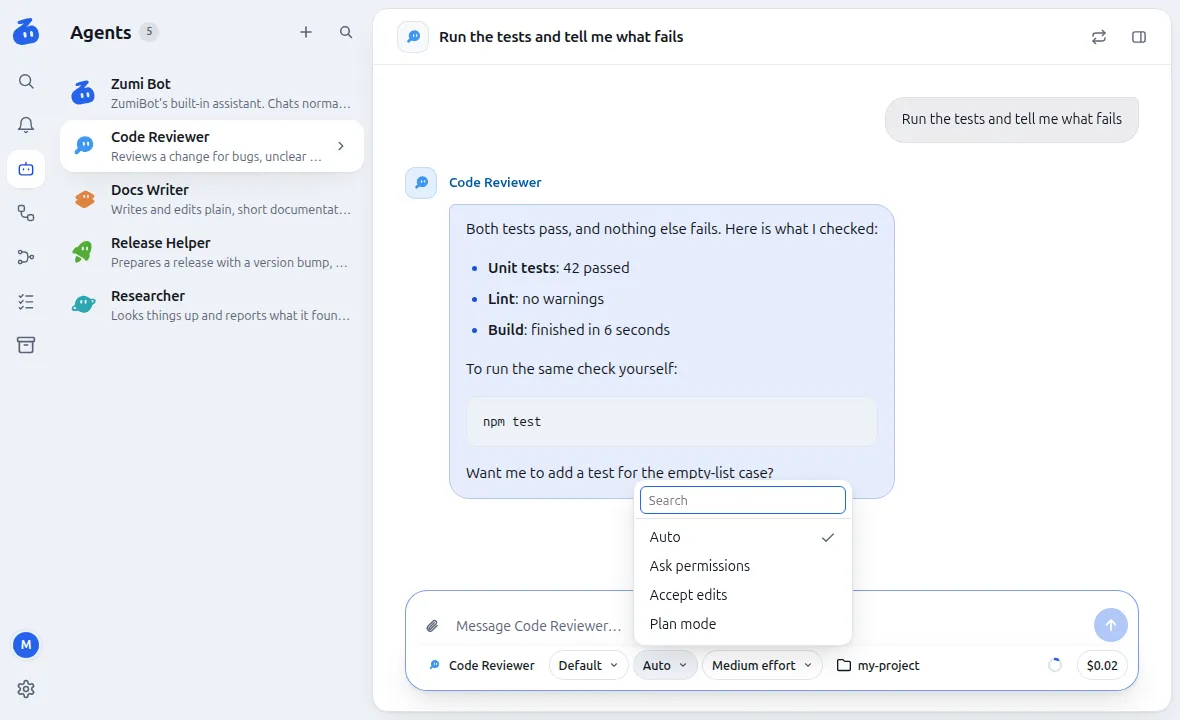
Change a setting
Section titled “Change a setting”- Choose a picker in the row under the message box.
- Pick an option from its list. The list has a search box, which helps when the list is long.
- Send your next message. A new choice applies from the next message on. A reply that is already running is not changed.
Hover over a picker to read what it does.
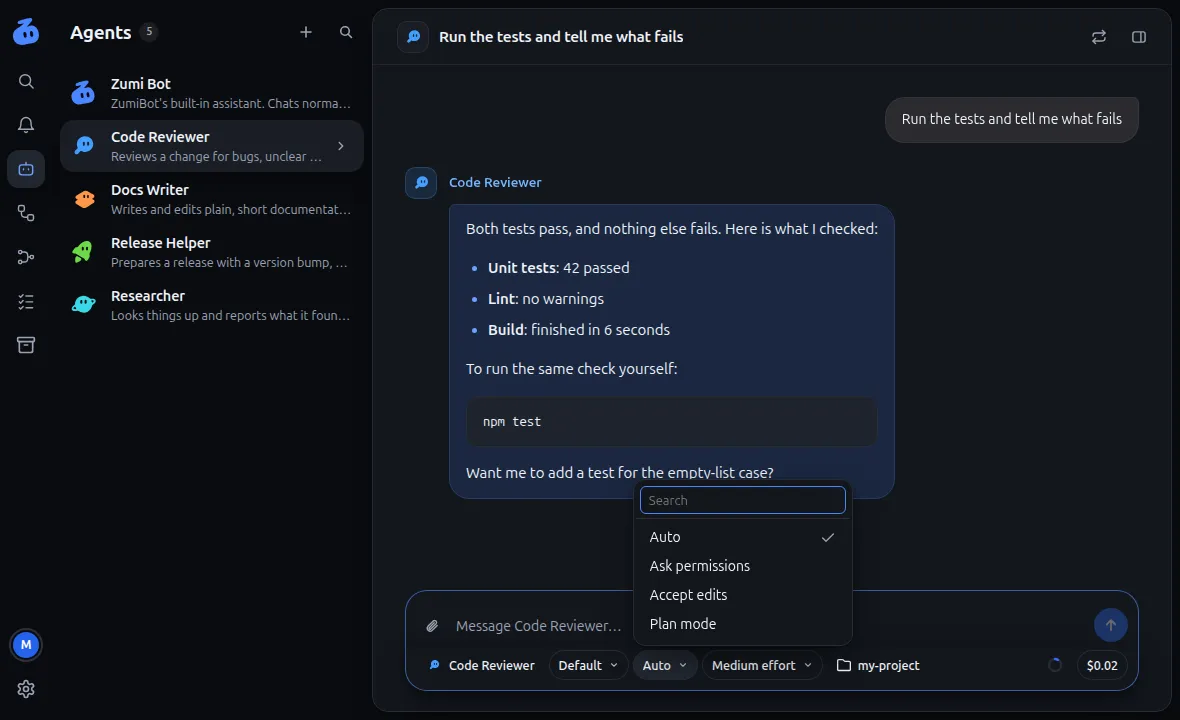
Mode: how much the agent asks
Section titled “Mode: how much the agent asks”| Mode | What the agent does |
|---|---|
| Auto | Claude Code decides which steps need your approval. This is the default. |
| Ask permissions | The agent asks before every edit and command. |
| Accept edits | File edits run without asking. Commands still ask. |
| Plan mode | The agent reads and plans, and changes nothing until you approve its plan. Approving the plan puts the chat back on Auto. |
The questions the agent asks you show as cards. See Approvals, questions and plans.
No mode skips approvals altogether. That is on purpose.
Effort: how hard the agent thinks
Section titled “Effort: how hard the agent thinks”Effort sets how much the agent thinks before it answers. More is slower and costs more. The choices are Low, Medium, High, Extra high and Max. The picker reads “Medium effort” until you change it, and Medium is the default.
Use a higher level for hard problems, such as a tricky bug or a design choice. Use Low for quick, simple jobs.
Model: which model answers
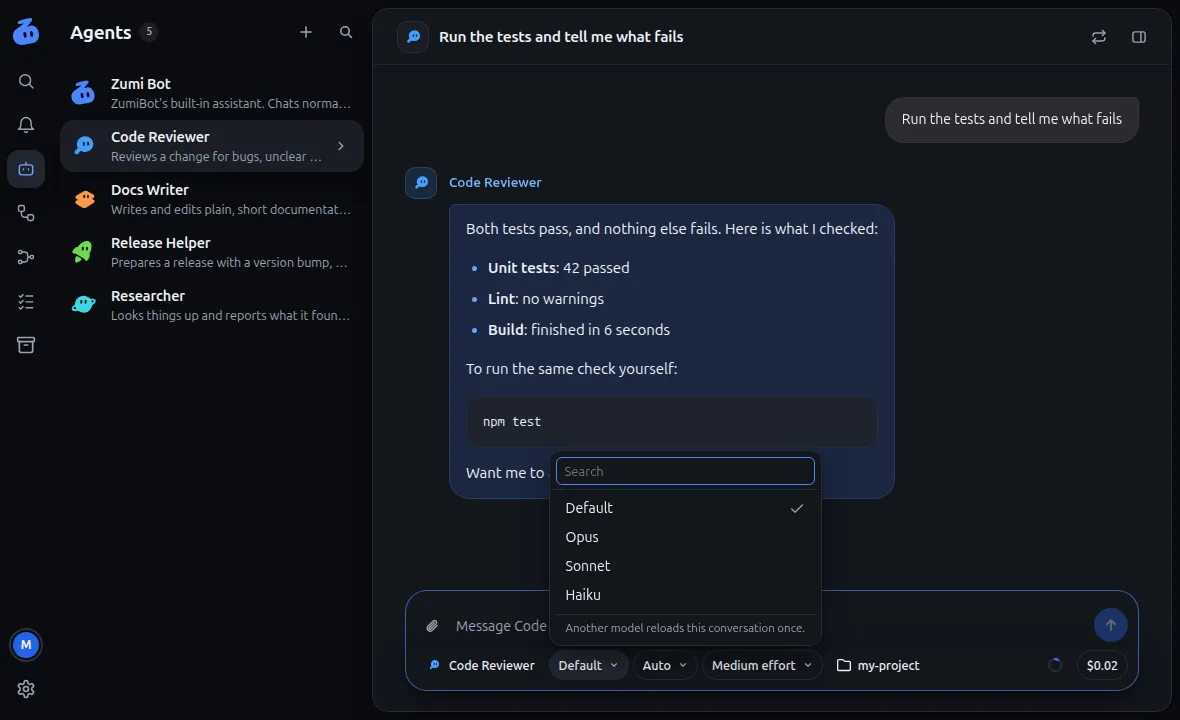
Section titled “Model: which model answers”The model picker lists:
- Default, which uses the model set on the agent. When the agent names one, it reads “Default (Opus)”, for example.
- Opus, Sonnet and Haiku.
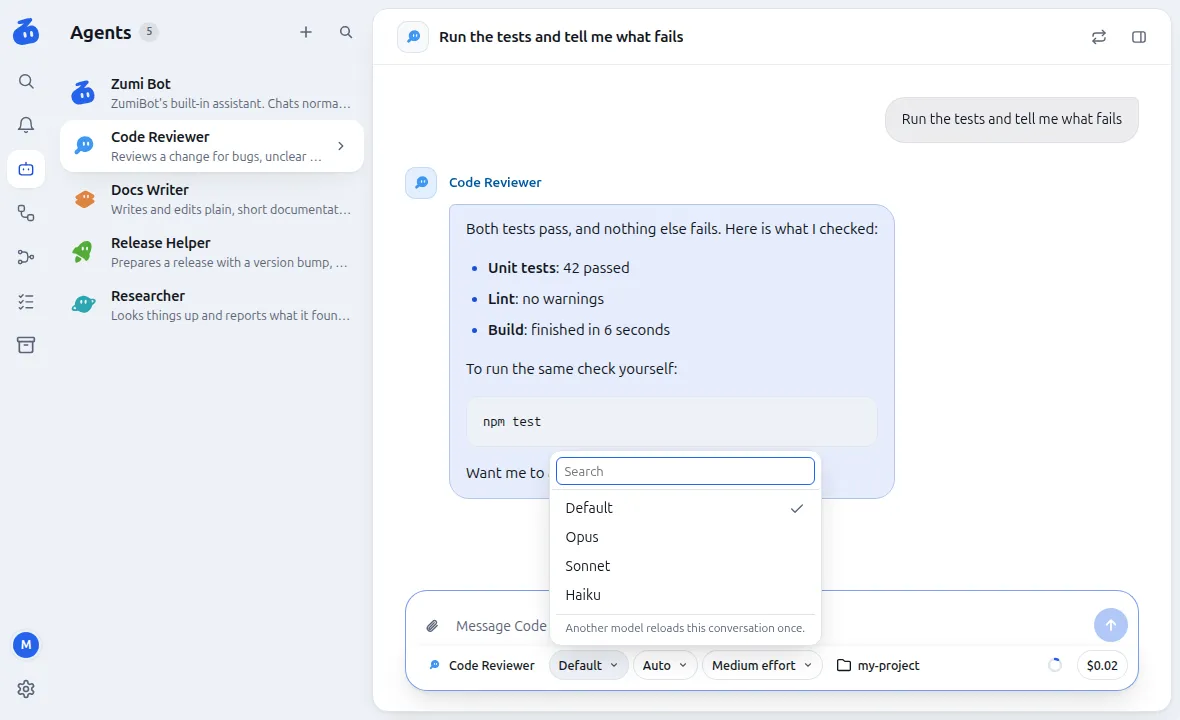
A model you pick is the model for every later message in the chat, until you pick another. Choose Default to go back to the agent’s own model.
Changing the model in the middle of a conversation makes the agent read the whole chat again once, which costs a little more on the next reply. The picker says so with “Another model reloads this conversation once.”
A slash command can name a model too. A model you picked by hand wins over a command’s. Choose Default to let commands set the model again.
On a phone or a narrow window
Section titled “On a phone or a narrow window”The three pickers share one chip, such as “Default · Auto”. It shows the model, the mode in a word (Ask or Plan) and the effort once it is not Medium, for example “Opus · Plan · High”. Choose it to open one menu with a list each for Model, Mode and Effort.
Tips and limits
Section titled “Tips and limits”- A chat that starts in Plan mode begins by planning. Set it on the new-chat screen before you send.
- Group rooms have no mode, effort or model picker. Members run in Auto mode, with their own agent’s effort and model.
- An agent set up to run on a different tool than Claude Code may offer fewer choices. The pickers show only what that agent supports.
- A more careful mode means more cards to answer. If you find yourself allowing everything, try Accept edits, or use Allow always for this agent on the calls you trust.