
Inbox
The Inbox collects what needs your answer, from every chat, room, workflow and task card, in one list. It also holds the messages your workflows send you, so you can read them later.
Use the Inbox
Section titled “Use the Inbox”-
Open Inbox in the left bar. A number on its icon counts what waits on you. A dot instead means there are new messages and nothing waits.
-
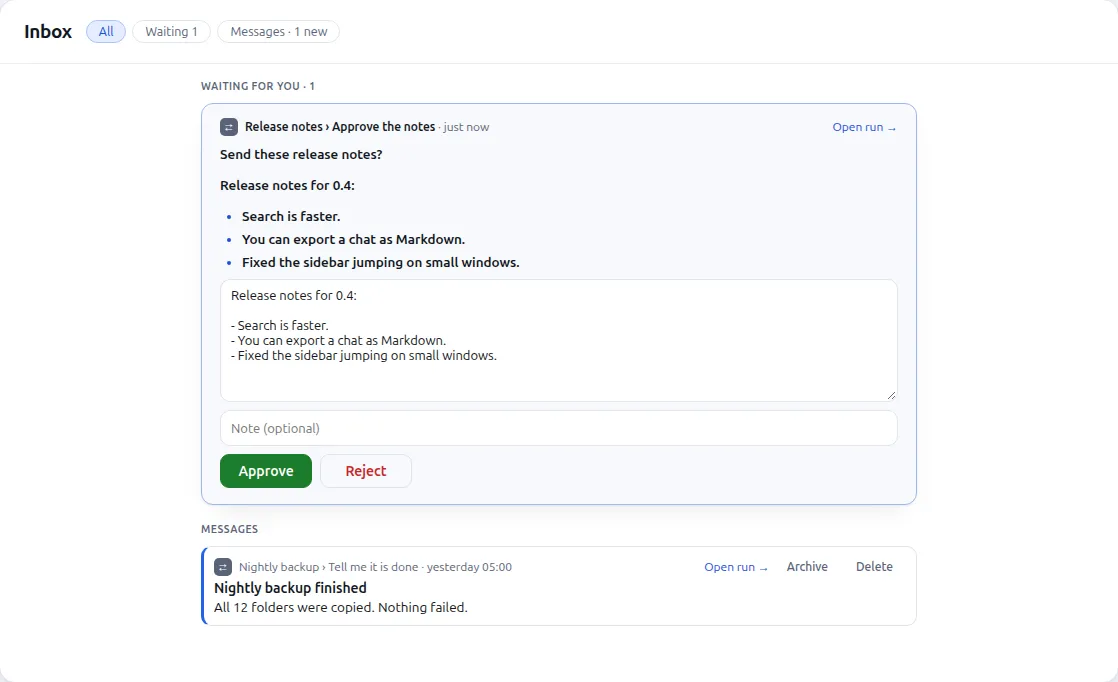
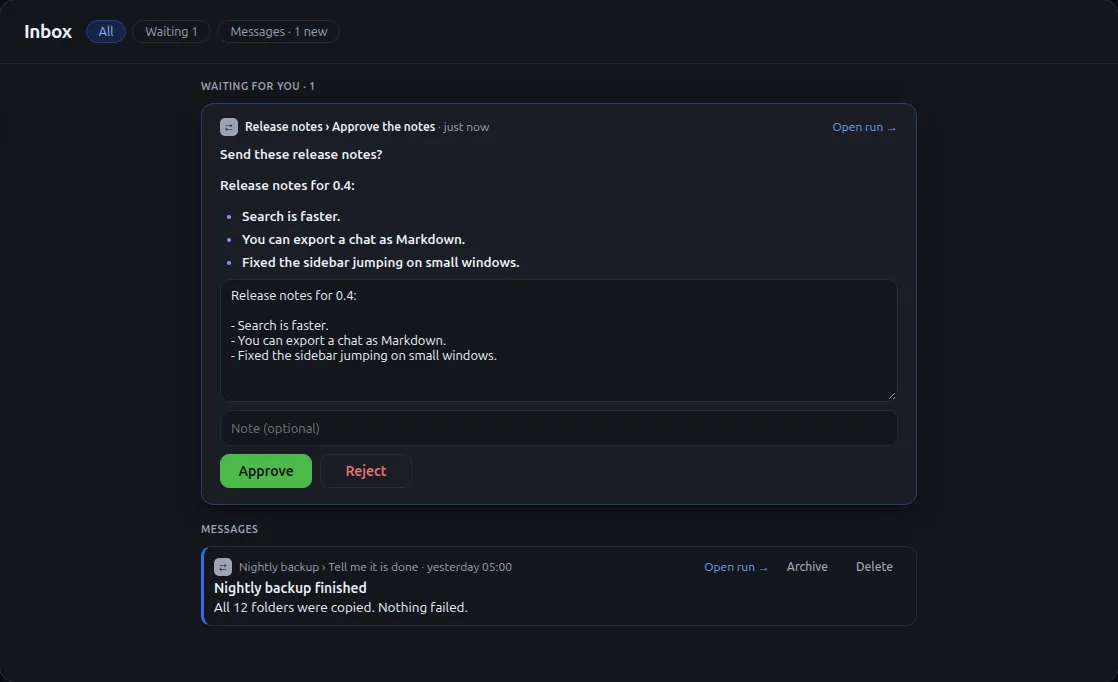
Choose what to see. The chips at the top are All, Waiting with a count, and Messages with the number of new ones. Each shows or hides its section. Nothing is lost by switching.
-
Answer a waiting card. Each card is the same card you would see in the chat or the run, so you answer it here. Choose Allow once, pick an option, type your answer, or press Approve or Reject, whichever the card offers. The card turns into a short “answered” line for a few seconds, then leaves. If the send fails, the card comes back with the reason.
-
Read a message. Messages come from the Notify steps of your workflows. The newest is first. A long text is cut to a preview, and Show all opens it. The text is shown as Markdown, so links work.
-
Tidy up. On a message, choose Open run → to see the run that sent it, Archive to fold it away, or Delete. Deleted messages show an Undo for six seconds. Archived ones are under Show archived (N), where each has Unarchive and Delete.
What waits for you
Section titled “What waits for you”The Waiting for you section lists, oldest first:
- Tool approvals, questions and plans from any chat or room. These are the cards from Approvals, questions and plans. When an agent that another agent asked needs an approval, its card reads, for example, “@docs-writer, asked by @code-reviewer in Fix the checkout”.
- Approval steps of workflow runs that wait on you.
- Task cards whose agent has a question for you. These show the questions, an answer box for each and Send answer.
- Take-over requests from an agent working in a browser or on a desktop, with I’m done and Cancel.
- Suggestions from Agent Coach, each a rule it proposes from the times you corrected an agent, with Apply and Dismiss. Recently applied ones are listed under the cards, each with Undo. See Agent Coach.
Each card says who asks and where, such as “@code-reviewer in Fix the checkout”, or “Release notes › Approve the notes” for a workflow, and how long it has waited. Open chat →, Open run → or Open to-do → takes you to the place it came from.
The list only holds what waits right now. Answer a card anywhere else, and it simply leaves the Inbox. The count on the left bar is the number of cards in this list.
What the messages are
Section titled “What the messages are”A message is what a Notify step sent: a title, an optional body, the workflow’s and step’s names, and the time. The same step also sends a notification to your devices. A notification only shows the title and the start of the body, and the Inbox keeps the whole text. Choosing the notification opens the Inbox at that message and lights it up for a moment.
New messages have a blue edge and count in Messages · N new. A message counts as seen once you have looked at the Messages section, on any of your devices, so reading it on your phone clears the dot on your computer too.
An empty section says “Nothing is waiting for you.” or “No messages. A workflow’s Notify step puts its message here.”
Tips and limits
Section titled “Tips and limits”- Opening the Inbox is not reading a chat. A chat stays unread, and its notifications behave as before, until you open it.
- 500 messages. ZumiBot keeps the newest 500, archived ones included.
- Deleted is deleted. Once the six seconds are over, a message cannot be brought back.
- Messages and waiting cards are different. A card goes away when it is answered. A message stays until you archive or delete it.
- Workflows can react to messages. A workflow can start when a message arrives. See Workflow triggers.